This article explains how to add Google Analytics, Google Tag Manager, a Meta Pixel and other tracking to a website built on the Refari Site Builder, how Refari checks Tag Manager and pasted code before it goes live, what to ask your ads or marketing agency for, and how to choose the way your cookie bar treats visitors.
A few terms you will see: a tracking tool is a service such as Google Analytics that records how people use your website. Each tool gives your account an ID, a short code such as G-XXXXXXXXXX, and that ID is all your website needs. A Tag Manager container is a box, set up in Google Tag Manager, that can load other tracking (Google Ads conversions, LinkedIn, Meta and more) without changing your website each time. The cookie bar is the strip at the bottom of your website that asks visitors whether tracking may run.
Note: Only Owners of your website can see or change its tracking, and someone from an outside company (such as your ads agency) can never be made an Owner. If your website still runs on WordPress, this article does not apply yet: see Adding Google Tag Manager Script to Your Refari Website instead.What you can add
Every tool goes on every page of your website. You only ever paste its ID: Refari adds the code for you, the right way.
| Tool | What it needs | Looks like | When it goes live |
|---|---|---|---|
| Google Analytics 4 | Measurement ID | G-XXXXXXXXXX | Within a couple of minutes |
| Google Tag Manager | Container ID | GTM-XXXXXXX | Once Refari has checked it (within one business day) |
| Meta Pixel | Pixel ID | A long number, such as 123456789012345 | Within a couple of minutes |
| LinkedIn Insight Tag | Partner ID | A short number, such as 1234567 | Within a couple of minutes |
| Microsoft Clarity | Project ID | Letters and numbers, such as abc123xyz0 | Within a couple of minutes |
| Any other code | The code the other company gave you | A snippet starting <script> | Once Refari has checked it (within one business day) |
If your website moved to the Refari Site Builder from an older site, any Google Analytics it already had was carried over. The Code & tracking screen says so in a blue box near the top, and adding the same ID again does nothing extra.
Getting the ID
The ID always comes from your own account with Google, Meta, LinkedIn or Microsoft, never from Refari, so there is no code for us to send you. Where to find it:
- Google Analytics 4: in Google Analytics, open "Admin > Data streams", choose your website's stream and copy the Measurement ID.
- Google Tag Manager: the Container ID is shown at the top of your Tag Manager workspace, next to the container's name.
- Meta Pixel: in Meta Events Manager, the ID is shown under your pixel's name.
- LinkedIn Insight Tag: in LinkedIn Campaign Manager, the Partner ID is shown on the Insight Tag page.
- Microsoft Clarity: the Project ID is in your Clarity project's settings.
Idea: Working with an ads or marketing agency? Ask them to create the Tag Manager container (or pixel) and send you its ID. They don't need access to Your website: an Owner at your company adds the ID, and the agency then manages everything inside Tag Manager themselves. Ask AI can write that request for you to forward: try "Write a note for our ads agency about setting up Tag Manager".Option A: ask Ask AI to add it
The quickest way is to tell Ask AI. If you are new to it, How to edit your website with Ask AI ↗ explains how to start a conversation.
- Open Ask AI from the left-hand menu.
- Type what you want with the ID, for example "Add our Google Tag Manager container GTM-K7P2QXM" or "Add our Meta Pixel 481203957716204".
- Ask AI shows a card with the tool, its ID and when it goes live. Check the ID and press Add it.
You can also ask Ask AI what is already on your website, for example "What tracking does our website have?", or "How is my website doing this month?" for your visitor numbers.
Option B: use the Code & tracking screen
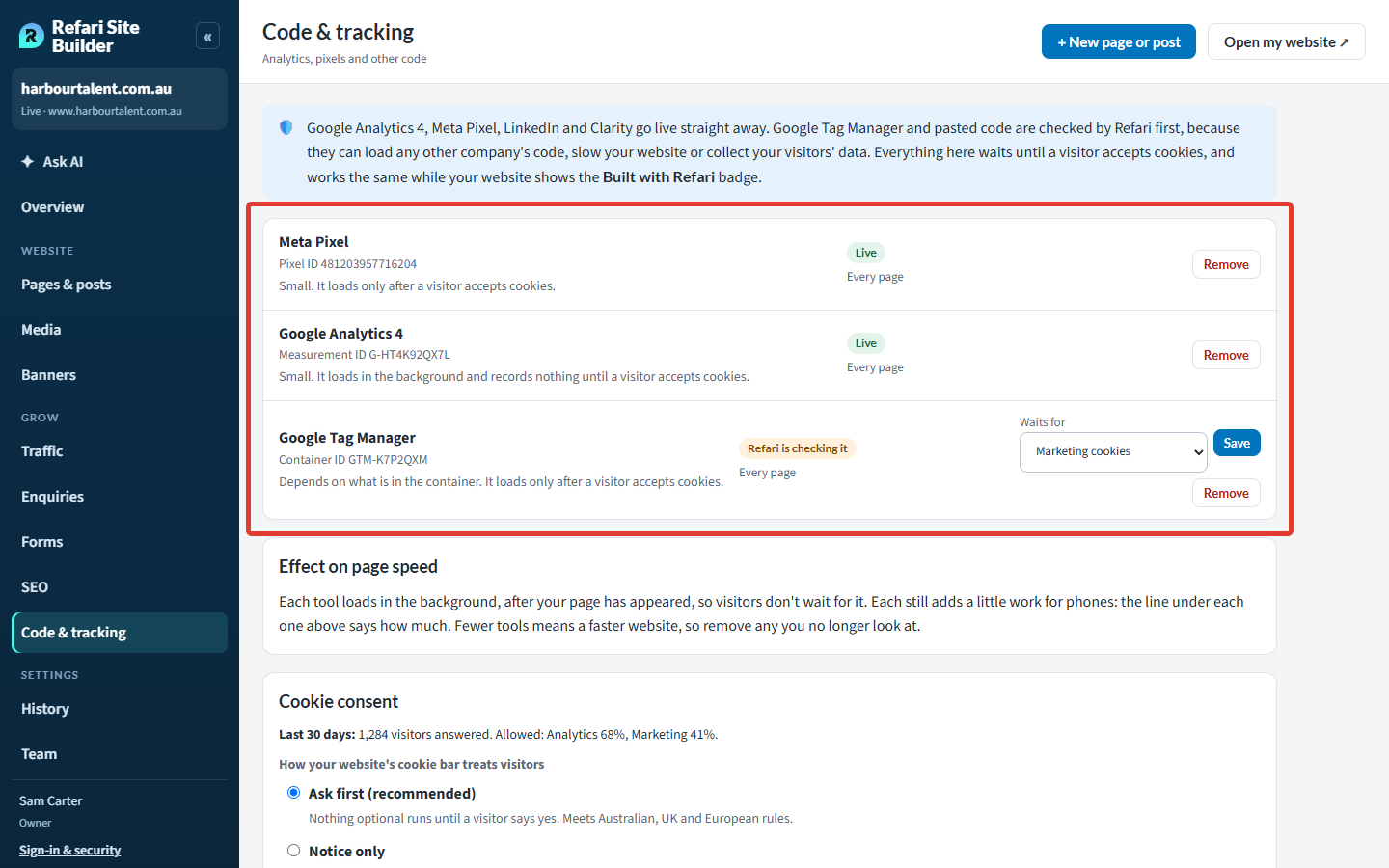
Open Grow > Code & tracking in the left-hand menu. The list shows each tool on your website, its ID, how much work it adds for phones, and where it stands:
- Live: on every page of your website.
- Being added: going live within a couple of minutes.
- Refari is checking it: a Tag Manager container or pasted code waiting for Refari's check.
- Not added: Refari did not add it, with a short note saying why.
Adding a tool by its ID
- Scroll down to Add tracking or code and make sure Pick a tool is selected.
- Choose the tool: Google Analytics 4, Google Tag Manager, Meta Pixel, LinkedIn Insight Tag or Microsoft Clarity.
- Paste just the ID into The tool's ID, for example GTM-K7P2QXM.
- Press Add it.
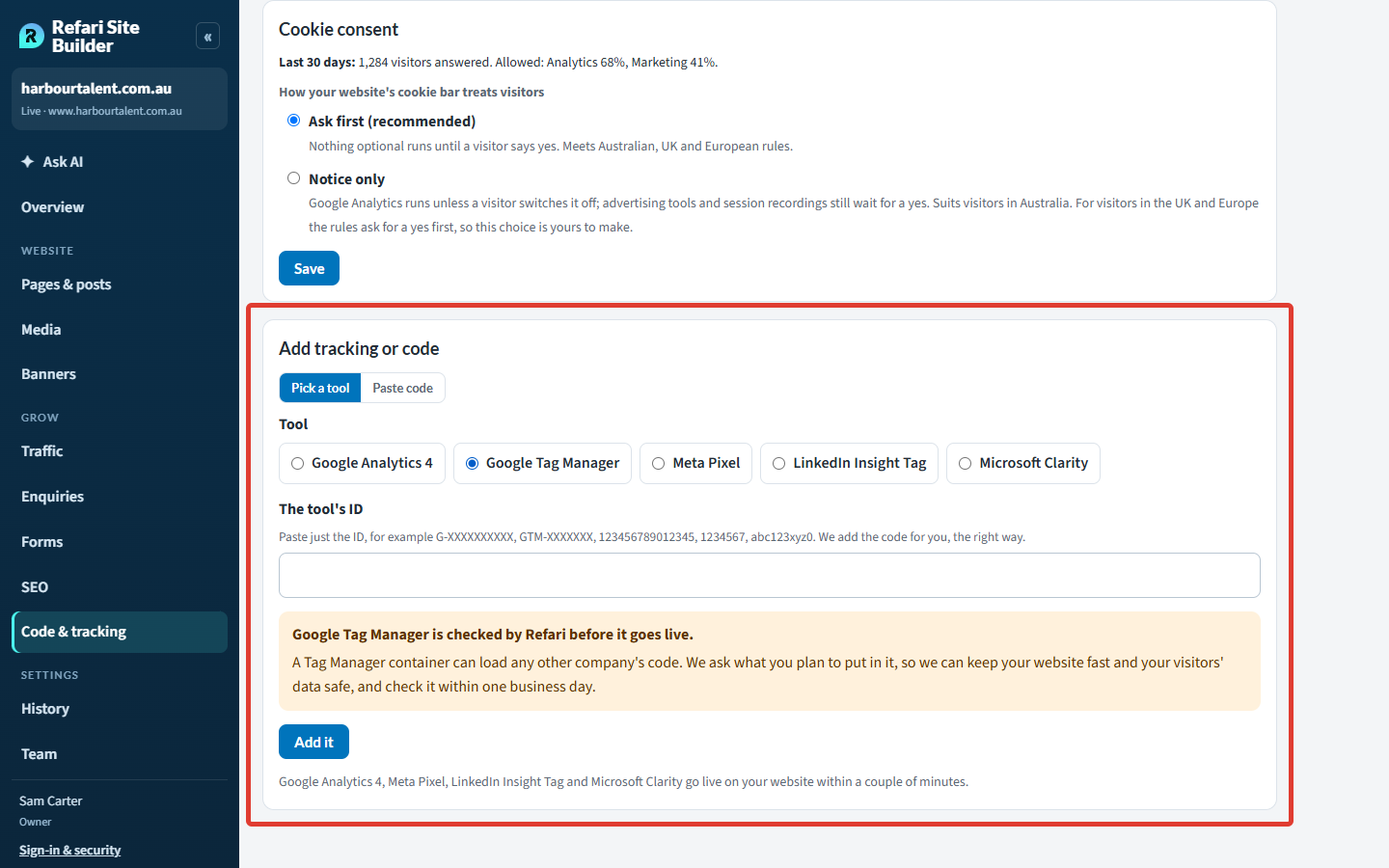
Done: Google Analytics 4, the Meta Pixel, the LinkedIn Insight Tag and Microsoft Clarity show as Live within a couple of minutes. Google Tag Manager shows Refari is checking it until our check is done.Adding other code
For a tool that isn't in the list (a chat widget or a survey tool, say), choose Paste code instead:
- Give it a Name you will recognise later, such as HubSpot chat.
- Paste exactly what the other company gave you into Code.
- Choose where it goes: Head of the page or End of the page. The other company's instructions usually say which.
- Tick I'm allowed to add this and it follows our privacy policy, then press Send for checking.
Why Refari checks Tag Manager and pasted code
A Tag Manager container or a pasted snippet can load any other company's code, which can slow your website down or collect your visitors' details. So before it goes live, someone at Refari checks it: for Tag Manager we ask what you plan to put in the container, and for pasted code we look at what it loads. We do this within one business day, and the tool then goes live by itself.
Once a Tag Manager container or pasted code is on your website, its Waits for setting chooses which cookies it needs a visitor to accept first: Marketing cookies (the default, right for advertising tags) or Analytics cookies (for a container that only measures visits).
Choosing how your cookie bar treats visitors
Every tool on your website waits for the cookie bar. Under Cookie consent on the same screen you choose how the bar works:
- Ask first (recommended): nothing optional runs until a visitor says yes. This meets Australian, UK and European rules.
- Notice only: Google Analytics runs unless a visitor switches it off, while advertising tools and session recordings still wait for a yes. This suits visitors in Australia. For visitors in the UK and Europe the rules ask for a yes first, so this choice is yours to make.
The panel also shows how many visitors answered your cookie bar in the last 30 days and what they allowed. Choose an option and press Save.
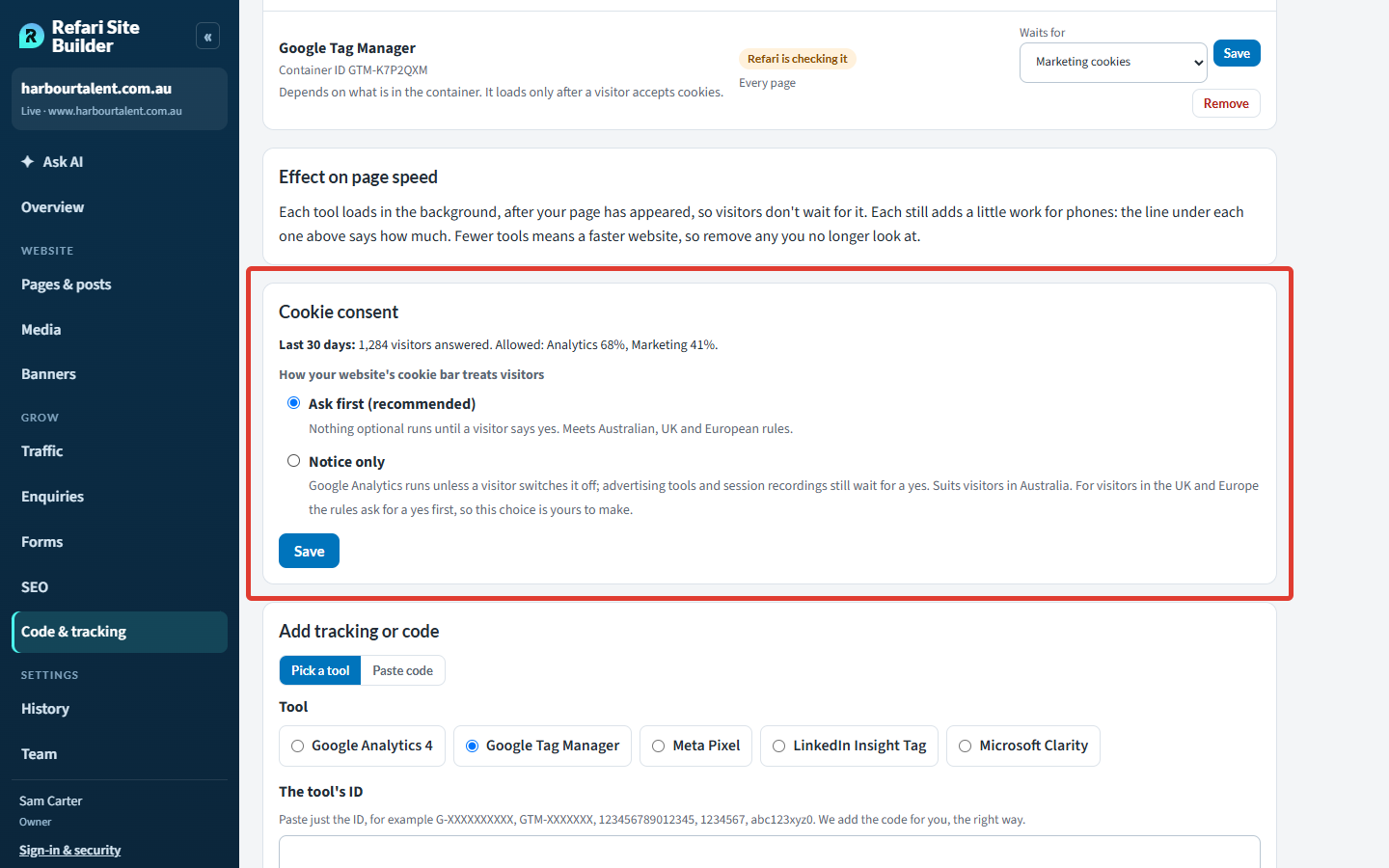
Note: Because tracking waits for the cookie bar, a visitor who says no is not counted. Expect your numbers to be lower than the true number of visits, especially with Ask first.Checking a tool is working
Open your website in a new browser window and accept the cookie bar first, otherwise nothing runs. Then:
- Google Analytics 4: open "Reports > Realtime" in Google Analytics. Your own visit should appear within a minute.
- Google Tag Manager: use Preview in Tag Manager and enter your website's address to see which tags fire.
- Meta Pixel: use Test events in Meta Events Manager.
Removing a tool
Press Remove beside the tool on the Code & tracking screen, or ask Ask AI to remove it. Each tool adds a little work for phones, so removing any you no longer look at keeps your website fast.
Final Notes
Add only the tools you actually use, keep the cookie bar on Ask first unless you have a reason not to, and let your agency manage tags inside Tag Manager rather than asking for more code on the website. If something isn't showing up after a business day, raise a ticket with us and include the tool's ID.
Other articles you might be interested in: How to edit your website with Ask AI
Was this article helpful?
That’s Great!
Thank you for your feedback
Sorry! We couldn't be helpful
Thank you for your feedback
Feedback sent
We appreciate your effort and will try to fix the article