This article explains who can use the backend of a website built on the Refari Site Builder, what each access level can do, and how to invite people, approve a Contributor's changes, give an outside agency limited access, remove someone and sign in.
A few terms you will see: Your website is the backend where your team manages your website, at sitebuilder.refari.ai/your-website. Everyone who can use it has an access level, which decides what they can change. An outside agency is anyone who doesn't work for your company, such as a marketing or ads agency, and they get a narrower kind of access.
Note: This article is for websites on the Refari Site Builder. If your website still runs on WordPress, see How to add new users to your website instead.The four access levels
- Owner: everything, including the team, code and tracking, and exporting enquiries. Your website always has at least one Owner.
- Editor: creates, edits and publishes pages, posts, media and banners, and reads enquiries (unless they are from an outside agency).
- Contributor: creates drafts, uploads media and can ask Ask AI for pages. An Editor or Owner approves anything before it goes live.
- Viewer: sees Your website and its results, but changes nothing.
What each level can do
In the table below: ✓ means yes, ✗ means no, and Asks means they can ask for it in Ask AI, and an Editor or Owner approves it.
| What they can do | Owner | Editor | Contributor | Viewer |
|---|---|---|---|---|
| See pages, media, banners, traffic, SEO and History | ✓ | ✓ | ✓ | ✓ |
| Ask Ask AI for new pages and changes, and upload media | ✓ | ✓ | ✓ | ✗ |
| Publish, schedule or take down pages, posts and banners | ✓ | ✓ | Asks | ✗ |
| Put a page or the website back to an earlier version | ✓ | ✓ | ✗ | ✗ |
| Add redirects and share private pages | ✓ | ✓ | Asks | ✗ |
| Read enquiries and change forms | ✓ | ✓ | ✗ | ✗ |
| Export enquiries | ✓ | ✗ | ✗ | ✗ |
| Code & tracking (Google Analytics, Tag Manager, pixels) | ✓ | ✗ | ✗ | ✗ |
| Invite people, change levels and remove people | ✓ | ✗ | ✗ | ✗ |
Someone from an outside agency never reads enquiries, changes forms, exports enquiries or sees Code & tracking, whatever their level, and can't be made an Owner. The rest of their level works as above.
Seeing who has access
Open Settings > Team in the left-hand menu. Each person is listed with their level, and an outside agency's people are marked outside agency. Anyone can look at this list; only an Owner can change it.
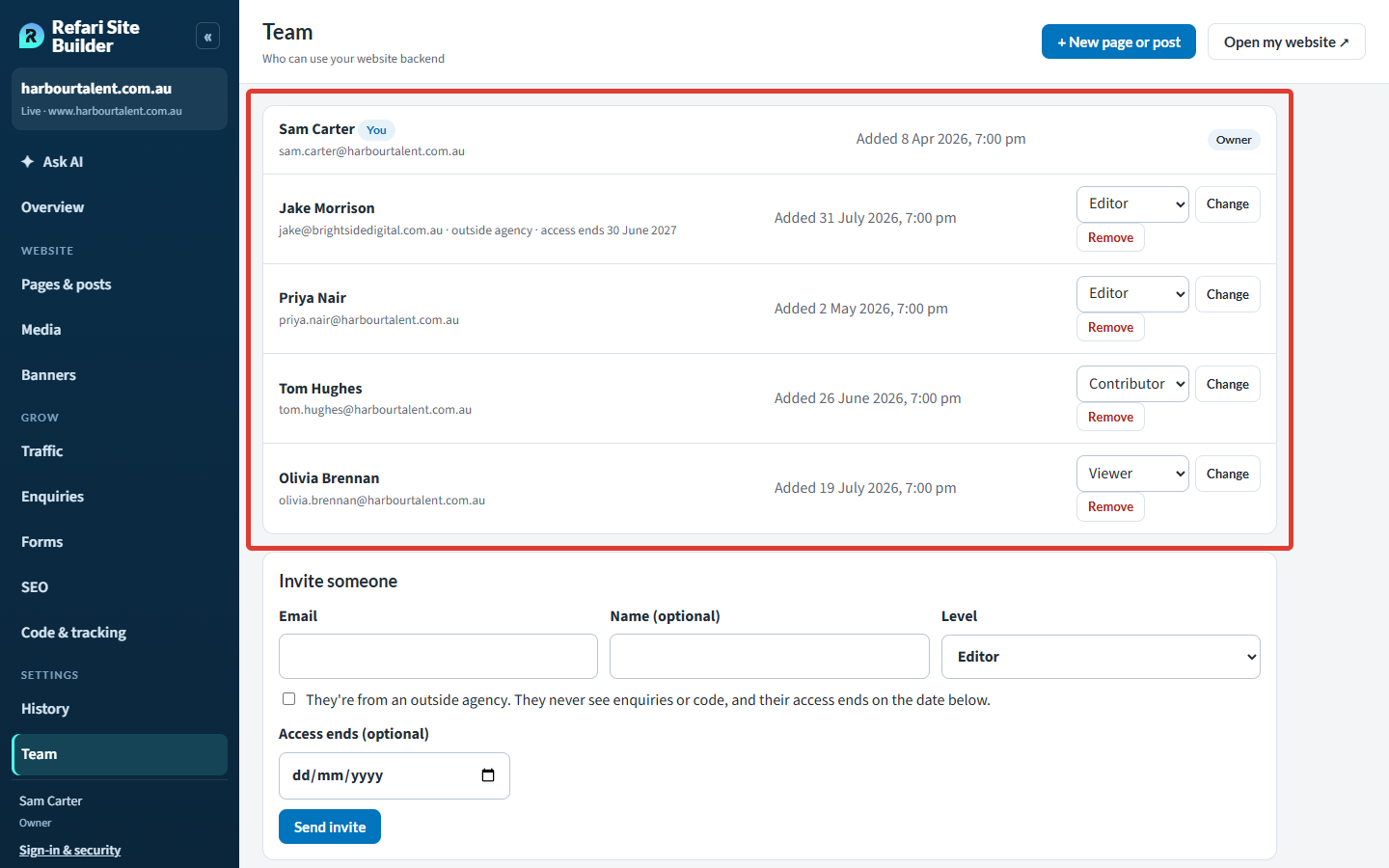
The list doesn't include Refari support. Our support team can open your website to help you, and everything they do shows in History as Refari support.
Inviting someone
Only an Owner can invite people. There are two ways to do it.
Option A: the Team screen
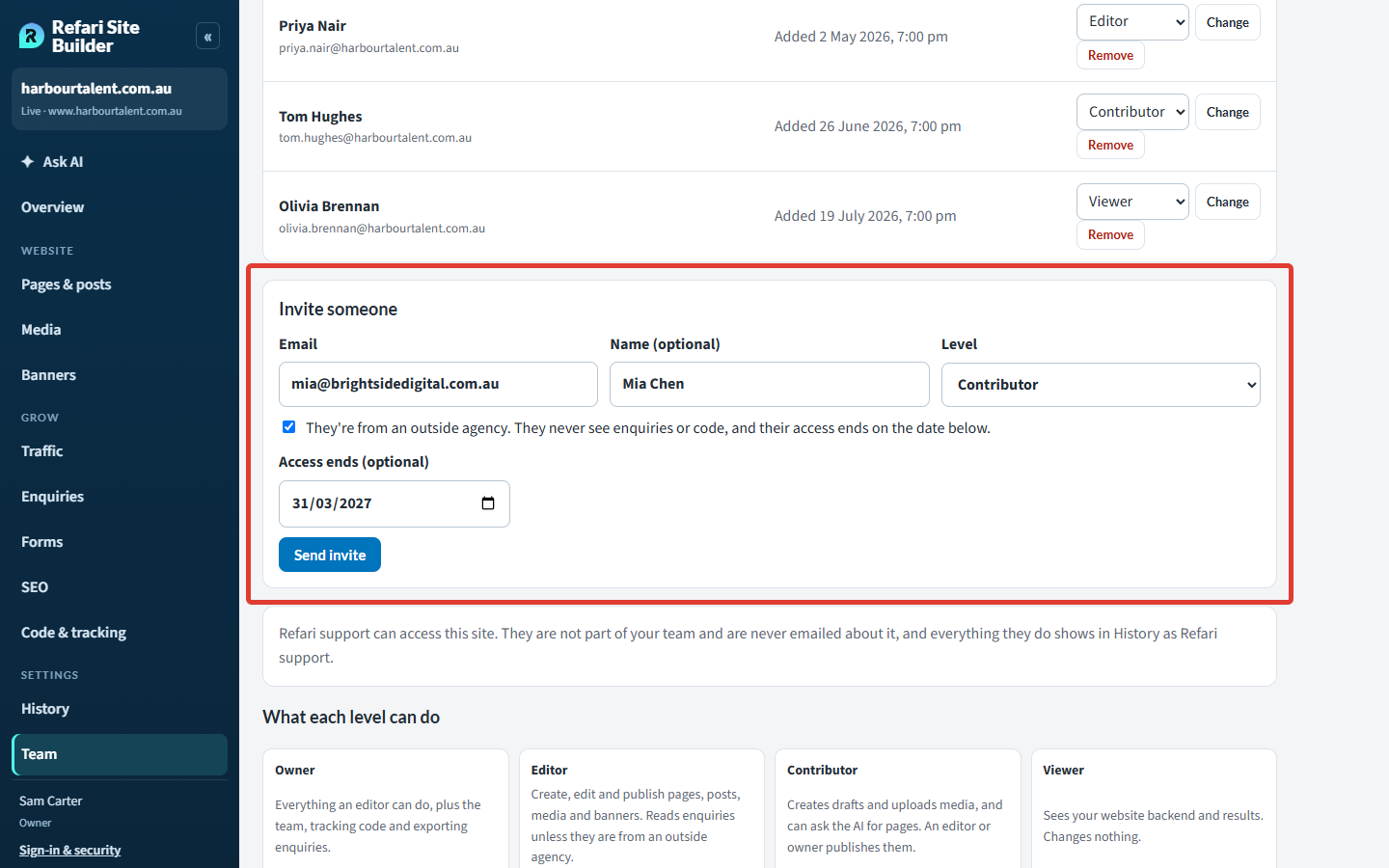
- Open Settings > Team and scroll to Invite someone.
- Type their Email and, if you like, their Name.
- Choose their Level.
- If they are from an outside agency, tick They're from an outside agency and choose the date their access ends (see below).
- Press Send invite.
Option B: ask Ask AI
Type something like "Invite priya.nair@harbourtalent.com.au as an editor". Ask AI shows an Invite someone card with who, their level and what it allows. Check it and press Send the invitation.
Either way, the person is emailed to say they have access to your website, with a Sign in to Your website button. They don't need a password: they sign in with their email address (see Signing in below).
Note: While the AI pages for your website are not yet switched on, no one new can be invited, and the Team screen says so. Raise a ticket with us if you need someone added sooner.Giving an outside agency access
When you tick They're from an outside agency, that person never sees Enquiries, Forms or Code & tracking, at any level, so your candidates' and clients' details stay inside your company. Give them the level the work needs (usually Editor or Contributor) and set Access ends to when the work finishes: their access stops by itself after that date.
Idea: If your agency needs Google Tag Manager or a Meta Pixel on your website, ask them to send you the ID. An Owner at your company adds it under Grow > Code & tracking, and the agency manages everything inside Tag Manager from then on.Approvals for Contributors
A Contributor can ask Ask AI for a new page, a banner or a change to a live page. When it is ready to go live, it waits for an Editor or Owner instead of being published:
- Editors and Owners get an email, and a number appears beside Ask AI in their menu.
- At the top of Ask AI, Waiting for you lists each request with who asked and when, and opens it.
- They press the card's own button to approve it, or Decline it with a reason if they like.
- The person who asked sees the answer in their conversation and gets an email. A request nobody answers leaves the list after 7 days.
Changing a level or removing someone
On Settings > Team, an Owner chooses a new level beside the person and presses Change, or presses Remove to end their access. You can also ask Ask AI, for example "Make Tom Hughes an editor" or "Remove Olivia Brennan", and press Change their level or End their access on the card.
- Removing someone ends their access straight away, and signs them out of any device they were signed in on.
- Nobody can change their own level or remove themselves, and your website always keeps at least one Owner.
- Every change to who has access is recorded in Settings > History.
Signing in
Go to sitebuilder.refari.ai/your-website and type your work email. Then either:
- Press Email me a sign-in link. We email you a button and a 6-digit code; either one signs you in, once, within 10 minutes.
- Or, if you have set a password, type it and press Sign in. On a device we don't remember yet, we still email you a code to confirm it's you.
Leave Remember this device for 30 days ticked on your own computer and you won't need a code each time. Untick it on a shared or borrowed computer: you are then signed out when the browser closes. We email you whenever your account is used to sign in on a new device.
Sign-in & security
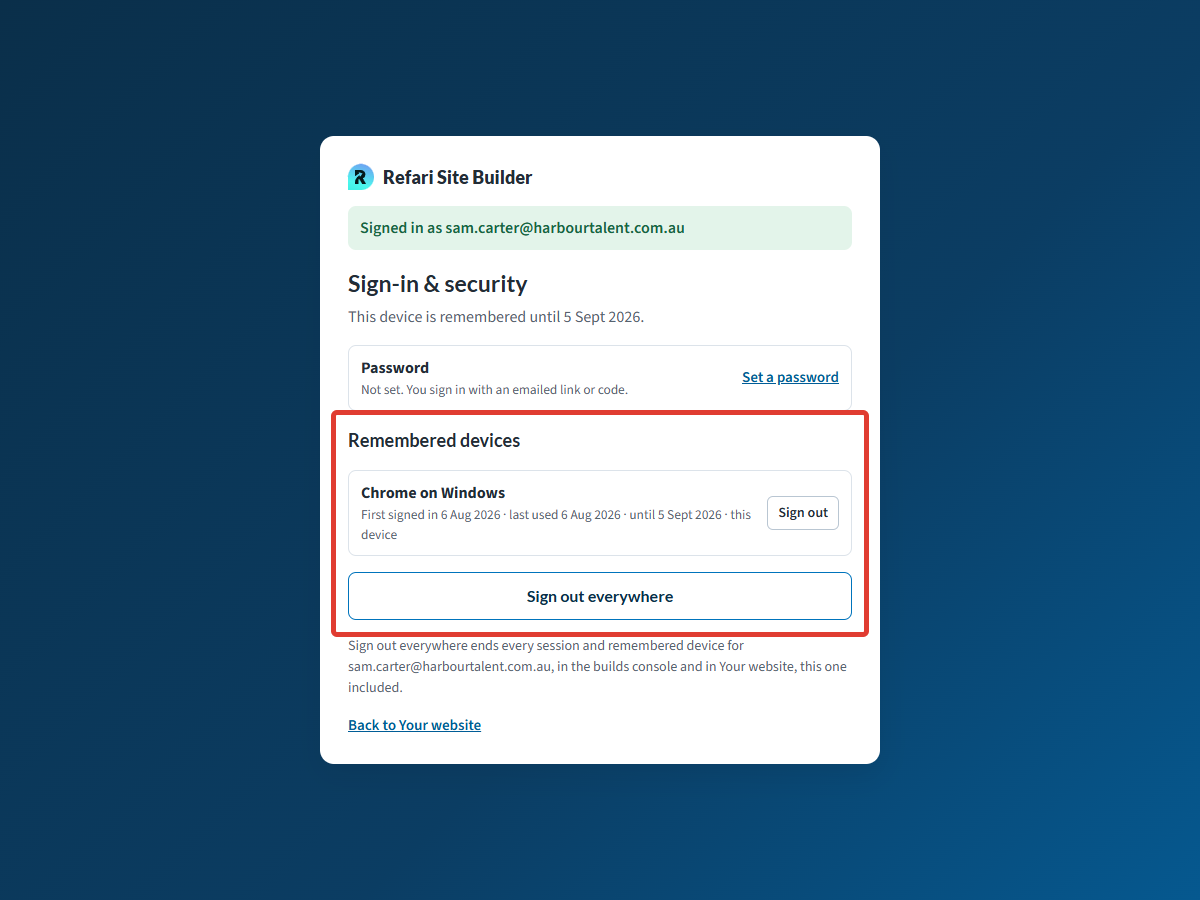
Click Sign-in & security under your name at the foot of the menu to set or change a password, see your Remembered devices and sign any of them out. Sign out everywhere ends every session and remembered device for your email address, this one included.
Note: After five wrong passwords in 15 minutes, signing in with a password is paused for an hour. Email me a sign-in link still works, and Forgot password? lets you choose a new one.Final Notes
Give each person the lowest level their work needs, use outside agency with an end date for anyone outside your company, and remove people when they leave. Because everyone signs in as themselves, History always shows exactly who changed what.
Other articles you might be interested in: How to edit your website with Ask AI
Was this article helpful?
That’s Great!
Thank you for your feedback
Sorry! We couldn't be helpful
Thank you for your feedback
Feedback sent
We appreciate your effort and will try to fix the article