This article explains what a direct referral is, why it is worth logging, and the two ways to log one in JobAdder. The quickest way is the Refari partner action built into JobAdder, and there is also a manual method using the candidate's fields.
What is a direct referral?
A direct referral is a candidate who has been referred to you directly, by phone, email or in person, rather than through your Refari job board. Logging it in JobAdder pulls the referral, and the referrer, into Refari so it is tracked just like a referral made through your board.
Why log a direct referral?
- Refari emails the referrer to confirm you have logged their referral, which shows them you take your referral process seriously.
- The referrer is then kept informed as you move the candidate through your process, which keeps them engaged and encourages more referrals, even when a particular one does not work out.
The easy way: the Refari partner action
Refari is built into JobAdder as a partner action, so you can log a referral straight from a candidate without setting up or filling in custom fields. It opens the same direct-referral form you would use inside Refari, right there in JobAdder.
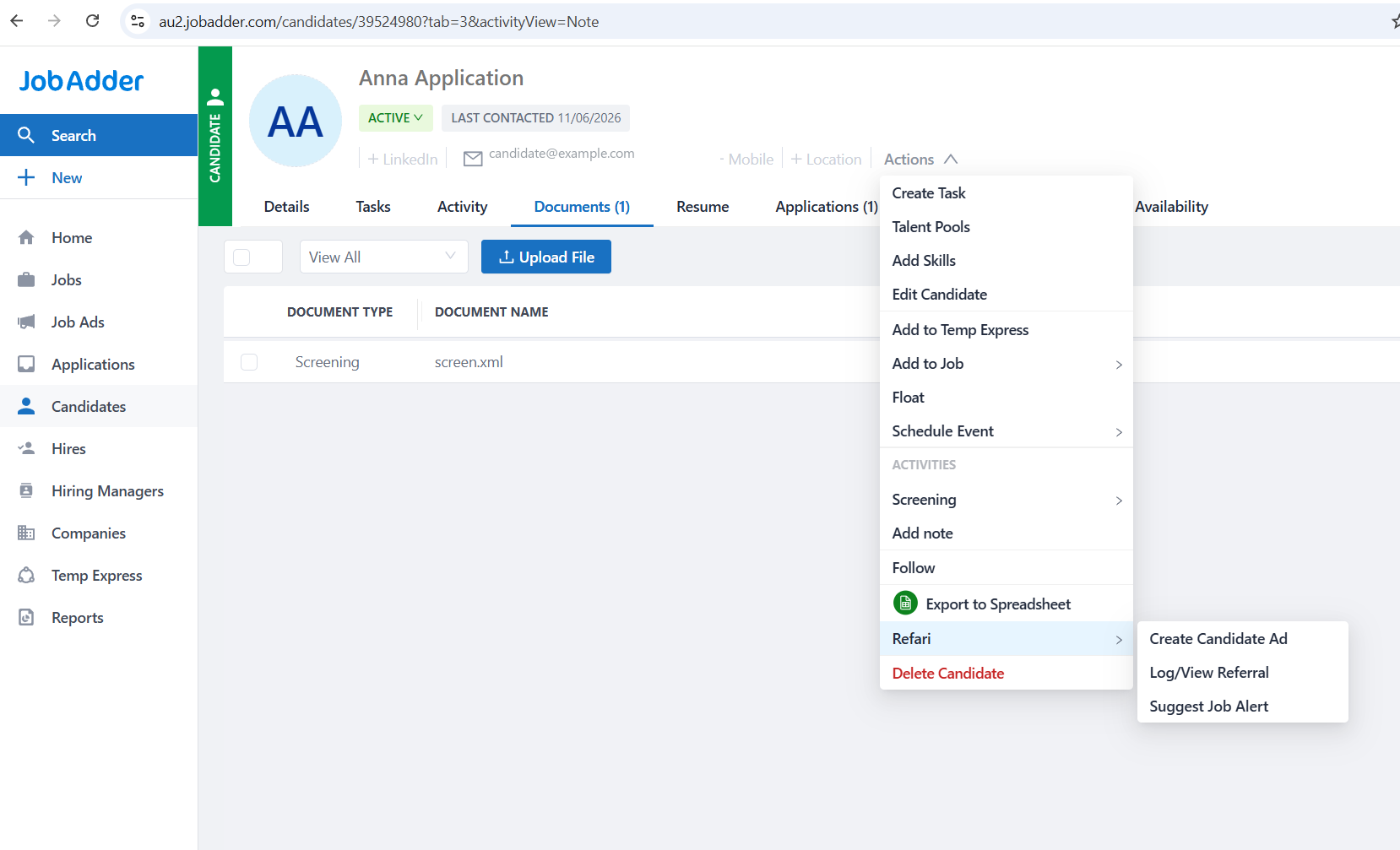
In JobAdder, open the candidate you want to log the referral against, click Actions, then Refari, then Log/View Referral.
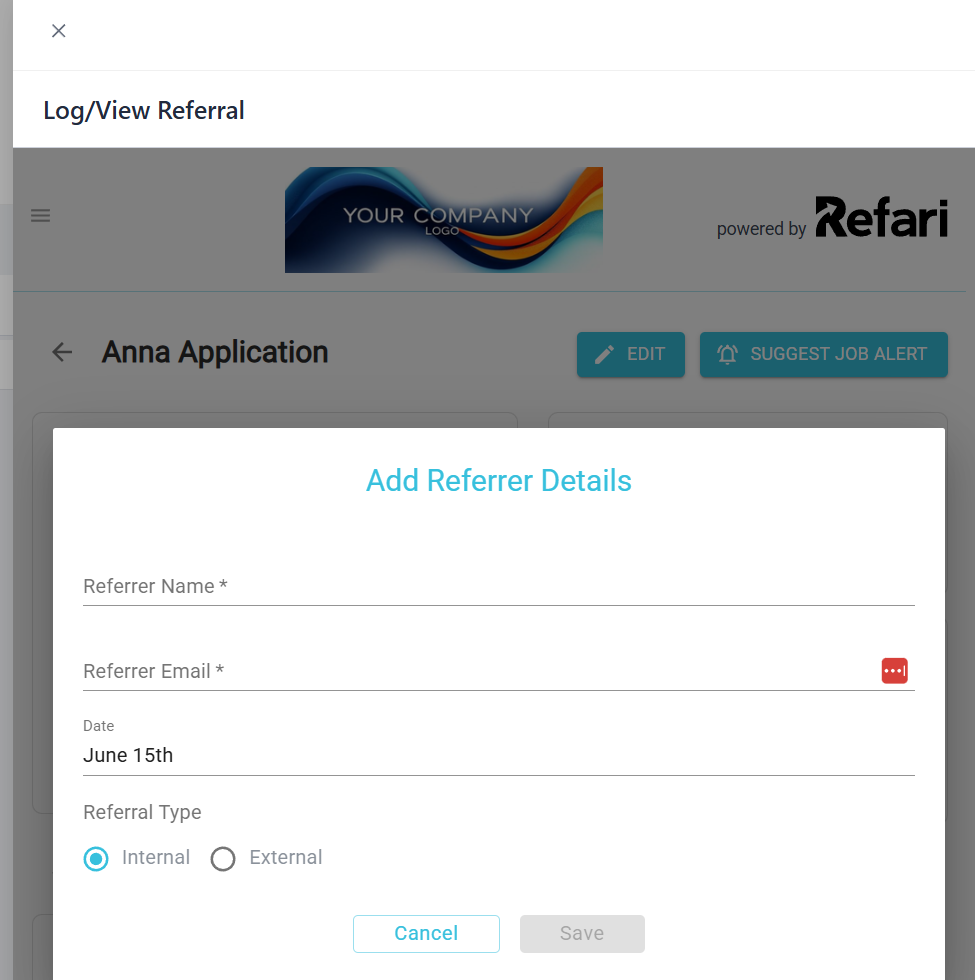
The Add Referrer Details form opens. Enter the referrer's name, email and the referral date, choose the Referral Type (Internal or External), then click Save. The referral flows straight into Refari.
Idea: Because it is a guided form rather than free-text fields, there is nothing to set up and nothing to mistype. If you run more than one Refari brand from a single JobAdder account, the form lets you pick the right brand, so the referral is always attributed correctly.Alternative: add the referrer details to the candidate
If you prefer, you can log a referral by adding the referrer's details directly to the candidate's fields in JobAdder. This walkthrough shows how.
Step 1: Create the candidate in JobAdder
If the candidate is not already in JobAdder, hover over Candidates and click New Candidate.


Enter the candidate's email, first name and last name. You can also add any other details you have, such as current position, current employer and postcode. Click Create.

Step 2: Open the candidate and edit them
Hover over Candidates and click Candidates, then click the candidate you just added.


Click Actions, then Edit Candidate.

Step 3: Add the referrer fields
Add the following fields, then click Save Changes. The referral is then pulled automatically into Refari.
- Referrer Name (a free-text field).
- Referrer Email (formatted to accept emails).
- Referral Date (formatted to accept dates).
- Referred to, a dropdown of your brands. Only needed if you run more than one Refari brand from a single JobAdder account.

Note: If you run multiple brands from one JobAdder account, the "Referred to" value must match your brand exactly. This is the one place a manual entry can go wrong, which is why the partner action above is the safer option.Pro tip: You can use the referral date to attribute older referrals from before you used Refari to the right referrer.Final Notes
However you log it, the referral and its referrer appear in Refari and the referrer is kept in the loop as the candidate progresses. The partner action is the quickest and safest method, so reach for it first.
Other articles you might be interested in: Candidate referrals on Refari: a complete guide for recruitment agencies | Referral transparency: the updates your referrers receive
Was this article helpful?
That’s Great!
Thank you for your feedback
Sorry! We couldn't be helpful
Thank you for your feedback
Feedback sent
We appreciate your effort and will try to fix the article