This guide walks you through changing the membership level (the role) of an existing user in your Refari account. Membership levels control what each user can see and do across the dashboard, so picking the right one matters.
Note: Only Company Admin users can change membership levels. If the option below is missing or greyed out, ask an admin on your account to make the change for you.Step 1: Open Company Users
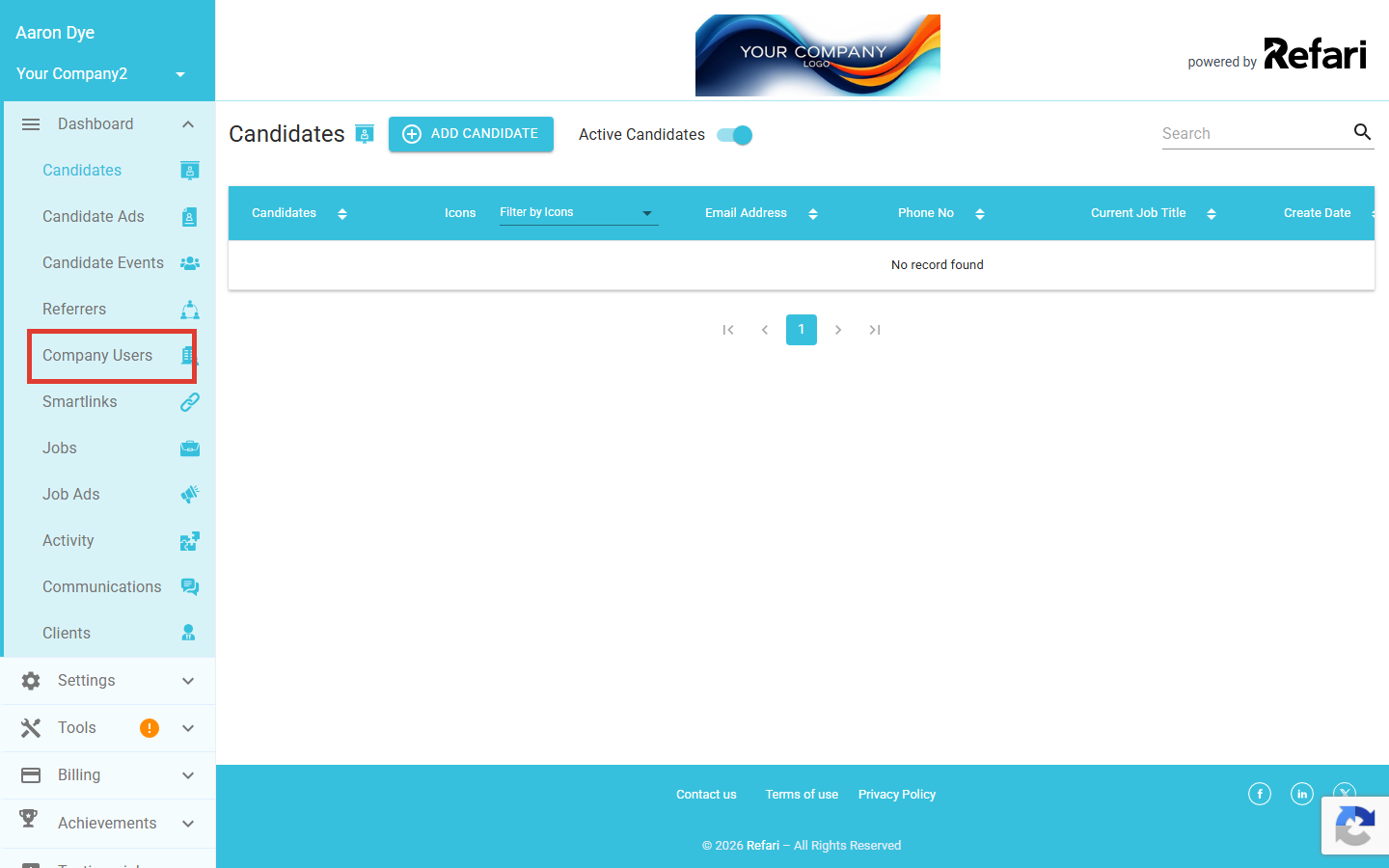
In your Refari dashboard, click Company Users in the left-hand menu.
Step 2: Pick the user you want to update
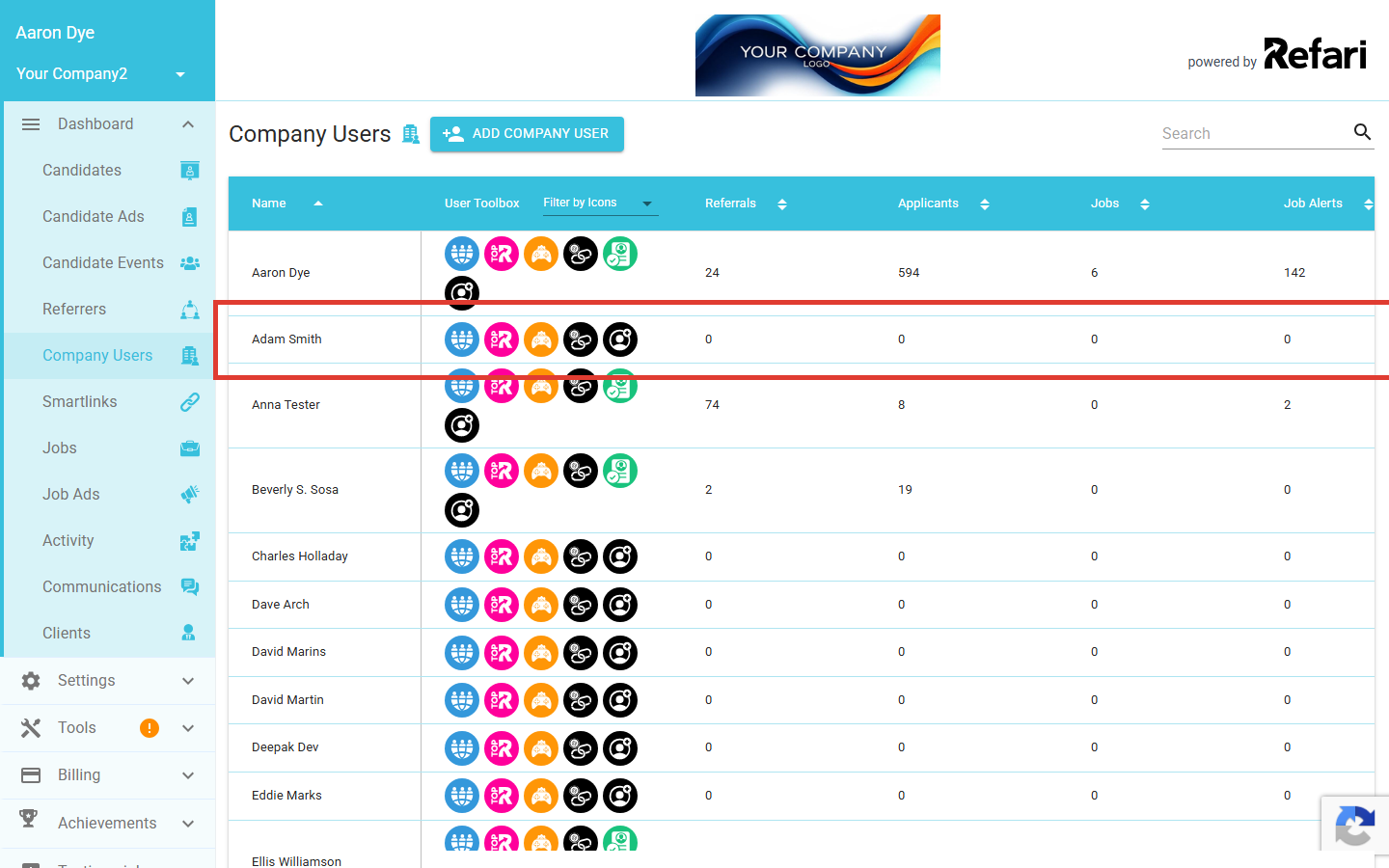
You will see a list of every user in your company, with their name, current role, and activity counts. Click the row of the user whose membership level you want to change.
Step 3: Manage Company User Settings
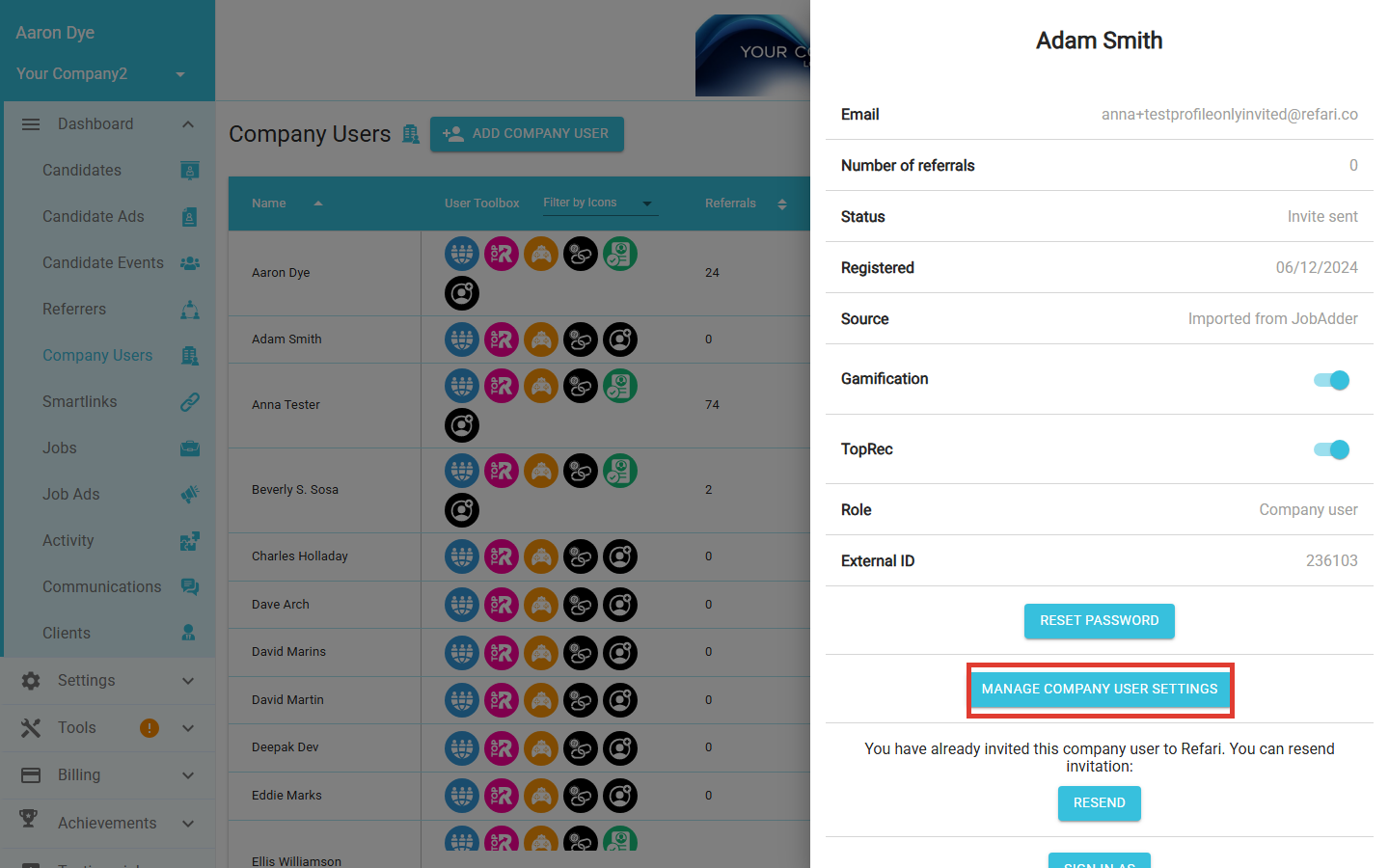
A side panel opens on the right with a summary of that user. Scroll to the buttons section and click Manage Company User Settings.
Step 4: Open the membership-level dropdown
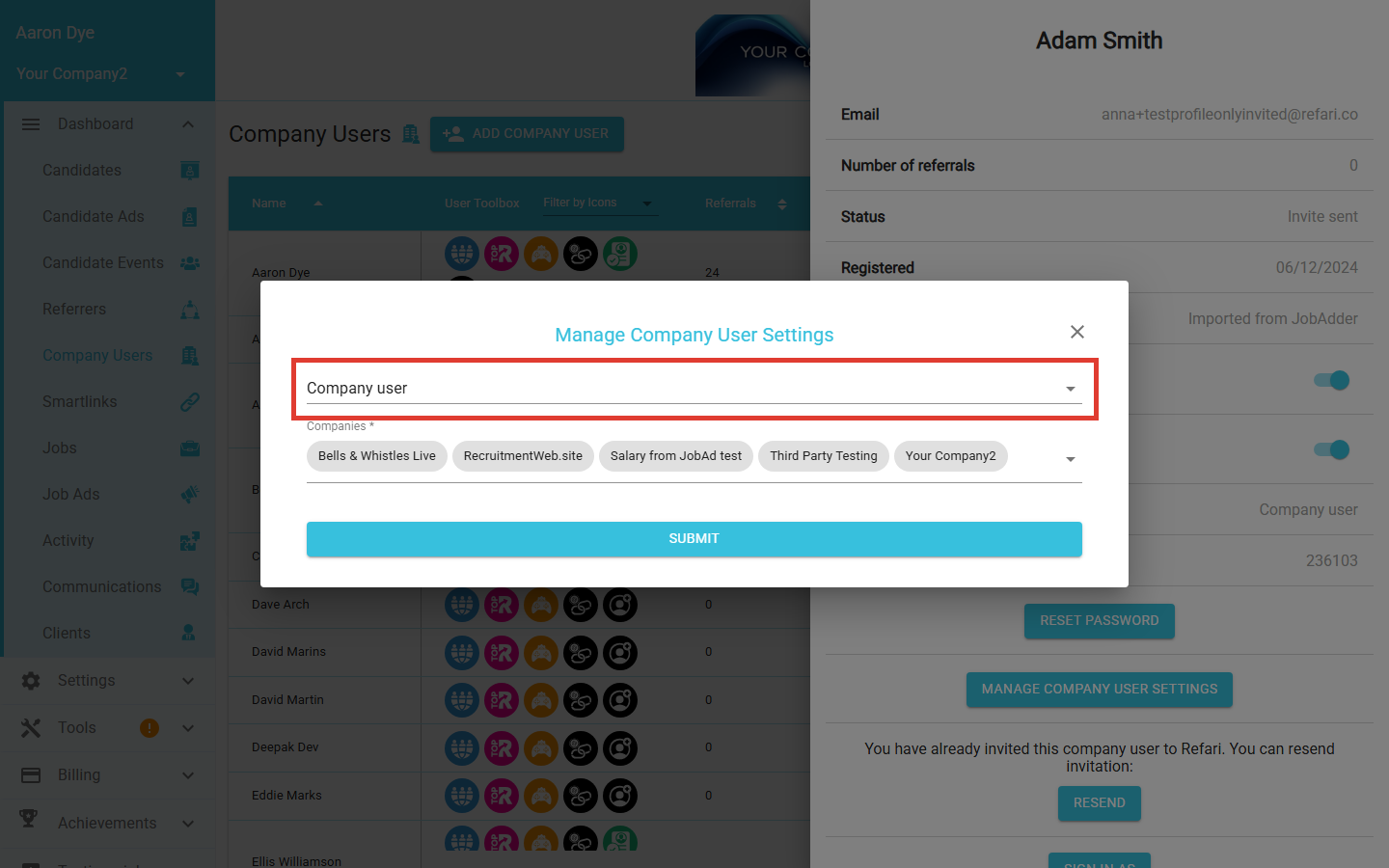
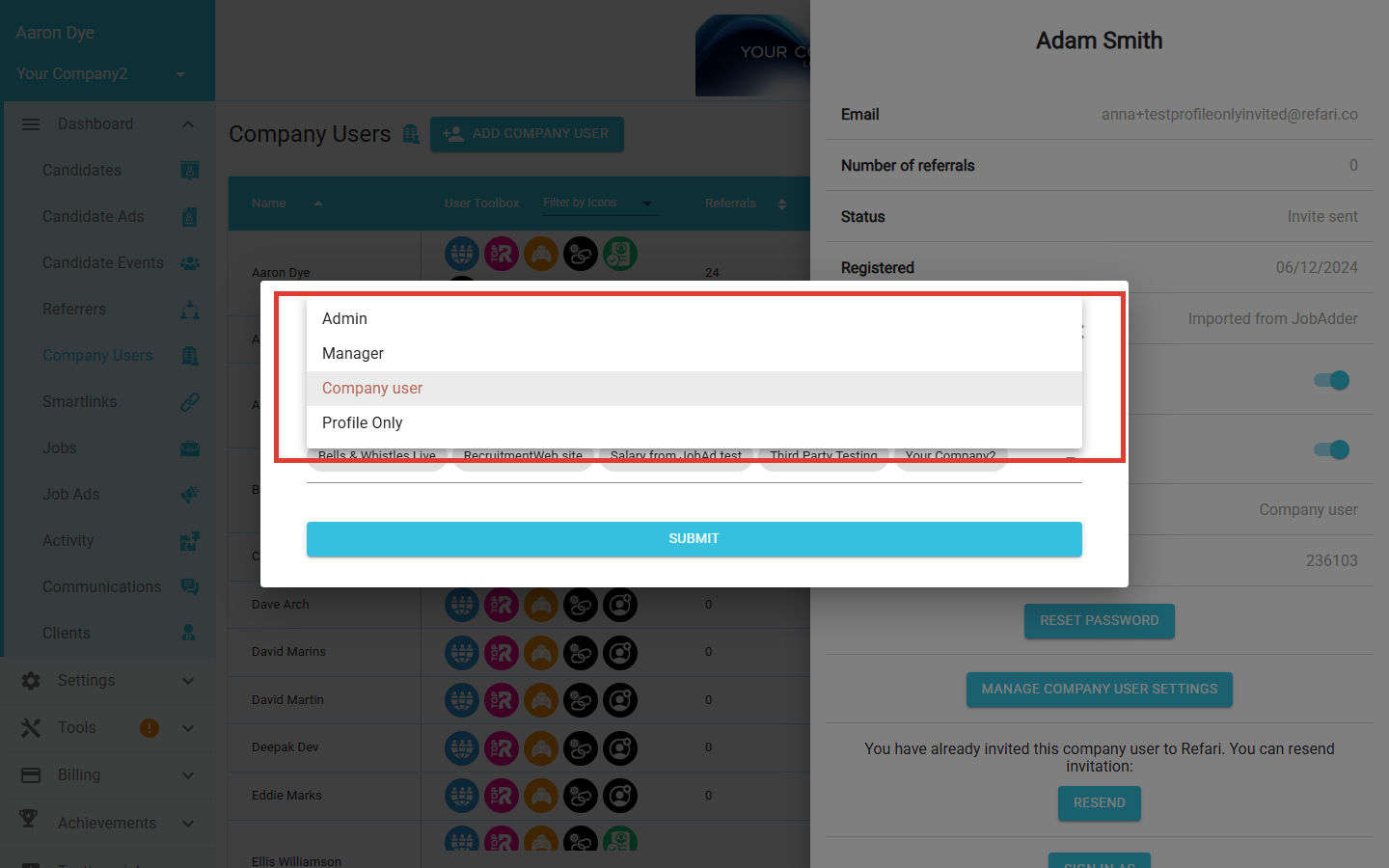
A modal appears showing the user's current membership level at the top, with a list of companies they belong to below it. Click the membership-level field to open the dropdown.
Step 5: Pick the new level and submit
Choose the new membership level from the dropdown, then click Submit at the bottom of the modal to save the change.
Success! The membership level is updated. The user's new permissions take effect the next time they sign in (or after a page refresh if they are signed in already).What each membership level can do
Refari has four membership levels, each granting a different scope of access. Pick the one that matches the person's role on your team.
- Admin: full access to the company account, including company settings, billing, user management, all reports, and every dashboard feature. Reserve this for the few people who genuinely need to run the account.
- Manager: most dashboard features (managing jobs, candidates, applications, reports), without access to billing or the ability to change other users' membership levels.
- Company user: standard recruiter access. The user can manage their own jobs and candidates, submit and share, and see the parts of the dashboard relevant to them.
- Profile Only: minimal access. The user appears on your public-facing recruiter pages (Meet the Team, testimonial widgets) but cannot sign in to perform recruiter activities. Useful for showcasing colleagues who are not active on the platform.
Idea: Promoting someone to Admin gives them full control of the company account, including billing and the ability to change other users (including yours). Only assign Admin to people you genuinely want at that level, and consider Manager for senior recruiters who need broad access but not the keys to billing.Final Notes
If a user signs in and still sees their old permissions, ask them to sign out and back in once. If anything looks off after a role change, get in touch with the Refari team and we will help diagnose it.
Other articles you might be interested in: How to Delete or Remove a Team Member from the Refari platform
Was this article helpful?
That’s Great!
Thank you for your feedback
Sorry! We couldn't be helpful
Thank you for your feedback
Feedback sent
We appreciate your effort and will try to fix the article