This guide walks you through the two filters at the top of the Job Ads and Candidate Ads lists in Refari, so you can quickly switch between seeing every advert in your company and just the live ones you own. Both lists hide expired adverts by default; this article shows you how to bring them back in, and how to narrow the list to just your own work.
Note: Expired adverts are hidden by default on both lists. If you cannot find an advert you posted recently, it has most likely expired; turn on Expired in the AD STATUS menu to bring it back into view.Job Ads: filtering the list
Open Job Ads from the left-hand menu. At the top of the list you will see two filter controls, an AD STATUS button and a My Job Ads toggle, alongside a row of blue chips showing which statuses are currently included.
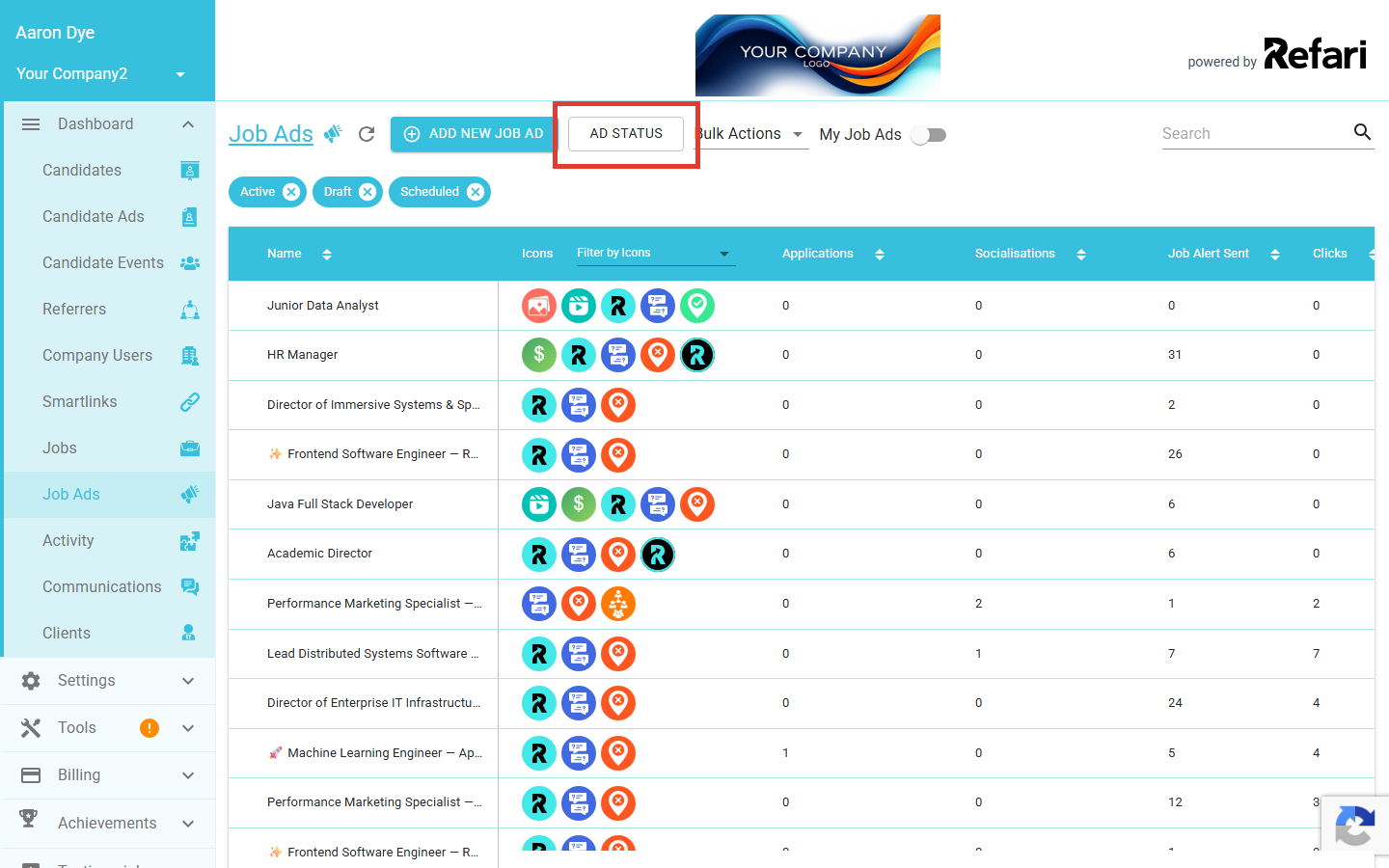
Show expired job ads with AD STATUS
Click AD STATUS to open the status filter. A small modal appears with a checkbox for each advert status: Active, Draft, Expired and Scheduled. By default Expired is unticked, which is why expired ads do not appear in the list. Tick Expired and click APPLY to bring expired ads back in.
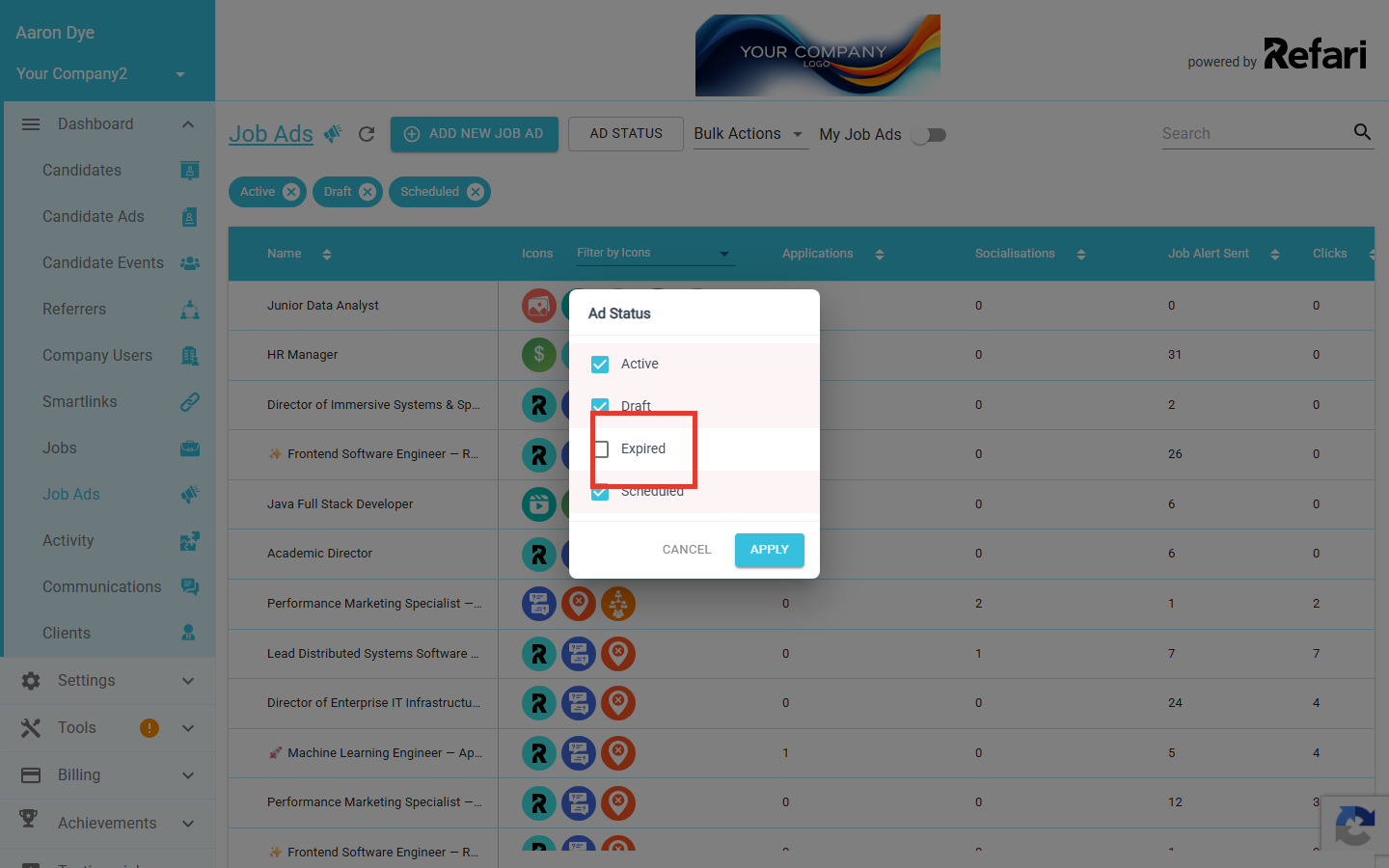
You can untick any of the other statuses too, for example to look at drafts on their own, or just scheduled ads. The blue chips above the table reflect whatever you have selected, and you can dismiss any chip directly by clicking its x.
Show just your own job ads
Flip the My Job Ads toggle to the right of AD STATUS. When it is on, the list narrows to just the job ads you personally own; when it is off, you see every job ad across your company.
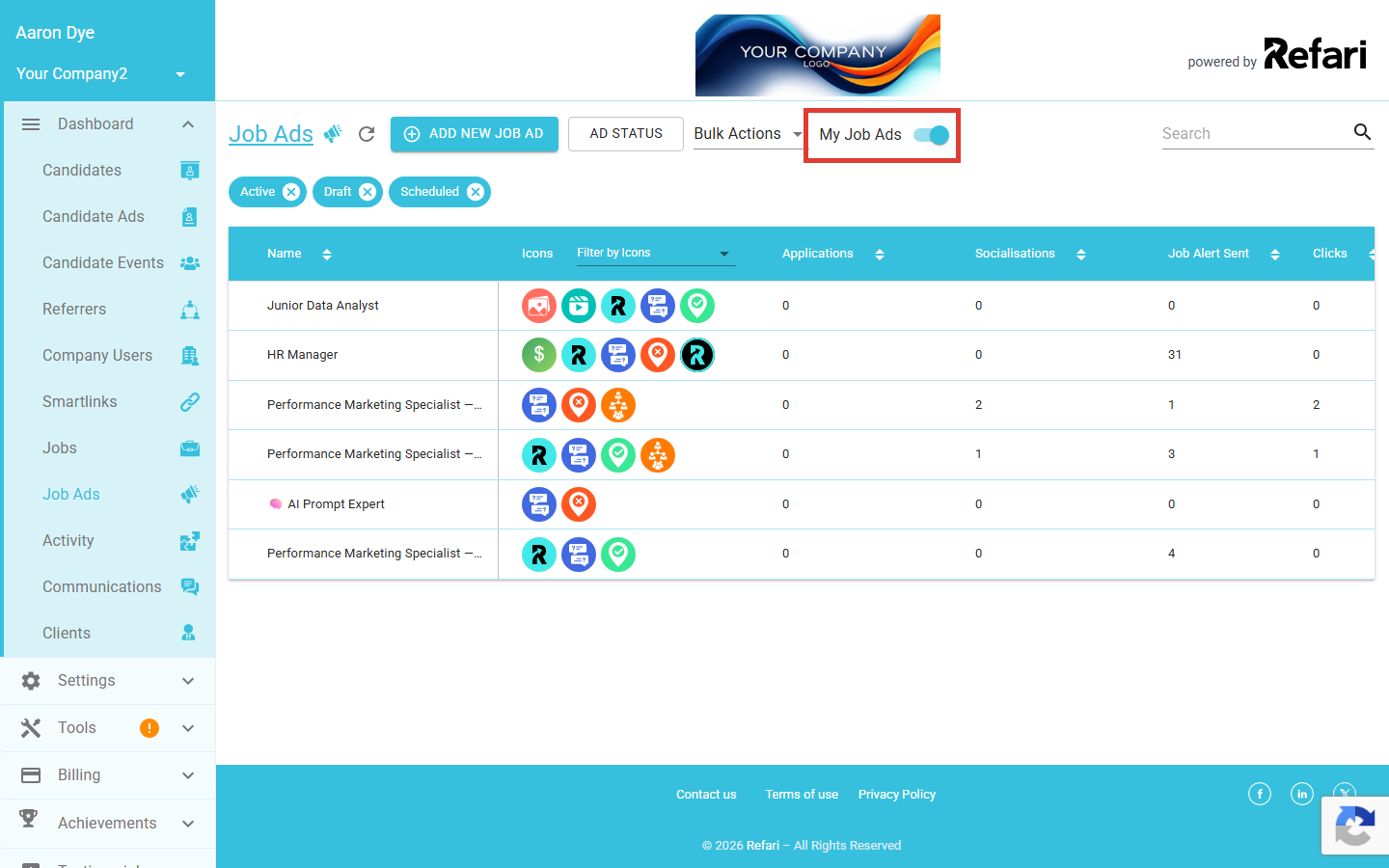
Idea: The two controls combine, so you can build views like "my live ads", "all live ads across the company", "my ads including expired" or "every expired ad in the company" without leaving the page. Use My Job Ads on for your day-to-day work, and turn it off when you need to check what colleagues have posted.Candidate Ads: filtering the list
Open Candidate Ads from the left-hand menu. The same two filter controls sit at the top of the list, with one small naming difference: the toggle is labelled My Ads rather than My Job Ads. The behaviour is identical.
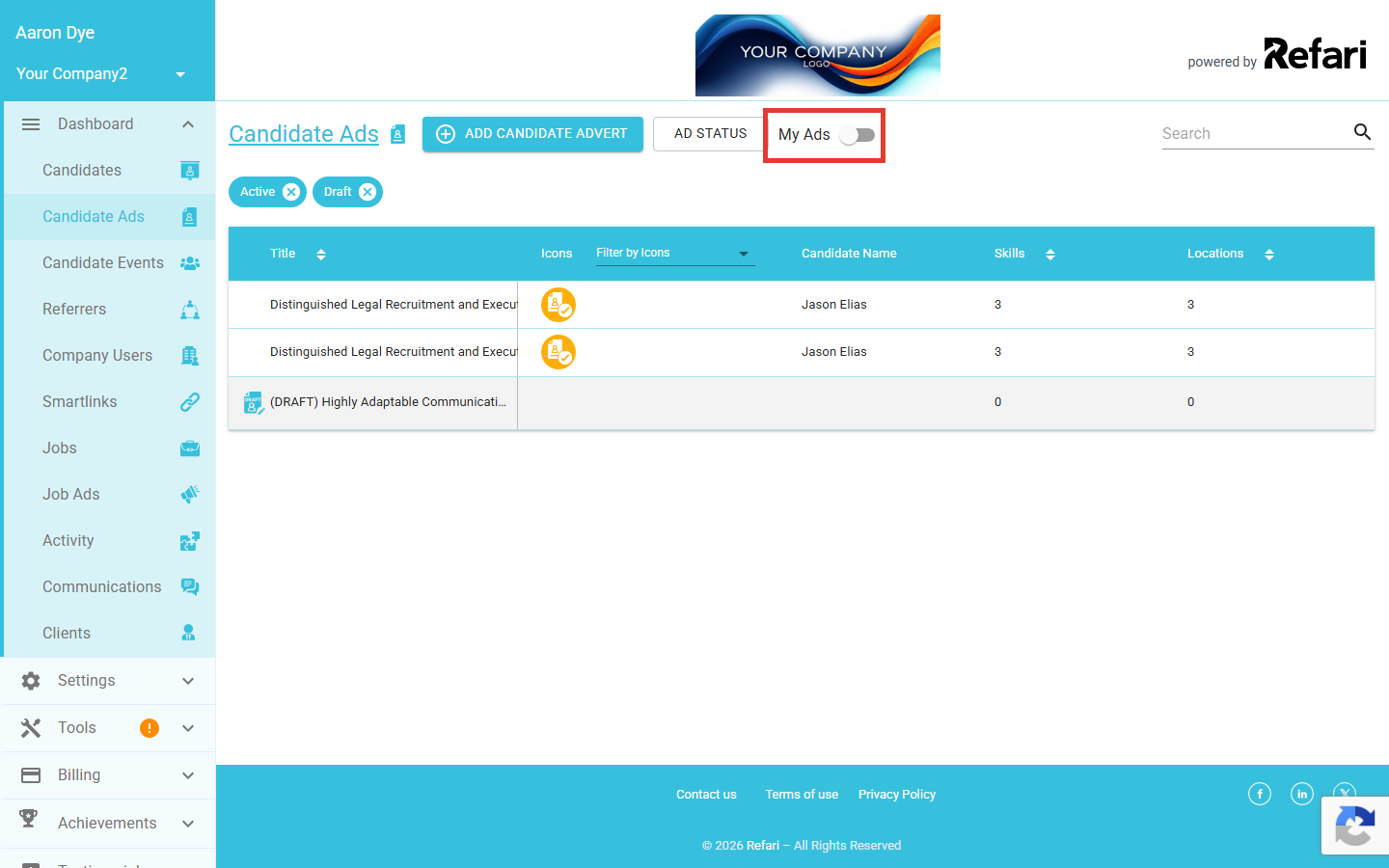
Show expired candidate ads with AD STATUS
Click AD STATUS to open the modal. Candidate ads have three statuses: Active, Draft and Expired. Tick Expired and click APPLY to include expired candidate ads in the list.
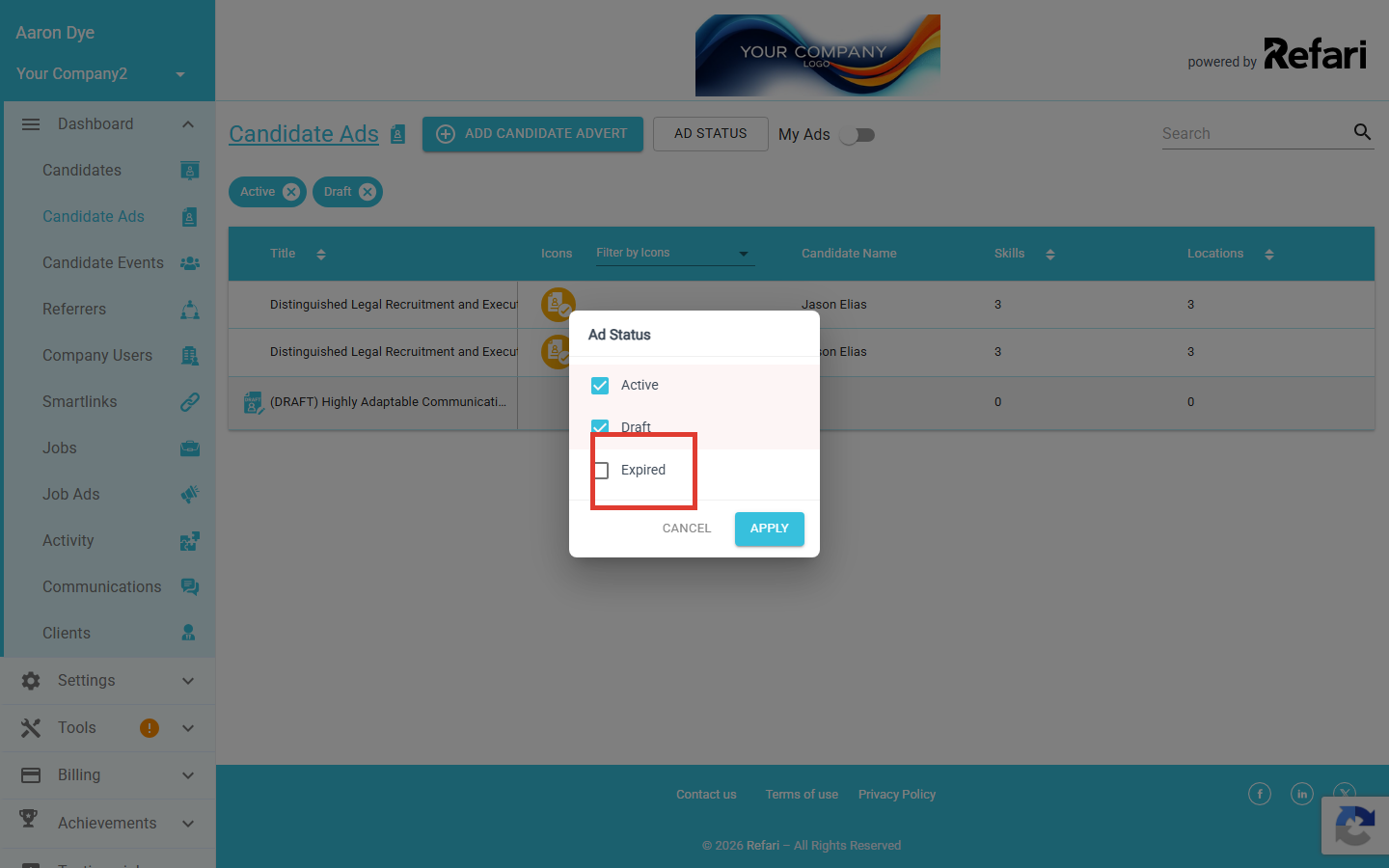
Show just your own candidate ads
Turn on the My Ads toggle next to AD STATUS to narrow the list to candidate ads you own. Turn it off again to see every candidate ad across the company.
Final Notes
The filters are per-user and persist while you stay on the page, so set them once and get on with your work. If you are looking for an advert you remember posting and cannot find it under the default view, tick Expired first; that is by far the most common reason an advert appears to have disappeared. From there you can repost or extend it without starting from scratch.
Other articles you might be interested in: How to repost Job Adverts in Refari | How to update Expiry Date to a Candidate Ad and repost an Expired Candidate Ad
Was this article helpful?
That’s Great!
Thank you for your feedback
Sorry! We couldn't be helpful
Thank you for your feedback
Feedback sent
We appreciate your effort and will try to fix the article