This article explains every setting on the Company Settings tab and shows, with before and after examples, exactly what changes when you turn each one on or off. Many of these settings control what visitors see on your public job board (the careers board on your website, open to anyone), so it is worth knowing what each one does before you change it.
You will find these settings under Settings > Company Settings. The page is split into five tabs along the top: Company Settings, Referral Settings, Emails, Tags and AI Settings. This article covers the first one, Company Settings.
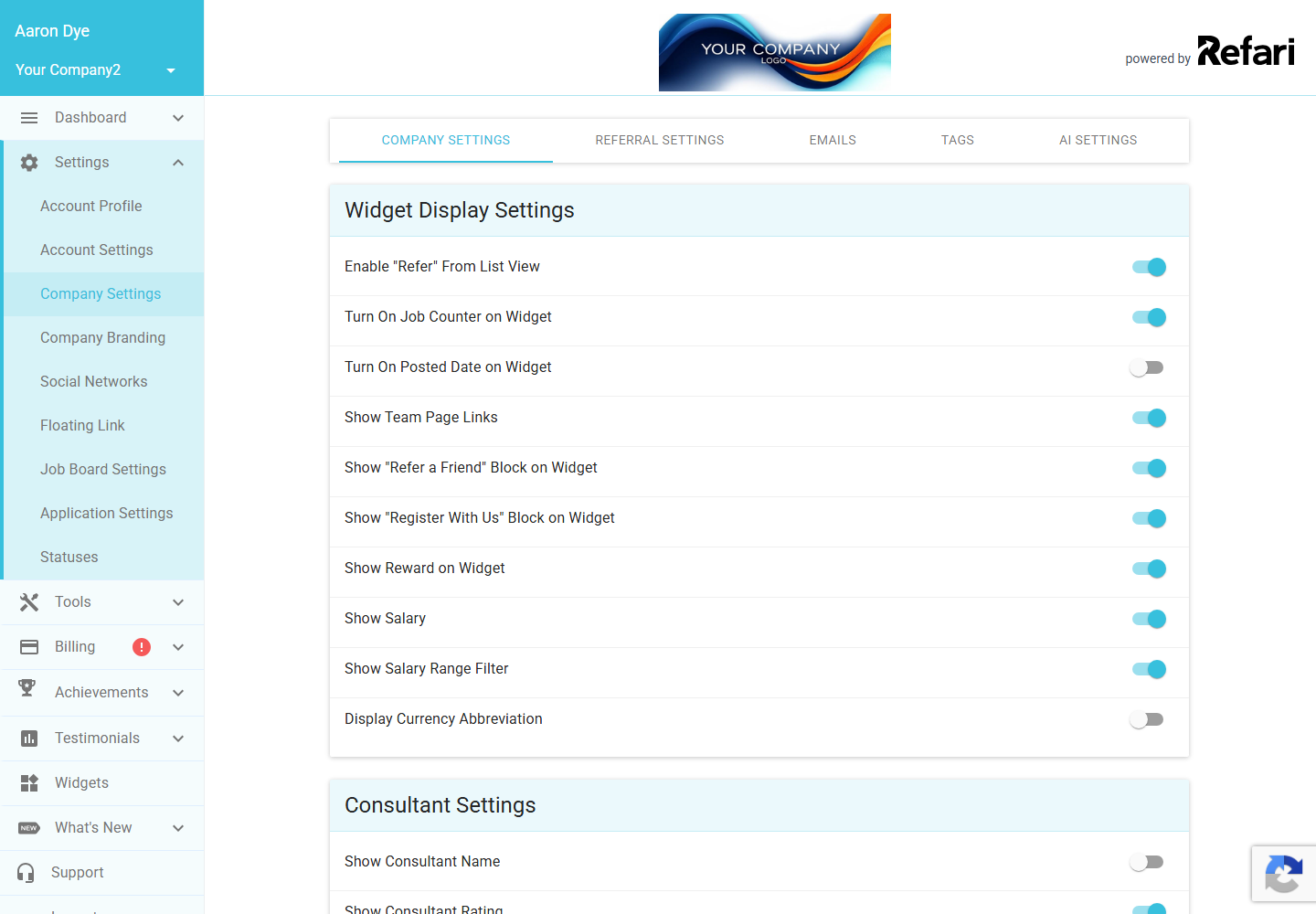
Note: Two things apply to every setting on this page. First, your changes are not saved until you click Apply Changes in the bar that appears at the bottom of the page (use Revert to undo unsaved changes). Second, only a Company Admin can change these settings. A Company Manager can open the tab and see every value but cannot edit it, and other team members do not see the tab at all.Widget Display Settings
This first section controls what appears on your public job board and the blocks around it. Each toggle is independent, so you can mix and match.
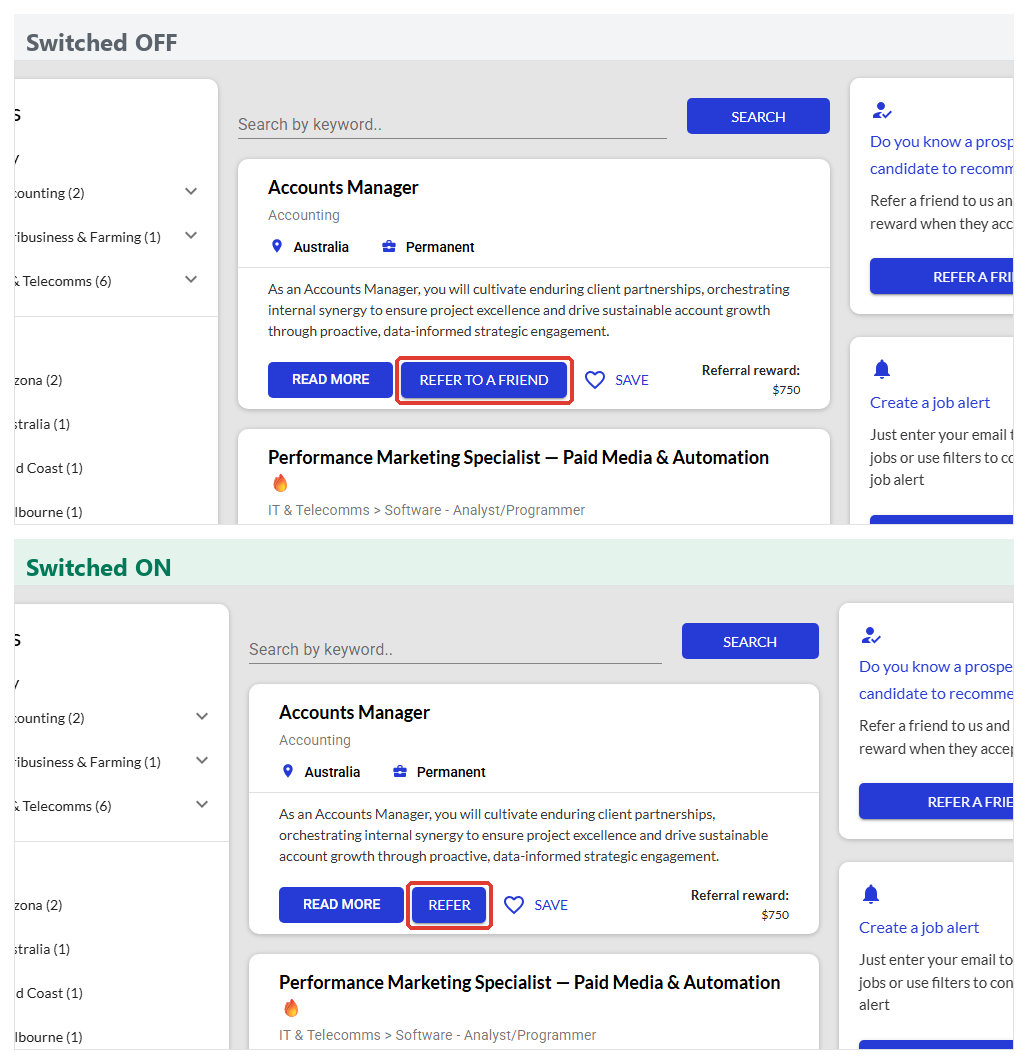
Enable "Refer" From List View
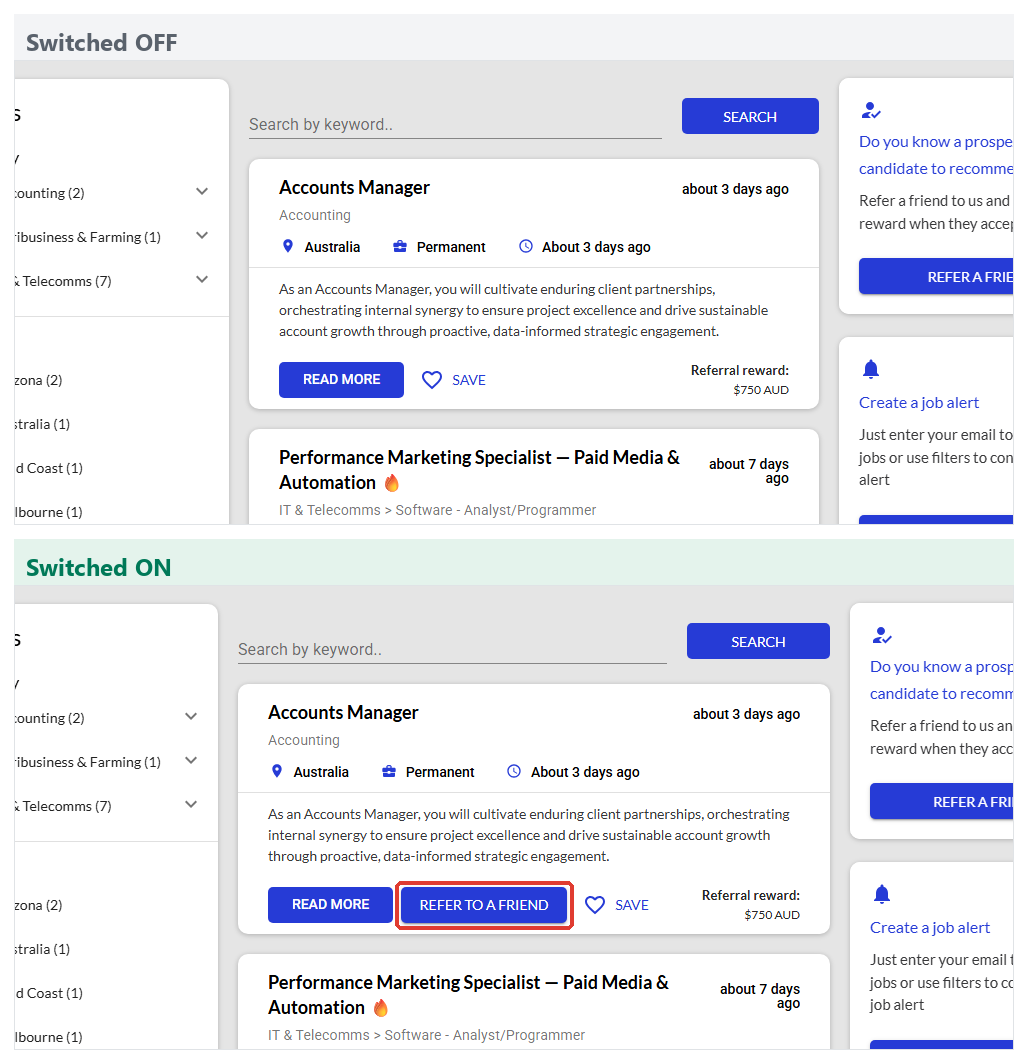
A referral is when someone recommends a person they know for one of your roles. With this setting on, a Refer button appears on every job card in the list, so a visitor can refer a friend without opening the job first. With it off, the Refer button is removed from the list (people can still refer from inside the job's detail page).
Turn On Job Counter on Widget
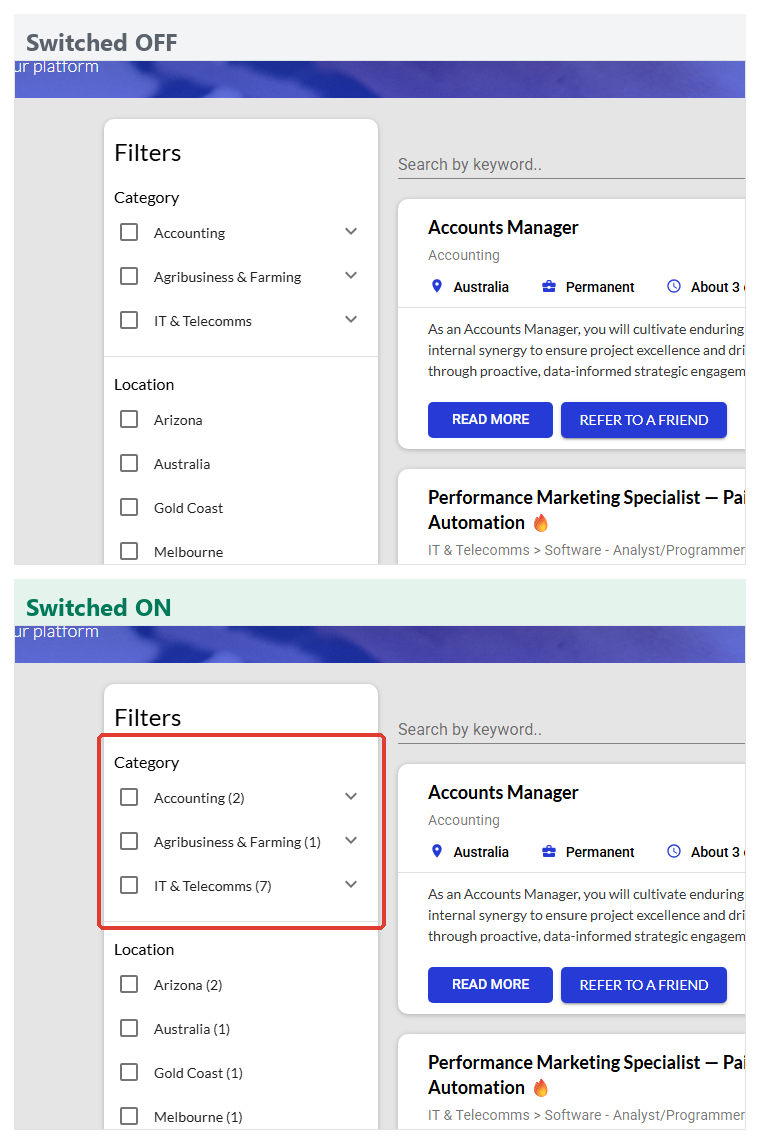
This controls the number in brackets next to each filter option in the left-hand Filters panel, for example "Sydney (7)". With it on, each filter shows how many live jobs match it. With it off, the filters show no counts.
Turn On Posted Date on Widget
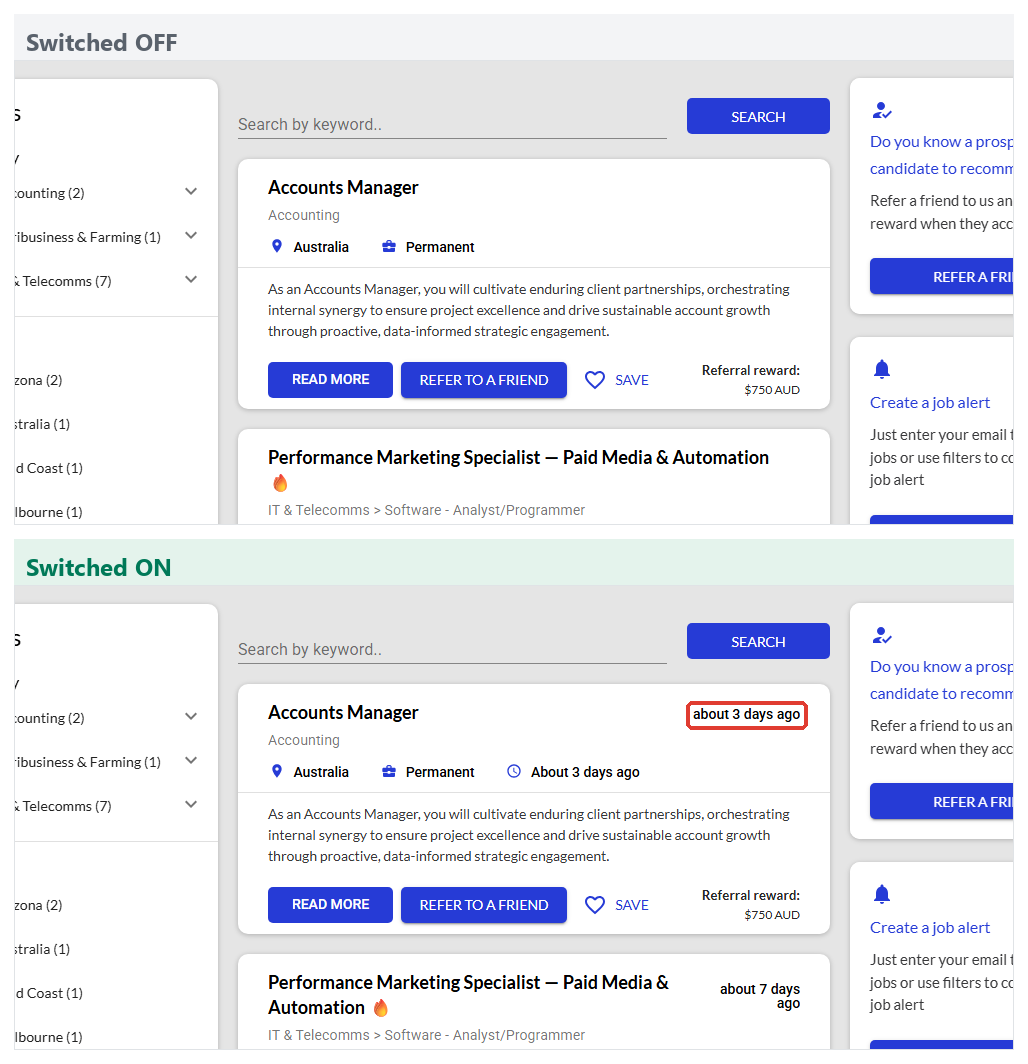
This controls the "posted ... ago" date on each job. With it on, every job card and the job detail page show how long ago the job was posted. With it off, the posted date is hidden, which is useful if you would rather not draw attention to how long a role has been live.
Show Team Page Links
When a visitor views one of your recruiters' profile pages, this setting controls whether a link out to your company's "About" / team page is shown. With it on, the link appears (as long as you have set a real About page URL). With it off, no About link is shown on recruiter profiles. There is no job board change to picture here, as the link only appears on a recruiter's own profile page.
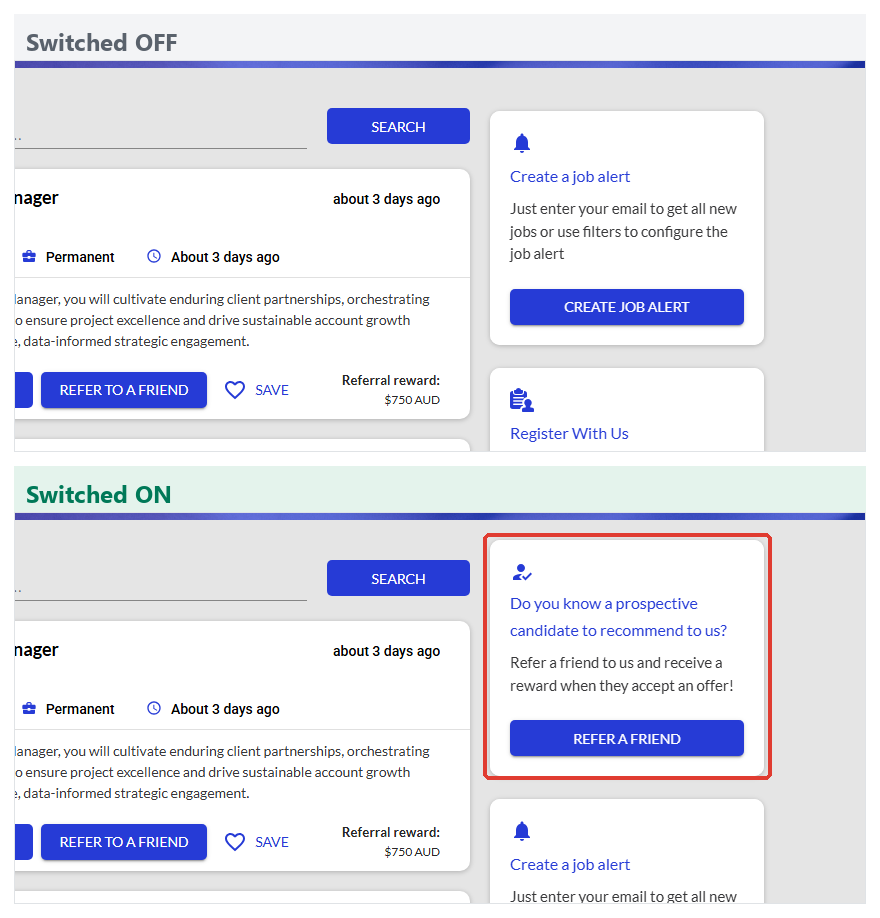
Show "Refer a Friend" Block on Widget
This controls the promotional Refer a Friend block that sits alongside your job list and invites visitors to recommend someone. With it on, the block is shown. With it off, the block is removed and the space is given to the other blocks (such as job alerts).
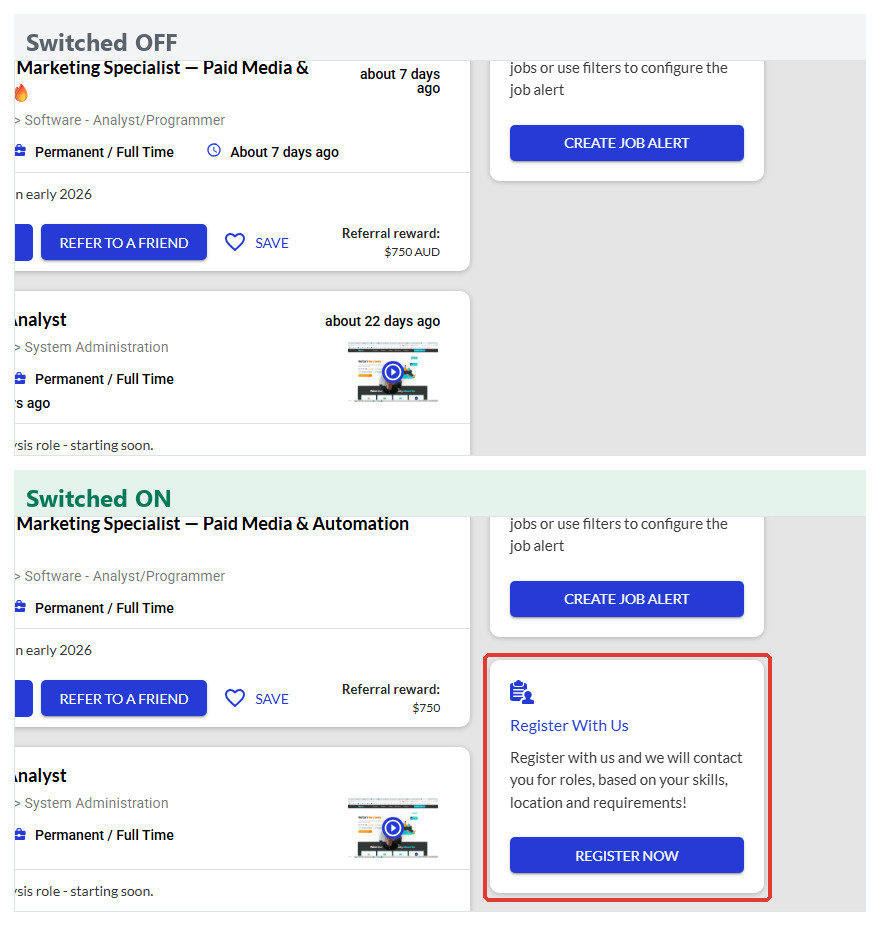
Show "Register With Us" Block on Widget
This controls the Register With Us block, which invites visitors to join your talent pool even when no specific role suits them. With it on, the block is shown alongside your job list. With it off, the block is removed.
Show Reward on Widget
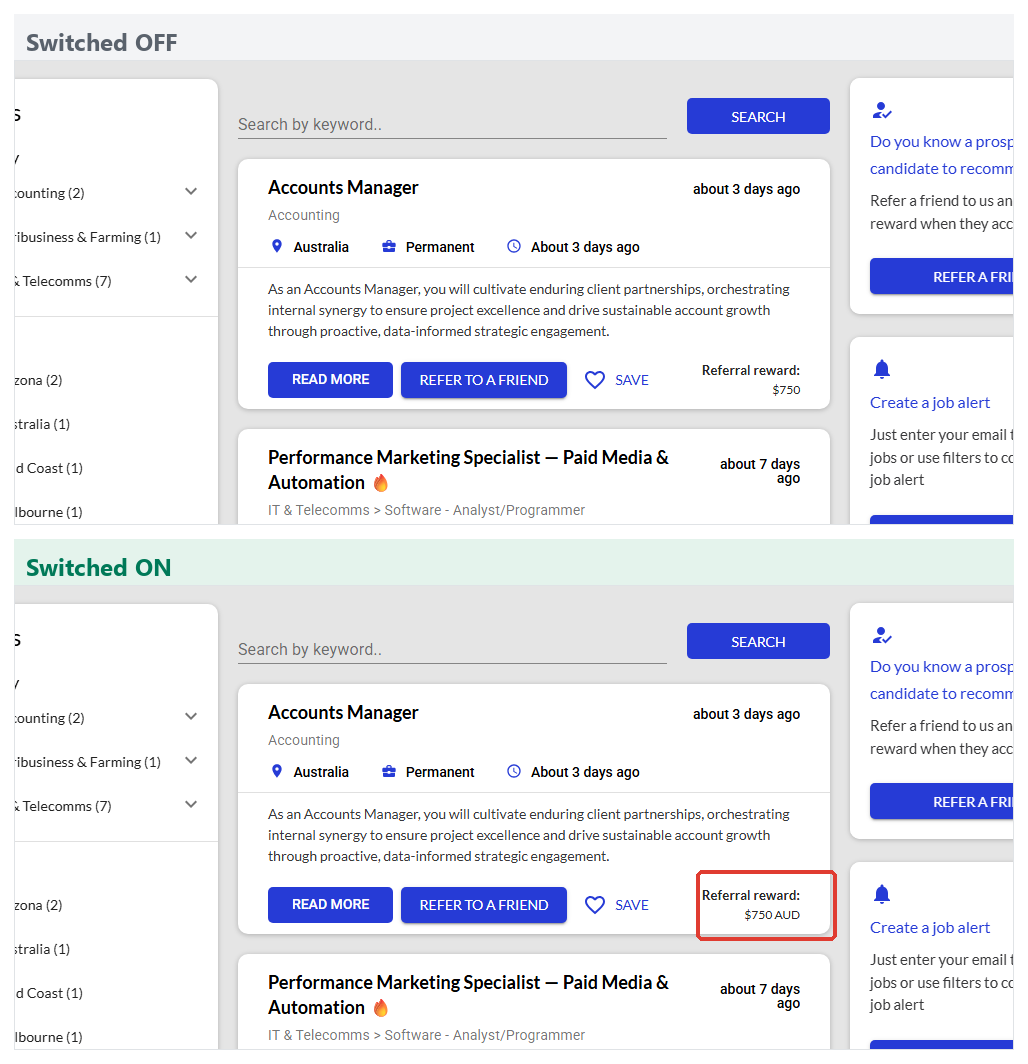
This controls whether the referral reward amount is printed on each job card, for example "Referral reward: $750 AUD". With it on, the reward is shown on any job that carries a reward. With it off, the reward amount is hidden, even where one is set.
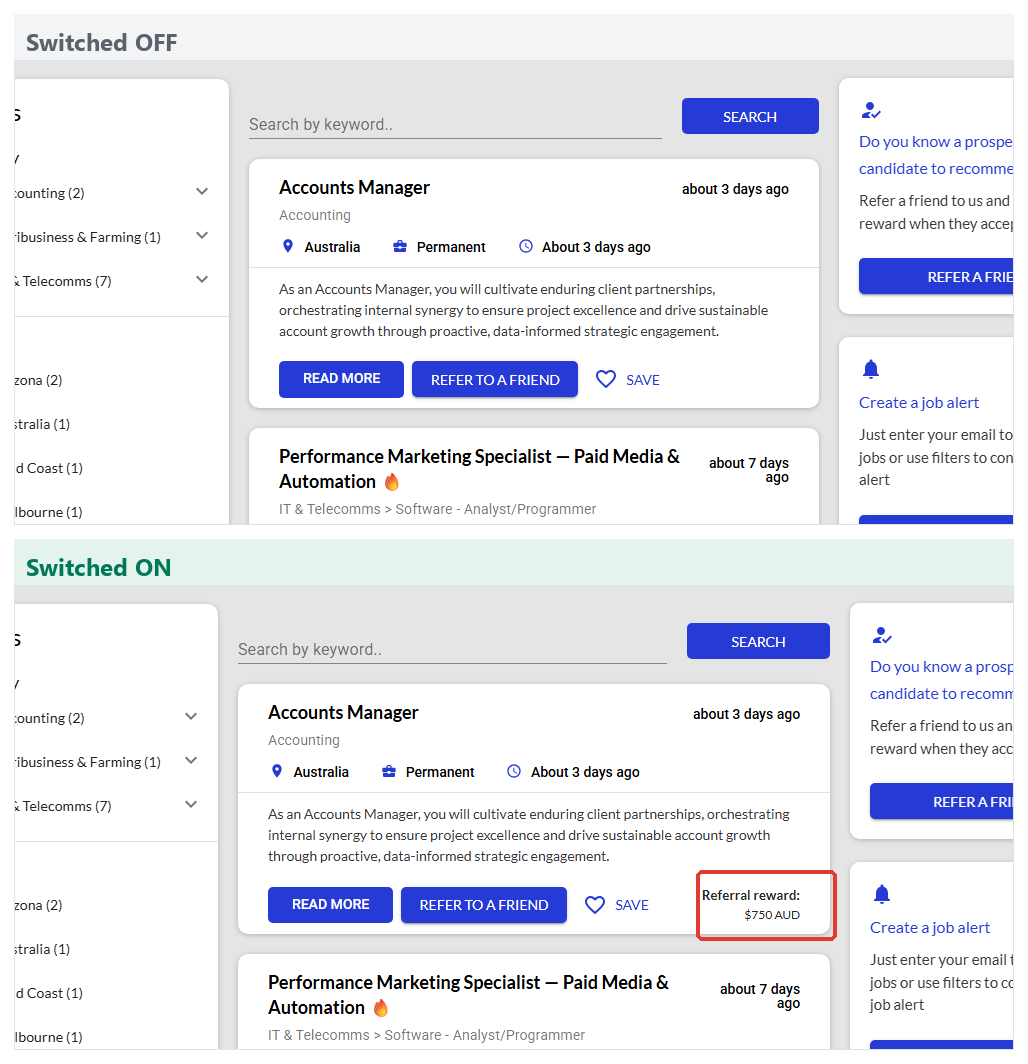
Idea: The reward only appears on jobs that actually have a reward set. If a job shows no reward with this setting on, check that the job has a reward fee against it in your Referral Settings.Show Salary
This is the master switch for salary visibility on your board. With it on, the pay range appears on the job card and the job detail page for any job that has a salary set (see below). With it off, salary is hidden everywhere on the board, even on jobs that have one.
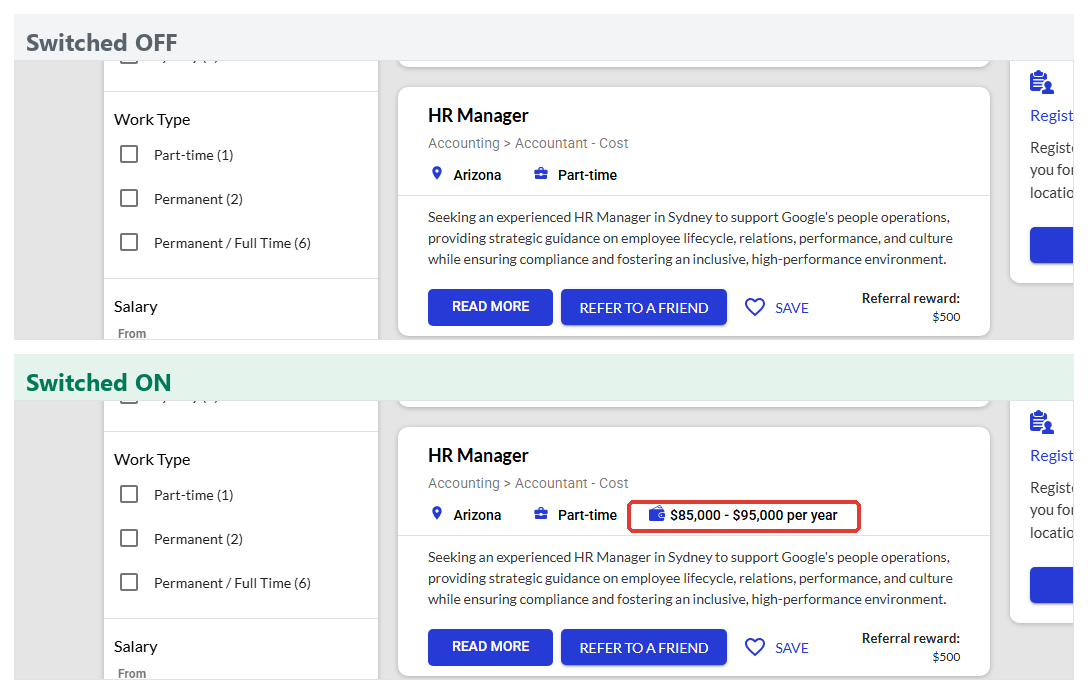
Note: If you have already hidden or shown the salary on individual jobs, changing this master switch asks you to confirm, because it overwrites those per-job choices. Salary also only ever appears on jobs that have a pay range recorded, so a job with no salary set will not show one either way.Show Salary Range Filter
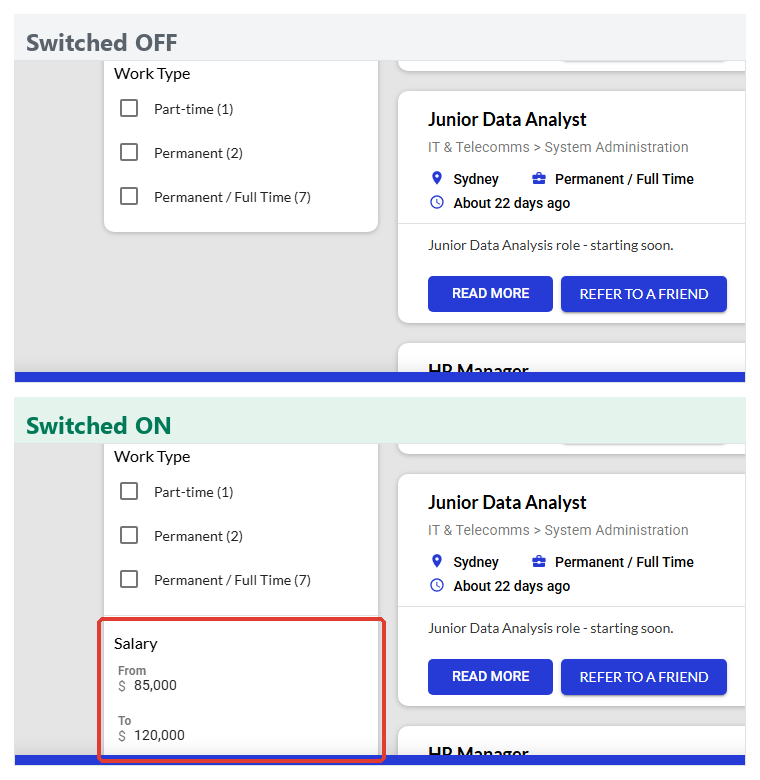
This controls whether a salary range filter appears in the left-hand Filters panel, letting visitors narrow jobs by pay. With it on, the Salary filter is shown. With it off, it is removed from the filters.
Display Currency Abbreviation
This controls whether the three-letter currency code is shown after salary and reward amounts. With it on, amounts read "$750 AUD". With it off, only the currency sign is shown, for example "$750". This is helpful when you advertise in more than one country and want the currency to be unambiguous.
Consultant Settings
These two settings control how the recruiter looking after a role is shown on the job detail page.
Show Consultant Name
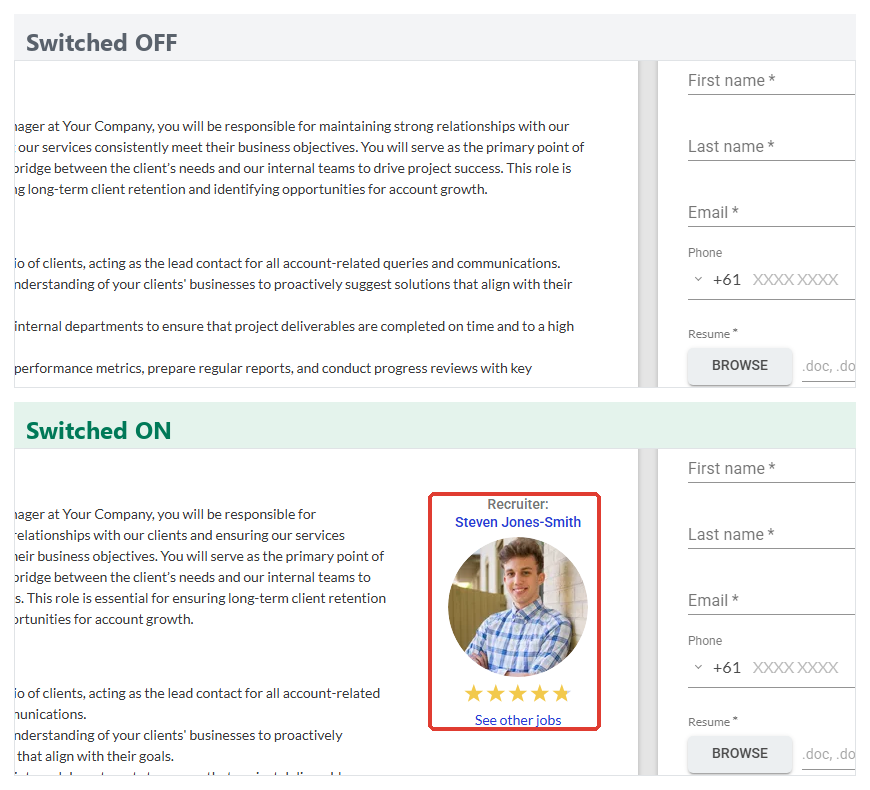
With this on, the job detail page shows a "Recruiter" block with the team member's name and photo, so applicants know who they are dealing with. With it off, the recruiter is not named on the job and the block is removed.
Show Consultant Rating
With this on, the recruiter's star rating is shown beneath their name (the gold stars in the example above). With it off, the name and photo can still appear but the stars are hidden. The rating only shows when TopRec is enabled and the recruiter has received ratings, so a recruiter with no ratings yet will not show stars either way.
Application Settings
Apply With LinkedIn
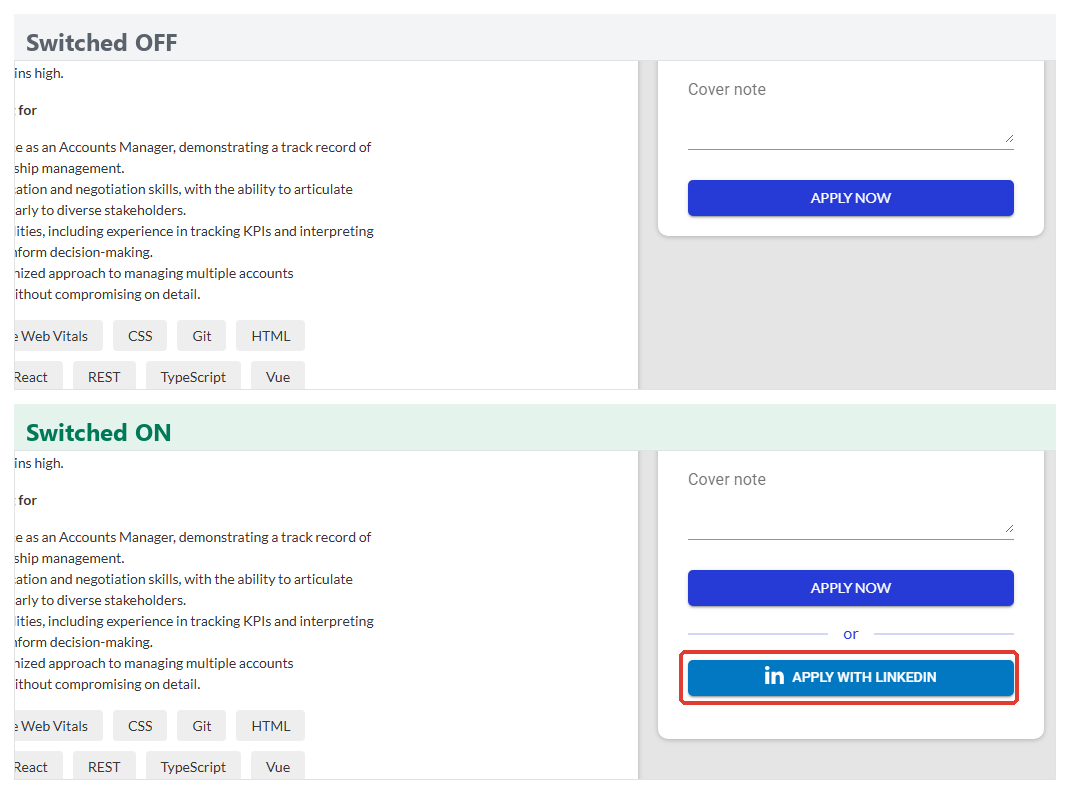
With this on, the application form offers an Apply with LinkedIn option alongside the standard Apply Now button, so candidates can apply using their LinkedIn profile. With it off, only the standard application form is shown.
Allow Application/Registration Without Resume
This setting controls whether a resume is compulsory. With it on, the resume upload is optional, so a candidate can apply or register without attaching one. With it off, a resume is required and the form cannot be submitted until a file is attached.
Note: This toggle reads the opposite way to most others. Turning it on makes the resume optional; turning it off makes the resume required. Allowing applications without a resume usually lifts the number of applications you receive, at the cost of some applicants giving you less to go on.ATS Sync Settings
These three toggles decide whether new people are pushed automatically into your connected ATS (such as JobAdder), or whether you push them across yourself when you are ready. They change behaviour behind the scenes, so there is nothing to see on the public job board, but they matter a great deal for keeping your ATS tidy.
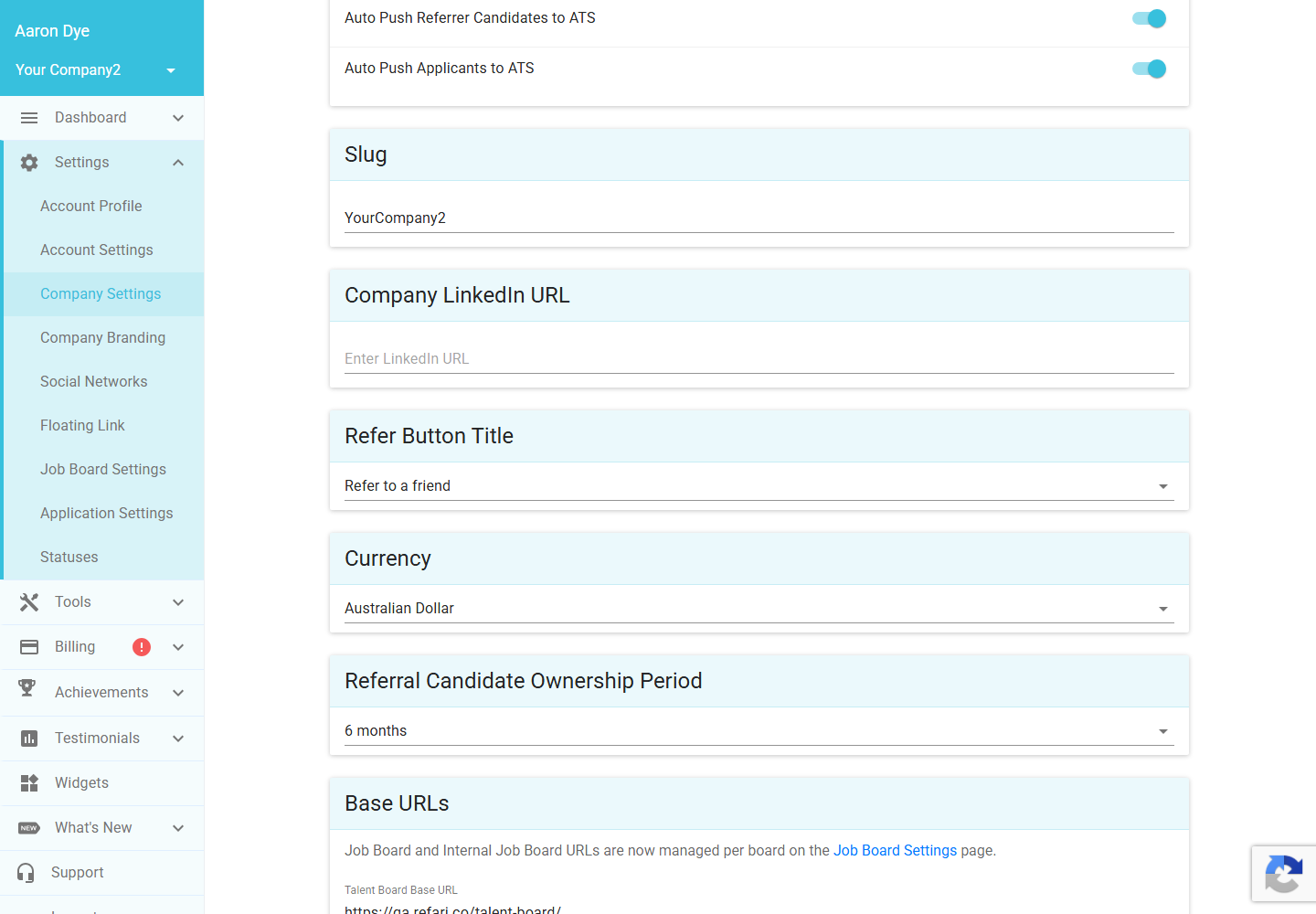
| Setting | What it does when on |
|---|---|
| Auto Push Registered Candidates to ATS | People who register through your "Register With Us" block are created in your ATS automatically. |
| Auto Push Referrer Candidates to ATS | People referred to you through the referral scheme are pushed to your ATS automatically. |
| Auto Push Applicants to ATS | People who apply for a job through your board are pushed to your ATS automatically. |
When a toggle is off, those records stay in Refari until you choose to push them across, which gives you a chance to review them first.
Other settings on this tab
Below the toggles are a handful of fields that set values rather than switch features on and off.
Refer Button Title
This changes the wording on the Refer button. You can choose between the short Refer and the friendlier Refer to a friend.
Currency
Sets your default currency. This drives the currency sign (and the code, if "Display Currency Abbreviation" is on) shown on salaries and rewards. Changing it asks you to confirm, because your Referral Settings values are converted into the new currency, so always check the converted amounts afterwards.
Referral Candidate Ownership Period
A referrer is the person who makes a referral. This setting is the window (3, 6, 12, 18 or 24 months) during which a referrer stays credited for the person they referred, so that if that person is placed within the window, the referrer still earns the reward.
Referral Scheme Terms and Conditions URL
When you enter a link here, an Our Referral Terms & Conditions link is shown in your job board footer and inside the referral form, so referrers can read the rules of your scheme. Leave it blank and no link is shown.
Slug and Company LinkedIn URL
The Slug is the short identifier used in your Refari-hosted links, and the Company LinkedIn URL stores your company's LinkedIn page. Neither changes the look of your board, but the slug affects your addresses, so change it with care.
Base URLs
Your job board addresses are now managed per board on the Job Board Settings page; the only base URLs left here are for the Talent Board (if you use one) and SmartPitch. These set where those surfaces are hosted so that links resolve correctly.
URL Time Extension
This sets how long (0, 30, 60 or 90 days) a job or talent link keeps working after the posting has expired. During that window the link still opens or redirects correctly, even though the posting is no longer listed on your board. It is handy when you share links in emails or adverts that people may click after a role has closed.
Application Policies
Here you can add up to five policies, each a name and a link (for example a privacy policy). When you have policies set, applicants must tick to agree to each one before they can submit an application or registration. Leave the list empty and there is no extra consent step.
Brand Analytics (Progression Statuses)
The Progression Statuses button opens a window where you map your own ATS pipeline stages onto Refari's progression stages (such as interview, offer and placement). This drives your analytics and reporting; it does not change anything on the public board.
Final Notes
Remember that none of these changes take effect until you click Apply Changes, and that the display settings only change your live, public job board, so it is safe to experiment and then check your board to see the result. If a setting does not seem to do anything, it is usually because the underlying data is not there yet (a job with no salary, a recruiter with no ratings, or a job with no reward).
Other articles you might be interested in: A guide to your Company Settings | Refari roles and what each one can do
Was this article helpful?
That’s Great!
Thank you for your feedback
Sorry! We couldn't be helpful
Thank you for your feedback
Feedback sent
We appreciate your effort and will try to fix the article