This article explains every control on the Emails tab of your Company Settings: the manager email addresses that route specific notifications to specific inboxes, the on/off list of internal notification emails, and the option to pause job alerts for candidates you have recently placed. These are all behind-the-scenes notification settings, so nothing here changes the look of your public job board.
You will find these settings under Settings > Company Settings > Emails. The tab is split into three sections, in order: Manager Emails, Internal Emails and Job Expiration Notifications.
Note: Two things apply to everything on this tab. First, your changes are not saved until you click Apply Changes in the bar that appears at the bottom of the page (use Revert to undo unsaved changes). Second, only a Company Admin can edit these settings. A Company Manager can open the tab and see every value but cannot change anything, and other team members do not see the tab at all. None of these settings change the look of your public job board; they only control who is notified and which notification emails are sent.Manager Emails
This section is a set of address fields, one per type of notification. Whatever you put in a field decides which inbox receives that particular kind of notification, so you can route each one to the right person or team. You can add up to three addresses to each field: type an email address into the box and press Enter to add it as a chip (you can remove a chip again with the small cross next to it). Leave a field blank and that notification simply uses your account default rather than a dedicated inbox.
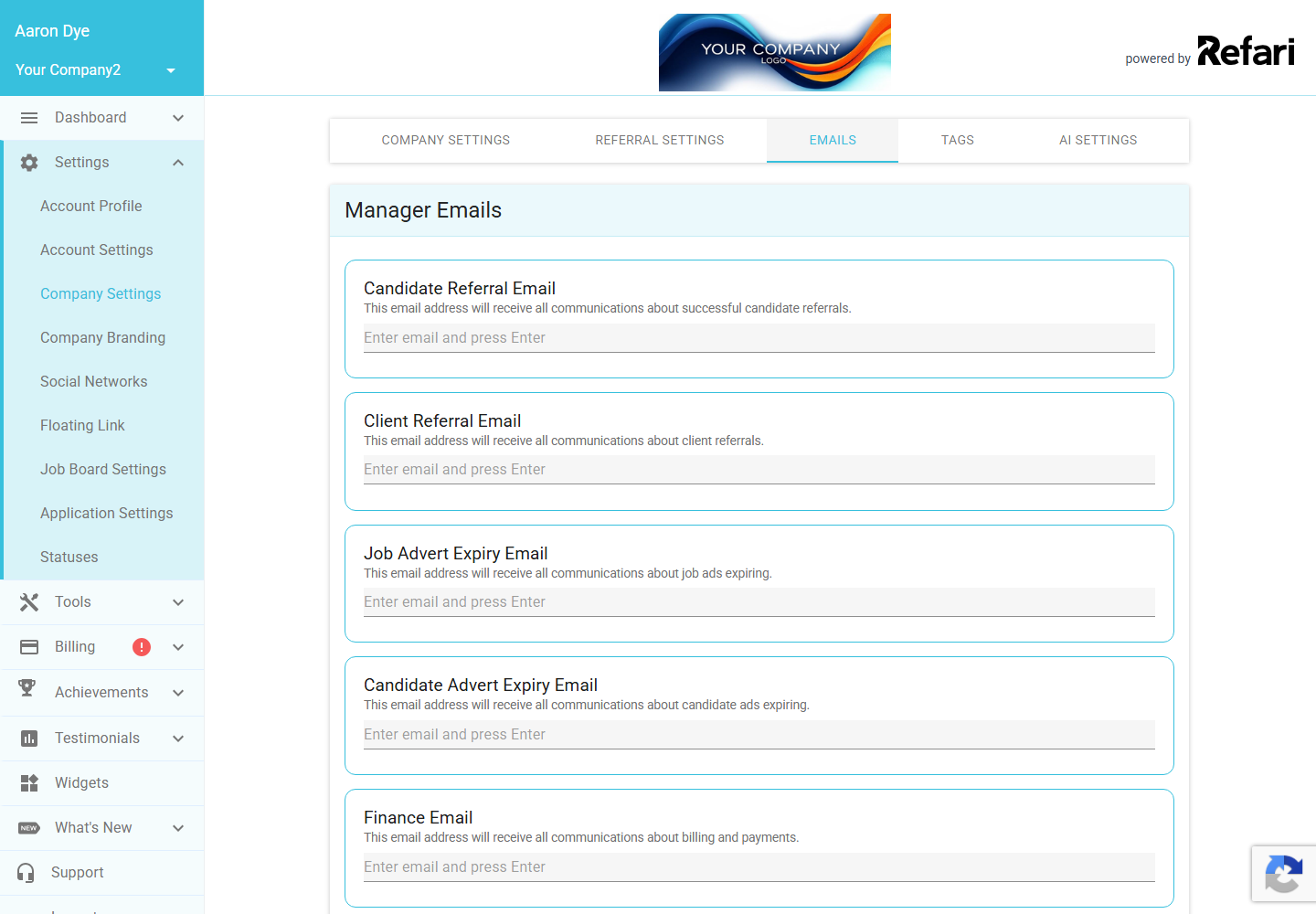
The full set of fields is below. The short helper line shown on screen does not always tell the whole story, so the table spells out everything that actually routes to each address. Some fields are only relevant if you use the related feature (for example TopRec, the Talent Board or Talent Alerts).
| Notification | What actually goes to this address |
|---|---|
| Candidate Referral Email | Updates across the whole life of a candidate referral, not just the first one: new referrals and re-referrals, when a referred candidate needs exporting to your CRM, and when a referred candidate is placed. |
| Client Referral Email | All communications about client referrals (when someone introduces a new client to you). |
| Job Advert Expiry Email | Alerts that your job adverts are expiring, so you can repost or close them in time. |
| Candidate Advert Expiry Email | Alerts that your candidate adverts (on your Talent Board) are expiring. |
| Finance Email | All billing and payment communications: invoices, successful and failed payments, and billing reminders. |
| Registration Email | When a candidate registers through your "Register With Us" widget, plus the follow-up when a registered candidate needs exporting to your CRM. |
| Application Email | When someone applies for a job, plus the follow-up that asks the applicant to rate their application experience. |
| TopRec Manager Email | Review activity from TopRec, both good and bad: when someone leaves a written testimonial, and when someone leaves a low rating of one or two stars. Despite the on-screen wording ("when someone gets a testimonial"), this address is also your early warning for a poor review. |
| Candidates Enquiries Email | New candidate enquiries that come in through your Talent Board. |
| Talent Alert Contact Email | Talent Alert activity, which covers three things: new hiring-manager registrations, new Talent Alert subscriptions, and custom talent requests. |
Idea: Because each field takes up to three addresses, you can point a notification at a small team rather than one person. For example, you might route the Finance Email to your accounts inbox and a backup, so a billing notice is never missed if someone is away.Internal Emails
This section is a list of individual notification types, each with its own on/off toggle. Switching a toggle on means that email is sent; switching it off stops it. Next to each one is a blue Preview (i) icon: click it to open an example of exactly what that email looks like, so you can see what you are turning on or off before you decide.
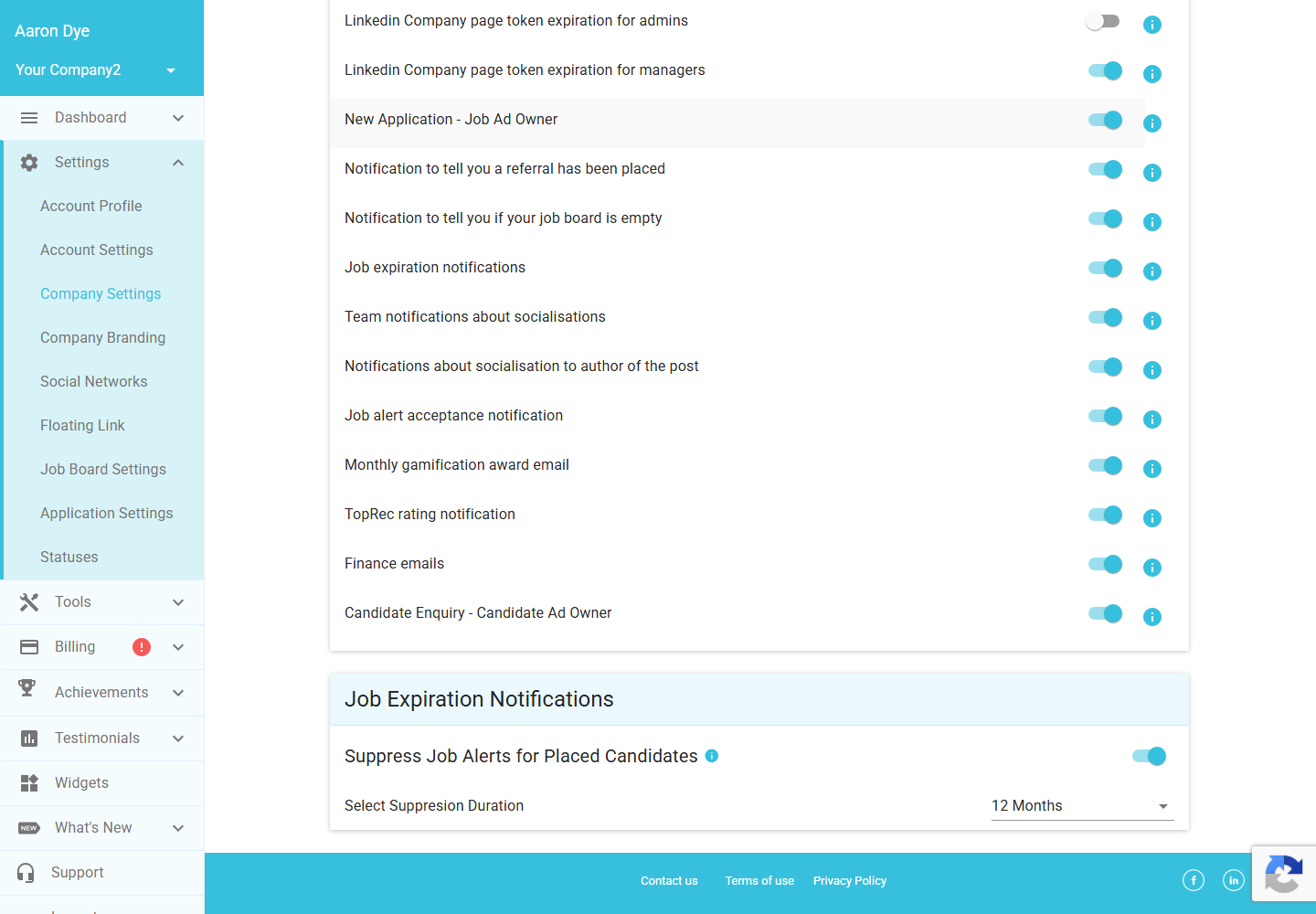
The exact list you see depends on which features are enabled on your account, so your toggles may differ from the example above. Depending on your setup you might see items such as a new application notification to the job ad owner, a notification to tell you a referral has been placed, a notification to tell you if your job board is empty, job expiration notifications, a TopRec rating notification or a monthly gamification award email. Whatever appears, the principle is the same: use the Preview icon to check the email, then toggle it on or off to suit how you want to be kept informed.
Job Expiration Notifications
Despite the section heading, the single control here is about pausing job alerts for candidates you have placed, not about job expiry. It sits in its own section lower down the same tab, beneath the Internal Emails list.

Suppress Job Alerts for Placed Candidates
With this toggle on, Refari automatically pauses job alert emails to any candidate you have successfully placed, for a set period after placement. The on-screen description reads: "Automatically pause job alert emails for candidates you've successfully placed. This helps maintain a professional relationship and prevents sending job recommendations too soon after placement." With it off, placed candidates keep receiving job alerts as normal.
Select Suppression Duration
When the toggle above is on, a dropdown appears so you can choose how long the pause lasts. The options are 3, 6, 9, 12, 18 or 24 months, and it defaults to 12 months. For example, with "12 Months" selected, a candidate you place will receive no job alert emails for 12 months after placement, then resume automatically.
Final Notes
Everything on this tab is about notifications, so nothing you change here will alter your public job board. Remember to click Apply Changes once you are happy, and if you are a Company Manager rather than an Admin, you will be able to see these settings but will need an Admin to make any edits.
Other articles you might be interested in: A guide to your Company Settings | AI-Enabled Job Alerts
Was this article helpful?
That’s Great!
Thank you for your feedback
Sorry! We couldn't be helpful
Thank you for your feedback
Feedback sent
We appreciate your effort and will try to fix the article