This article explains how to change your website yourself with Edit, a way of editing in Your website that uses no AI. You click the words, photos and sections on the page itself and change them there, then check the result and publish it. It covers changing words, changing photos, moving and removing sections, the list of changes, checking a preview, publishing, and undoing.
Note: If you don't see an Edit button above your page preview, Edit by hand isn't switched on for your website yet. We are switching it on for selected websites first. Contact our support team and we'll let you know when it can be turned on for yours.What Edit by hand is
Your website is the private area where you and your team manage your site, and Ask AI is its editing assistant: you describe a change in your own words and the AI makes it. Edit is a second way to make a change, for when you already know exactly what you want. You type straight over the words on the page, swap a photo or move a section, and nothing is sent to the AI.
A few terms you will see in this article:
- Outlined: words and photos with a thin dashed outline can be changed by hand.
- Striped or greyed: parts shaded with grey stripes, and photos greyed out with a dotted line inside, can't be changed by hand. Pointing at one tells you why and what to do instead.
- Section: one band of the page, such as the top banner, a row of cards or a block of text with a photo.
- The list of changes: the panel under the page that holds every change you have made and not yet published.
- AI credit: the monthly allowance that pays for Ask AI's work. Changes made by hand don't use any.
Idea: Edit is quickest for small, exact changes: a typo, an extra sentence, a fresher photo. For anything new, such as a new section, a new page or a different layout, ask Ask AI as usual.Turning Edit on
- Open Your website and go to the page you want to change. The page preview sits beside the chat.
- Press Edit above the preview, next to Comment.
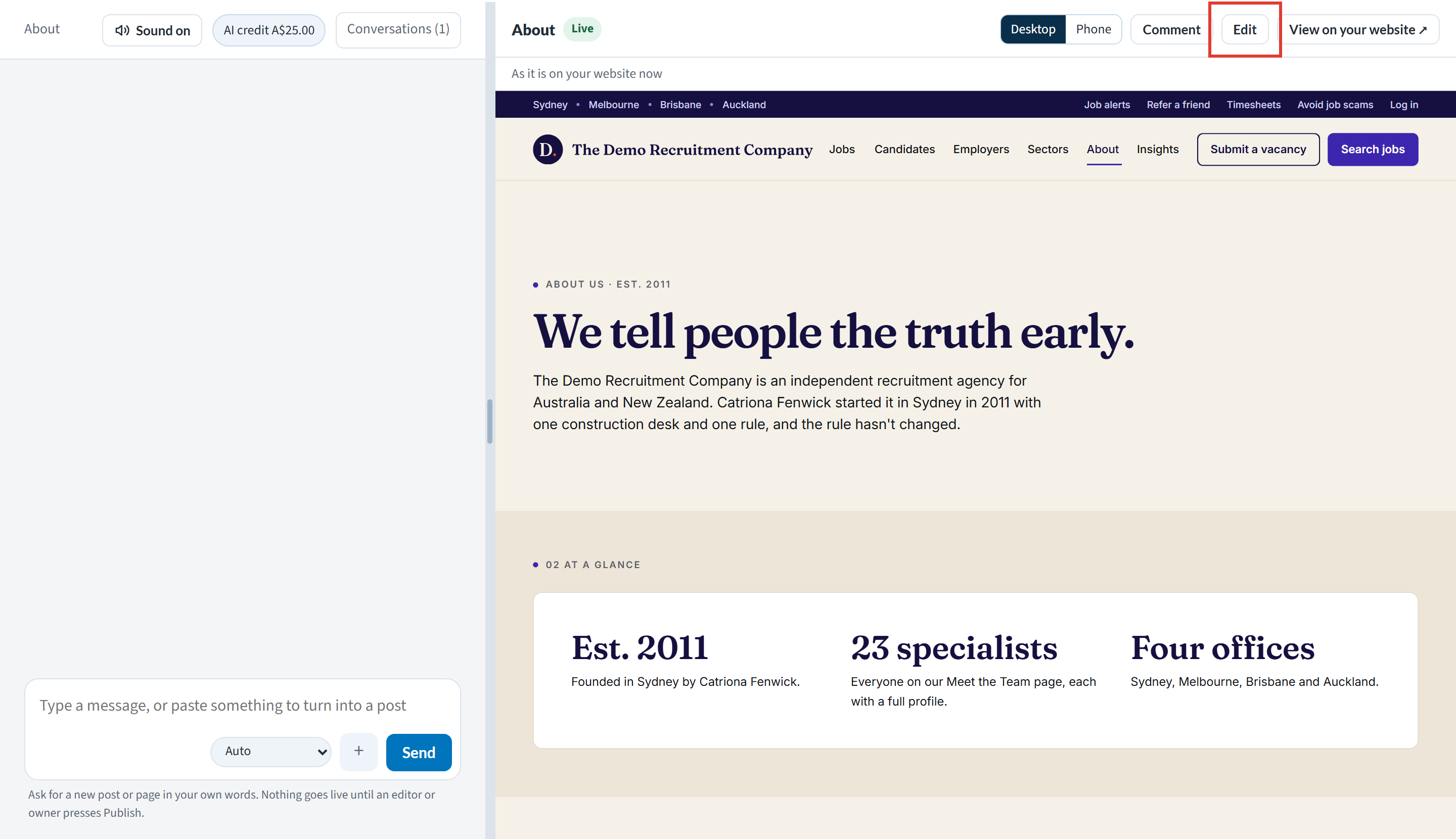
The chat folds away to a thin strip on the left so the page has nearly the whole width. Click the strip, or press Stop editing, to bring the chat back. A line above the page reminds you how it works: “Click any outlined words or photo to change it, or point at a section for its bar to move or remove it. Striped parts can’t change here: point at one to see why. Nothing goes live until you publish.”
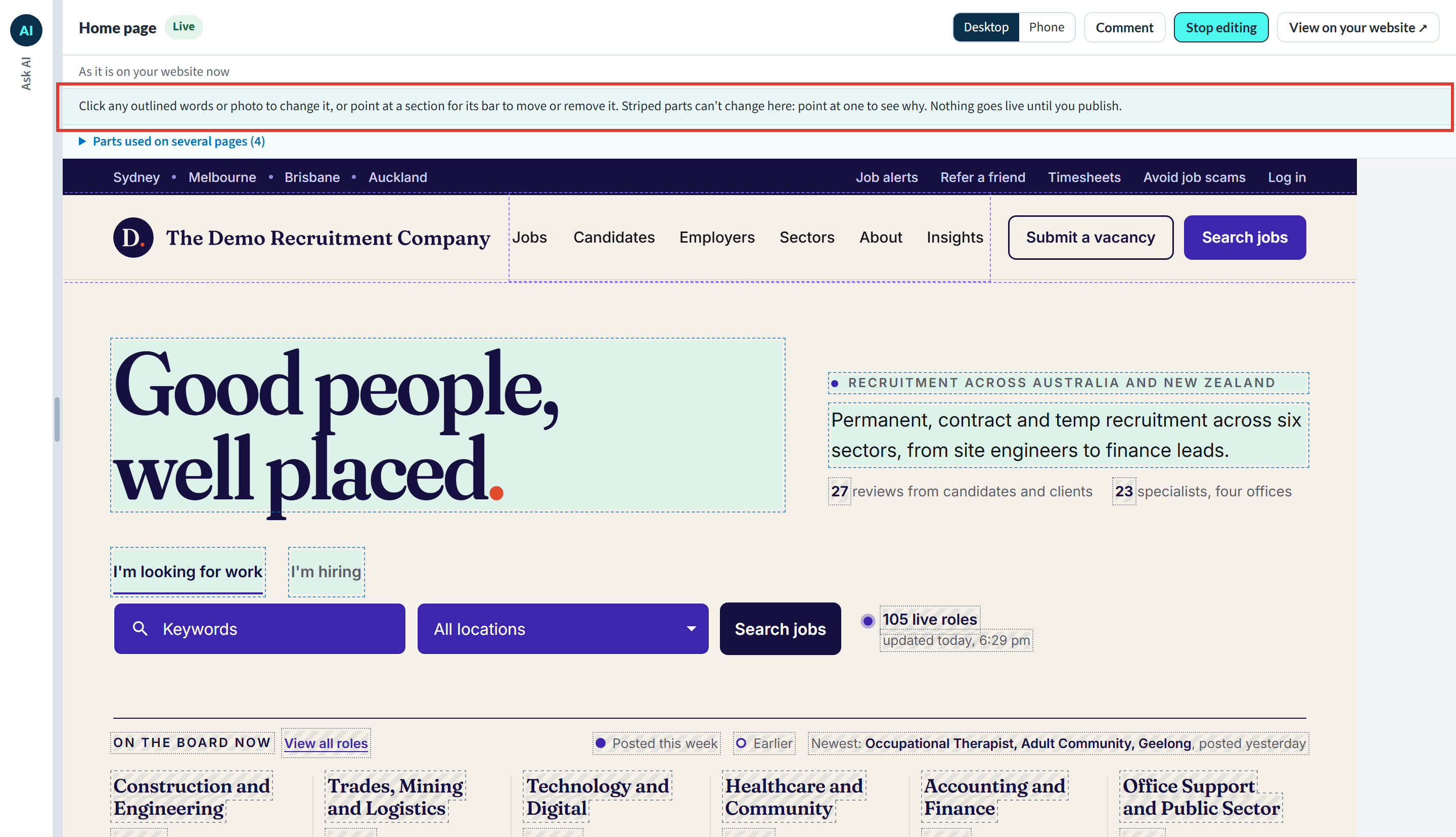
Everything you can change is outlined straight away, including headings and the words on buttons, so you can see at a glance what Edit can do on this page. Some parts are outlined in purple instead: these are used on several pages, such as your header and footer, and are changed on a page of their own. Changing your header, footer and parts used on several pages ↗ explains how.
Changing words
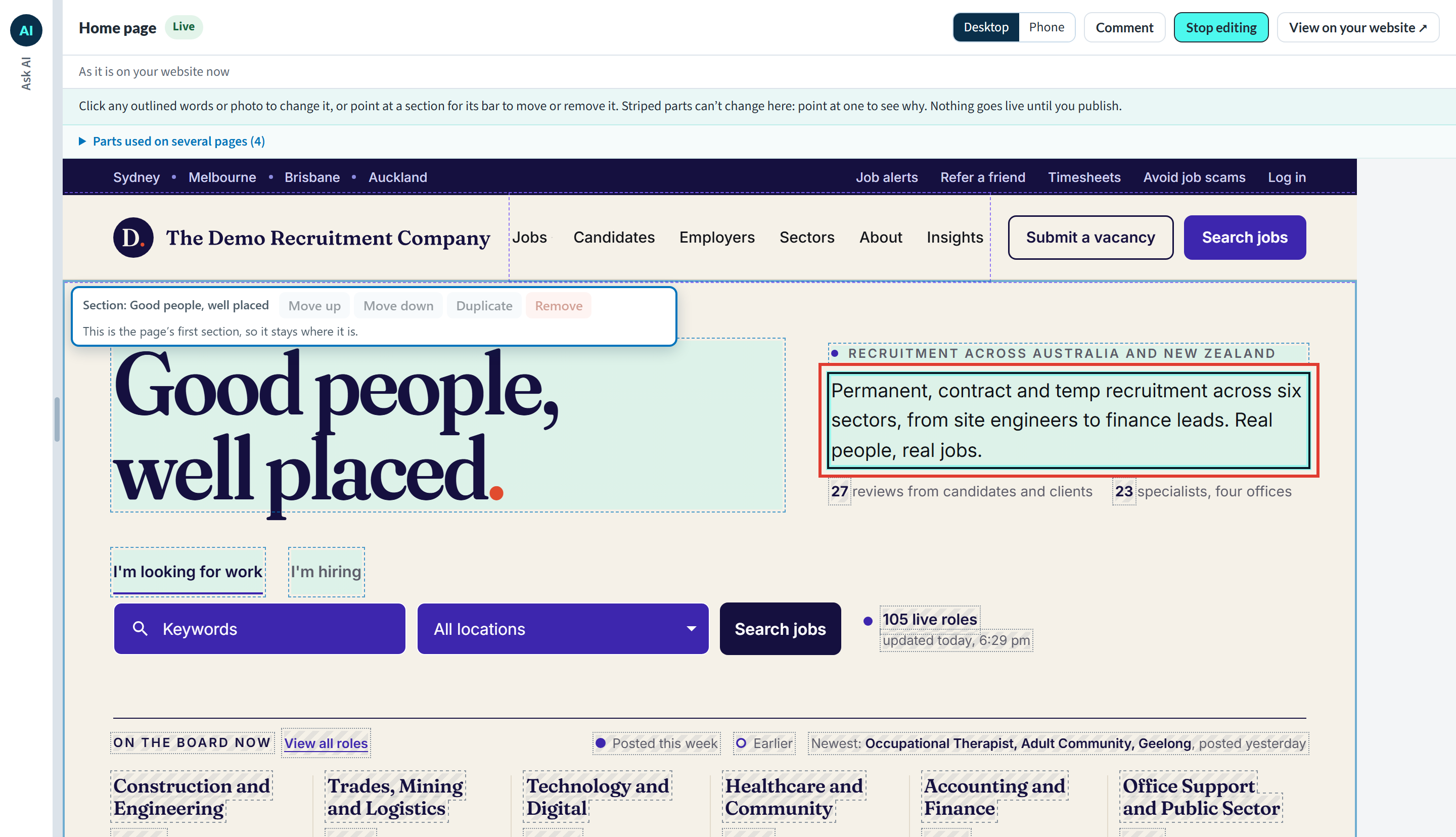
- Click any outlined words. The cursor goes into them.
- Type your change. You can change the words on a button or link too, but not where it goes: ask Ask AI for that.
- Press Enter, or click anywhere else, to keep it. The change is added to the list of changes under the page.
Undoing what you typed
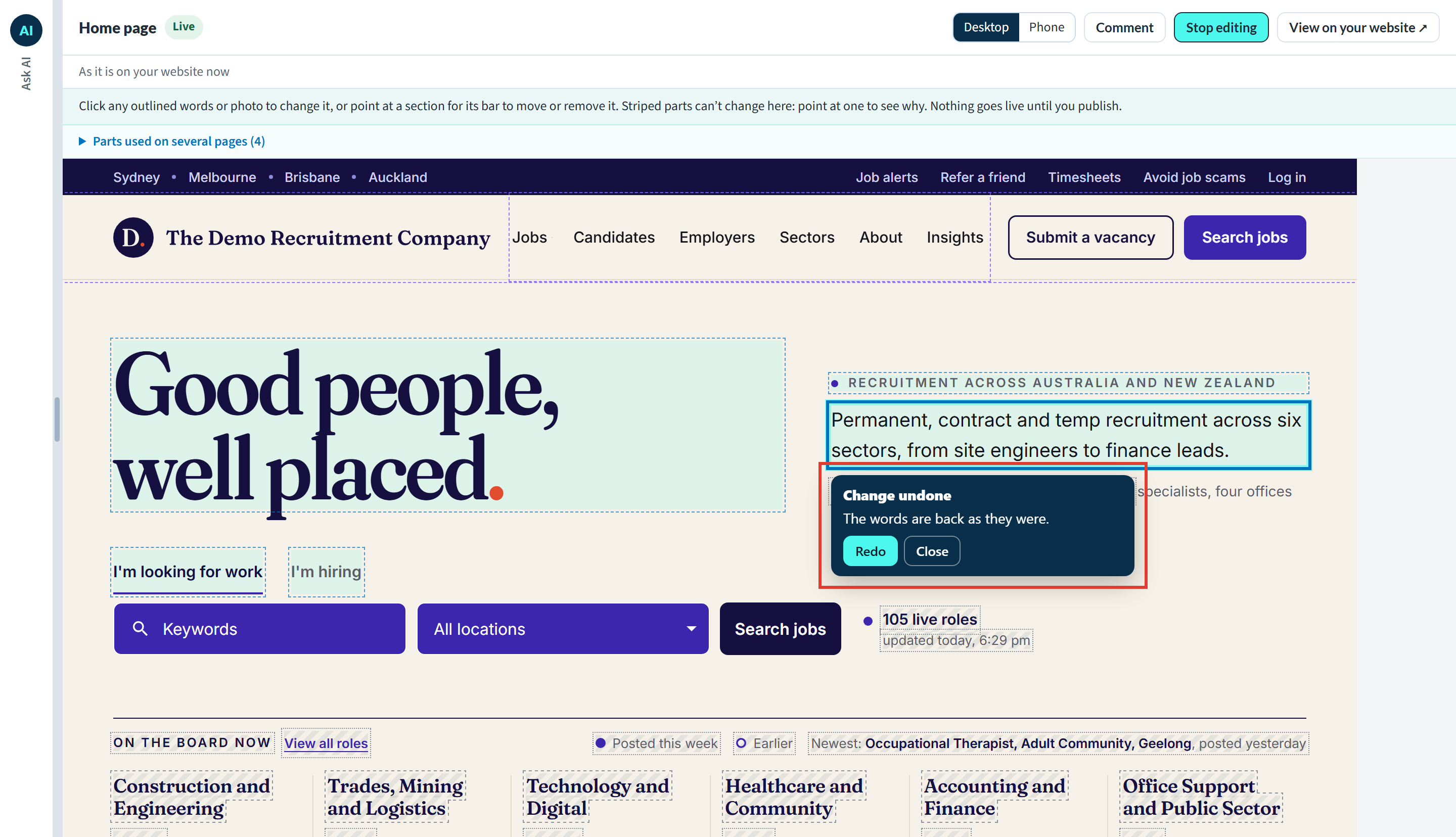
Press Escape while you are typing to put the words back. A note says “Change undone. The words are back as they were.” and offers Redo in case you change your mind.
Changing a photo
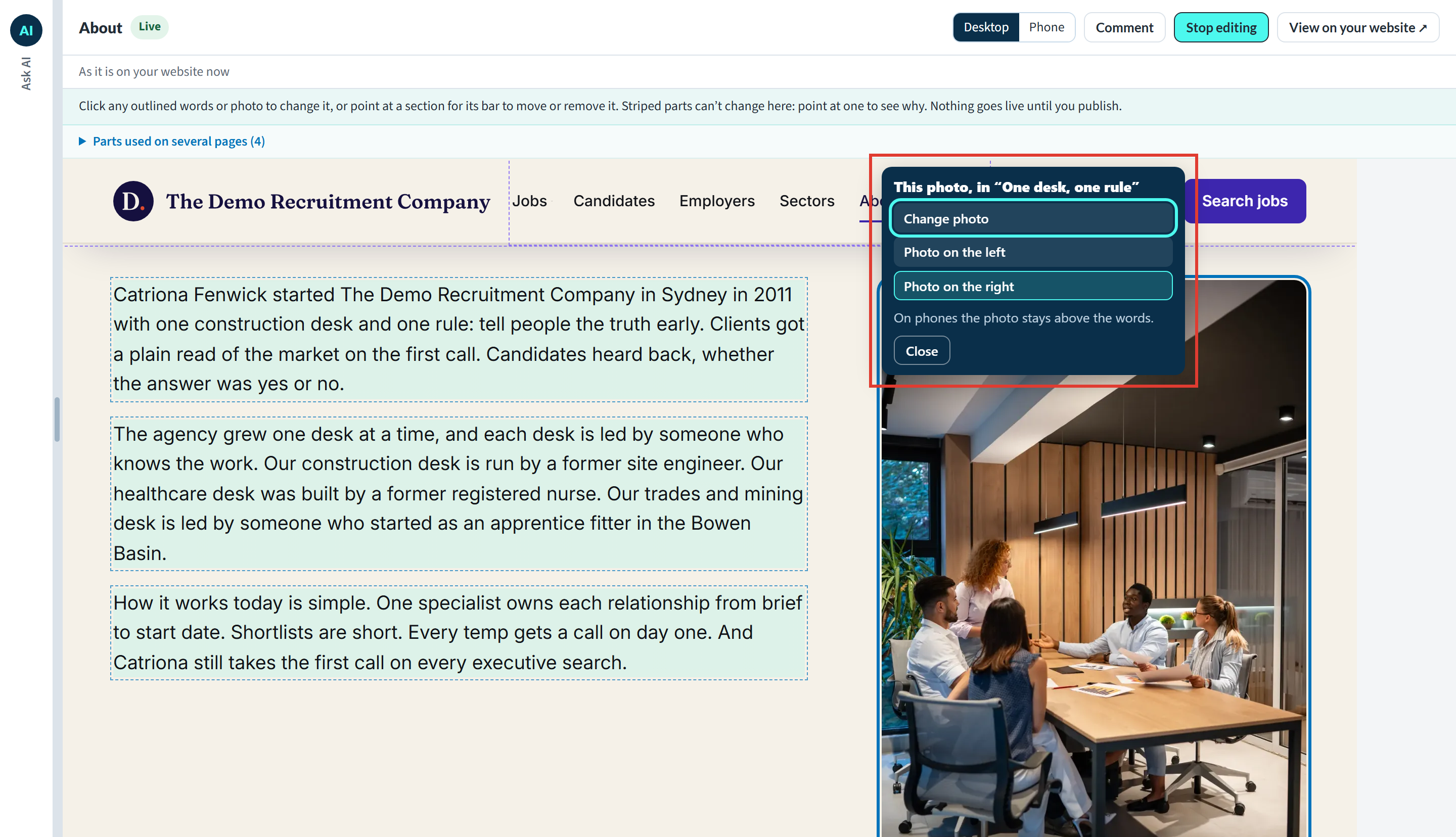
- Click an outlined photo. A small menu opens beside it, named after the section the photo is in.
- Press Change photo. Where a photo sits beside words, the menu also offers Photo on the left and Photo on the right. On phones the photo always stays above the words.
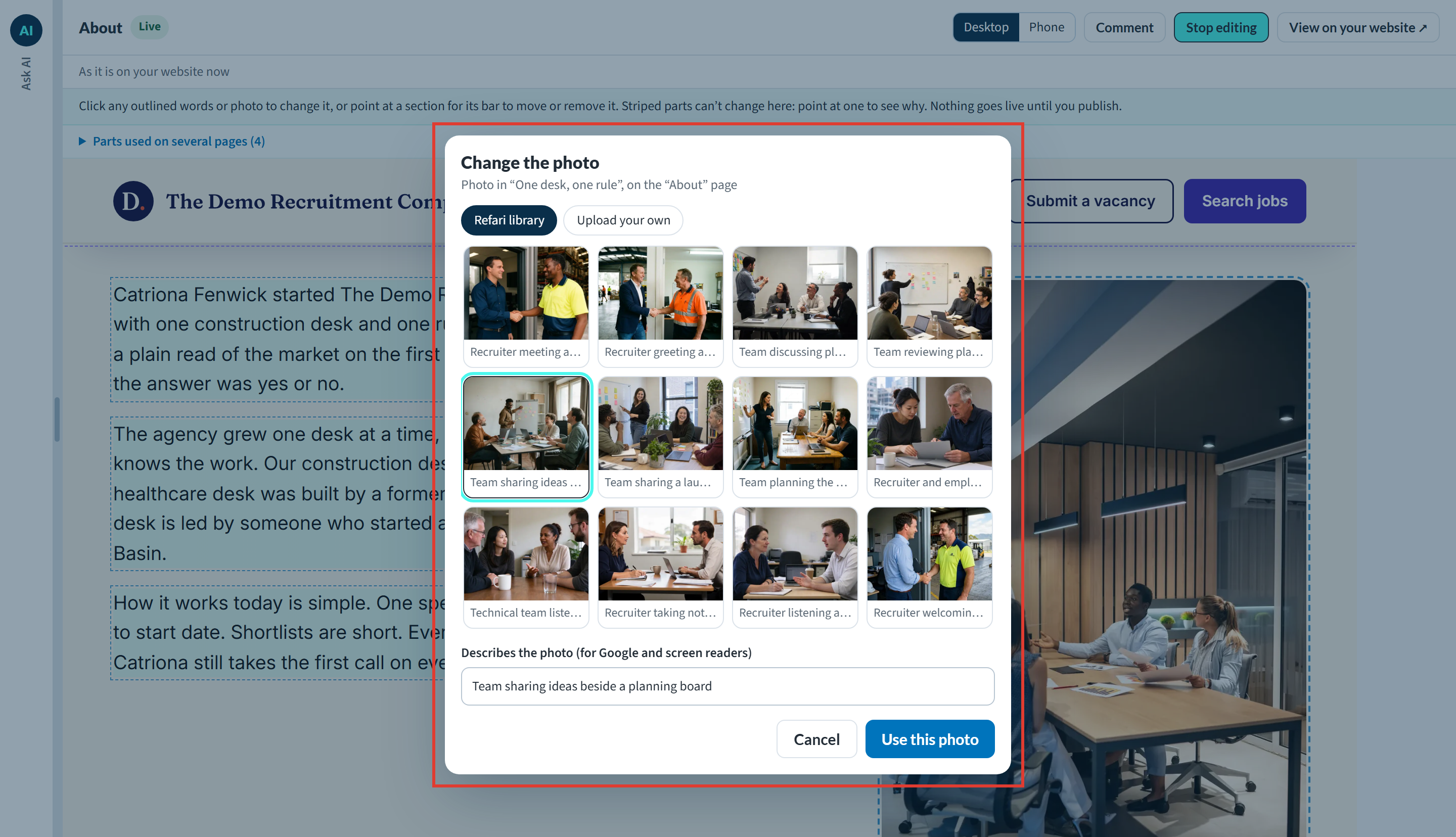
- The photo picker opens with two tabs: Refari library, a collection of professional photos ready to use, and Upload your own. Choose a photo.
- Check the box labelled Describes the photo (for Google and screen readers). This short description is read aloud to people who use screen readers and helps Google understand the photo. It fills in from the photo you chose, so change it if it doesn't match what the photo shows on your page.
- Press Use this photo. The new photo shows on the page straight away.
Note: Change one photo at a time, and keep photos and sections apart: publish a photo change before moving or removing a section, or the other way round. Changes to words can go with either. If Edit can't move a photo to the left or right by itself, Ask AI moves it for you, which uses AI credit, and the list of changes says so.Moving, copying or removing a section
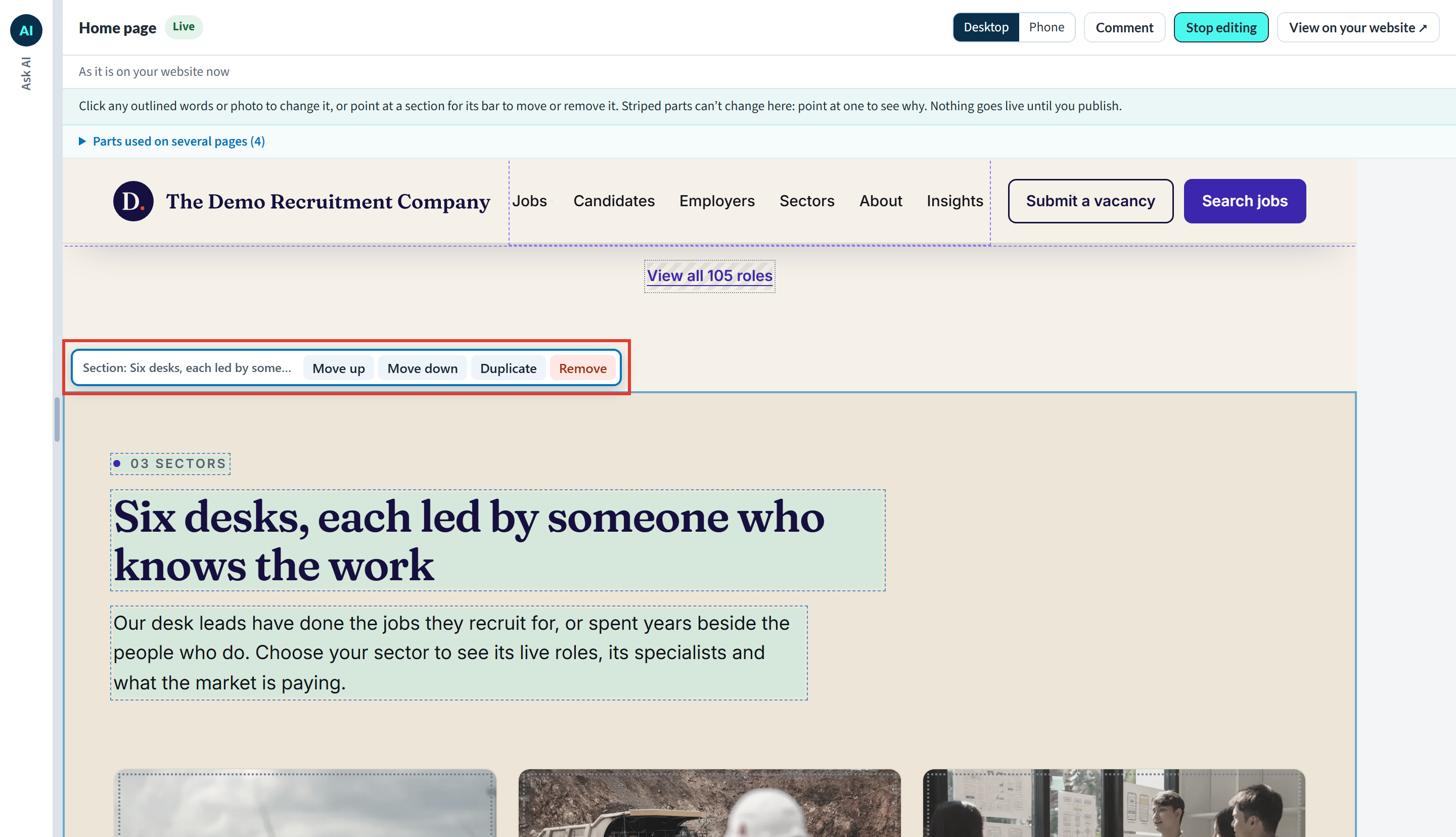
Point at a section and a bar appears just above it, showing “Section:” and the section's name, with four buttons:
- Move up and Move down swap the section with the one above or below it.
- Duplicate adds a copy of the section with the same words, ready for you to type over.
- Remove takes the section off the page.
Some sections stay where they are, and their bar says why: a page's first section always stays first, and a section run from your Refari dashboard, such as your jobs, reviews or team, stays too. For these and every other part Edit can't change, Why can't I change this part of my page by hand? ↗ explains what to do instead.
The list of changes
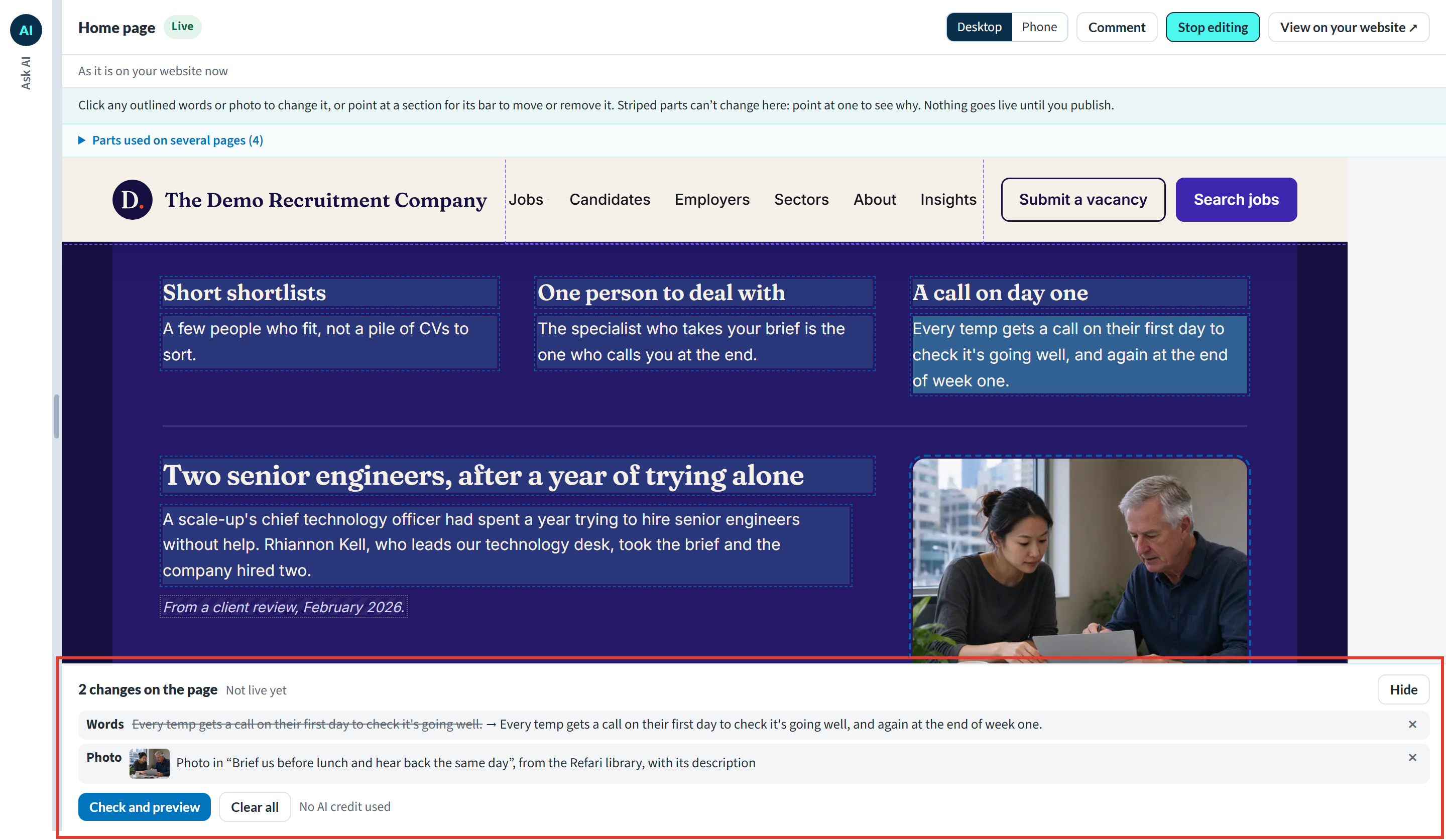
Every change waits in a list under the page, headed with the number of changes (for example “2 changes on the page”) and Not live yet. Each line shows the old words crossed out and the new words beside them, or the photo or section that changes.
- Press the × at the end of a line to take that change out.
- Press Clear all to take every change out and start again.
- Press Hide to fold the list down to one line, and Show changes to open it again.
- No AI credit used confirms these changes cost nothing.
- You can keep up to 40 changes in the list at once.
Note: The list is kept in the browser you made it in. If you close the page and come back on the same computer, your changes are still waiting, but they don't follow you to another computer or browser. Publish them, or clear them, when you're done.Checking the preview
When the list holds everything you want, press Check and preview. Your website is built with your changes and checked on phone, tablet and desktop, which usually takes about a minute. Nothing on your live website changes while this happens.
When the check passes, the preview beside the chat shows the page as it will look once published, headed “Preview: how it will look once you publish. Nothing is live yet.” It opens at your change, with the new words highlighted, and the list shows a tick for Phone, Tablet and Desktop. The chat confirms it too, for example “Changed by hand on the “Insights” page: 1 change to words: built and ready to preview.”
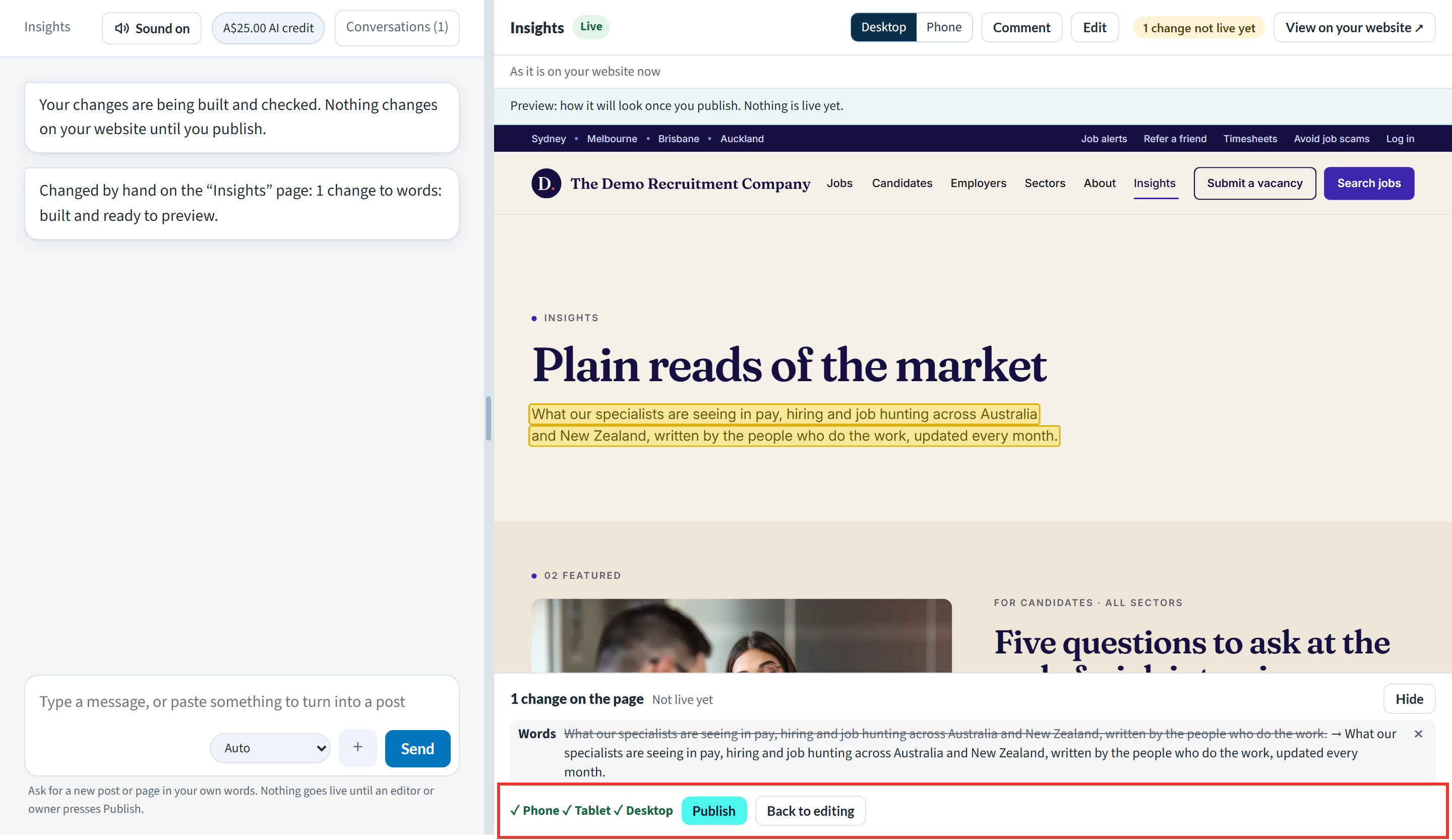
- Press Back to editing to make more changes. Your list is kept.
- Press Publish to put the changes live.
If the check doesn't pass, nothing on your website changes, and the list of changes and the chat both tell you what to do next. The last section of Why can't I change this part of my page by hand? ↗ covers each message.
Publishing
Press Publish. The list says “Publishing. Live in about two minutes”, and your change is usually live within a couple of minutes.
Editors and Owners publish. Anyone else on your team can make changes and check them, but instead of Publish they see that an editor or owner in your team publishes it, and your Editors and Owners are told it is waiting. Access levels are set under Settings > Team, which Team and access to Your website ↗ explains.
Done: Once your change is live, open your website in a new tab and you will see it straight away.Undoing a published change
A change made by hand is published and recorded in your website's history exactly like an Ask AI change, so you undo it the same way: take it down straight away, or put the page back to an earlier version under Settings > History. How to edit your website with Ask AI ↗ walks through both.
Changes not live yet
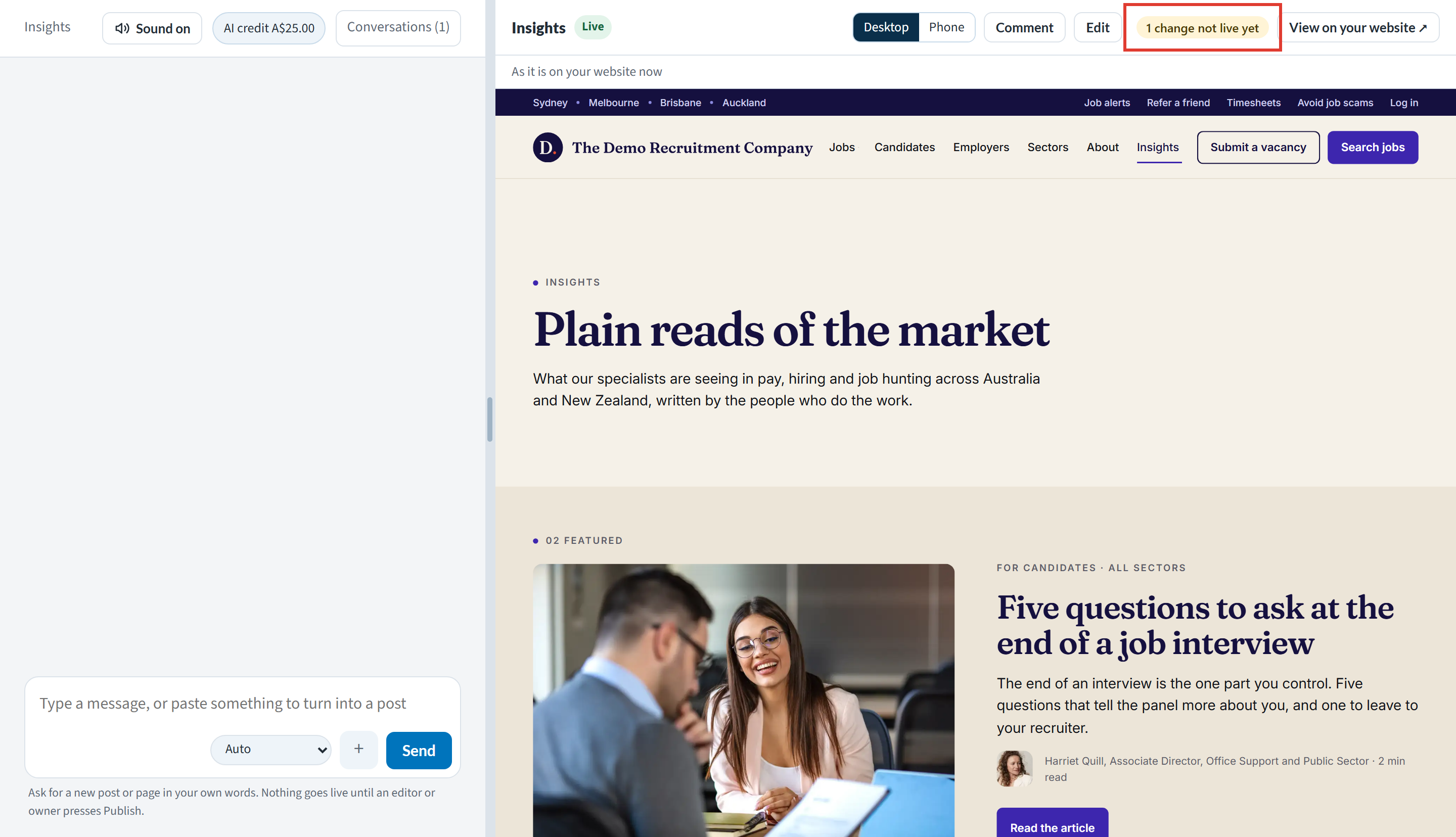
Changes you have made but not published are never lost from view. With Edit off, the bar above the preview shows how many are waiting on this page, for example “1 change not live yet”. Press it to turn Edit back on with those changes in the list.
Final Notes
Edit by hand and Ask AI work side by side: use Edit for quick, exact changes you can see on the page, and Ask AI for anything new or anything Edit says it can't do. If something doesn't behave as described here, contact our support team and we'll take a look.
Other articles you might be interested in: Changing your header, footer and parts used on several pages | Why can't I change this part of my page by hand? | How to edit your website with Ask AI
Was this article helpful?
That’s Great!
Thank you for your feedback
Sorry! We couldn't be helpful
Thank you for your feedback
Feedback sent
We appreciate your effort and will try to fix the article