This guide walks you through changing the parts of your website that appear on more than one page, using Edit by hand. These are your header (the band across the top of every page, with your logo and menu), your footer (the band across the bottom of every page) and any other shared part: a part of a page, such as a row of cards, that several pages show. If you haven't used Edit before, start with How to edit your website by hand ↗.
Why shared parts have a page of their own
A change to a shared part shows everywhere the part does. So that this is never a surprise, shared parts are never changed from an ordinary page. Each one is changed on its own page, which tells you how many pages it is on before you start. In Edit, shared parts are outlined in purple rather than blue.
Finding the shared parts
With Edit on, open Parts used on several pages above the page. The number in brackets is how many shared parts your website has. Each part is listed with the pages it is on, for example Header (every page) or a section on 2 pages, and each opens on its own page in a new tab.
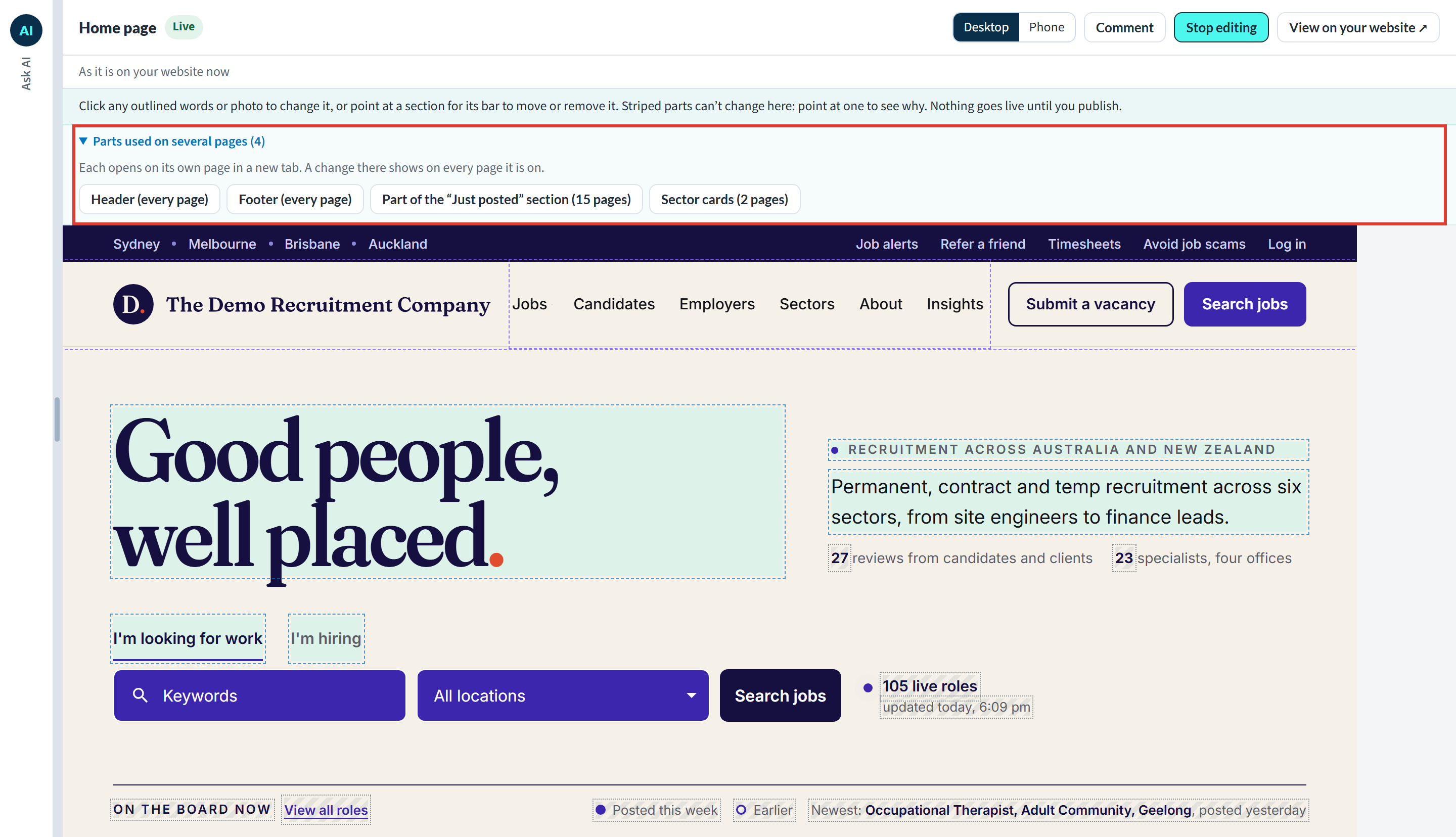
Opening a shared part from the page you are on
The header and footer
Point at your footer. A message explains that it is on every page and is changed on its own page, and offers Edit the footer and Cancel. Press Edit the footer to open the footer's own page in a new tab. Your header works the same way when it has words you can change.
Many headers are only menus and buttons, though, and those are changed with Ask AI. Pointing at a header like that says “Nothing in your header changes by hand”, with Ask AI to change it.
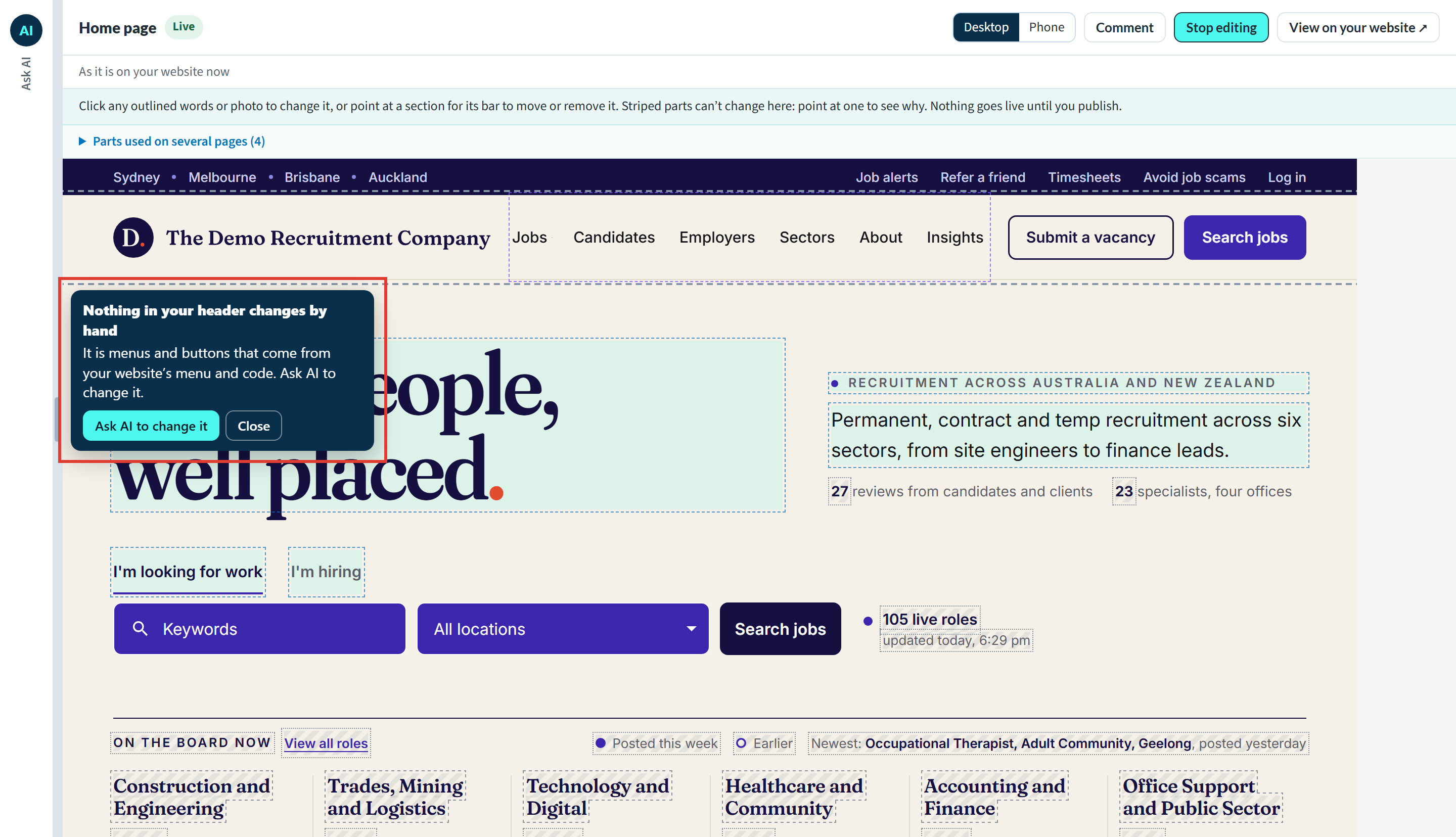
Other shared parts
Point at the words of any other shared part, such as the description on one of your sector cards. A message says what you pointed at and which other pages show it (for example “It is also on the “Sectors” page”), and offers Change it everywhere. Press it to open the part's own page in a new tab. It lands on the exact words you pointed at, so you don't have to look for them.
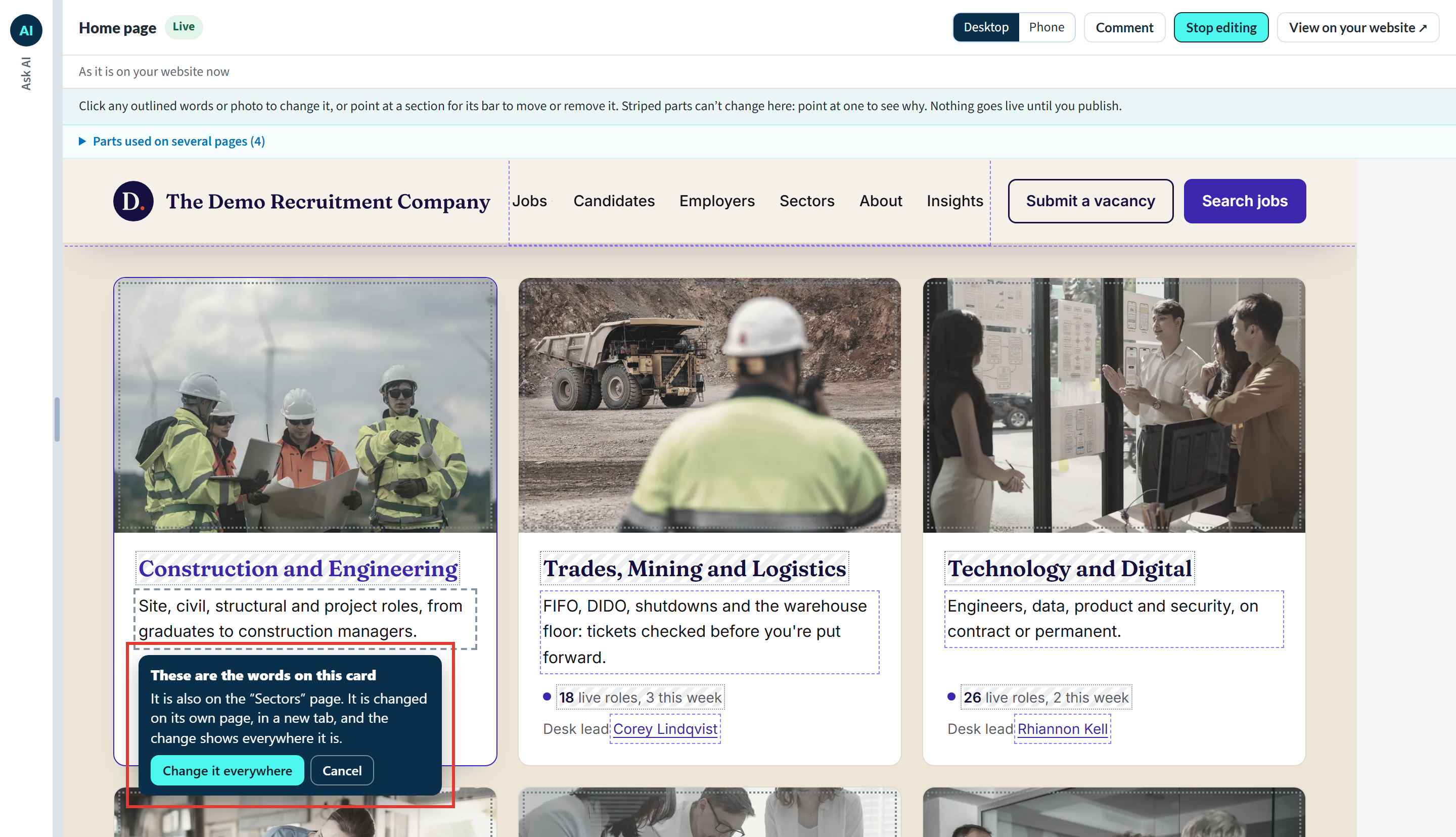
Working on a part's own page
A part's own page opens with Edit already on. The line above the page names the part and how many pages it is on, for example “Only the outlined part is changed here: Sector cards. It is on 2 pages of your website, so every change here shows on all of them.” The part is outlined as usual and the rest of the page is faded.
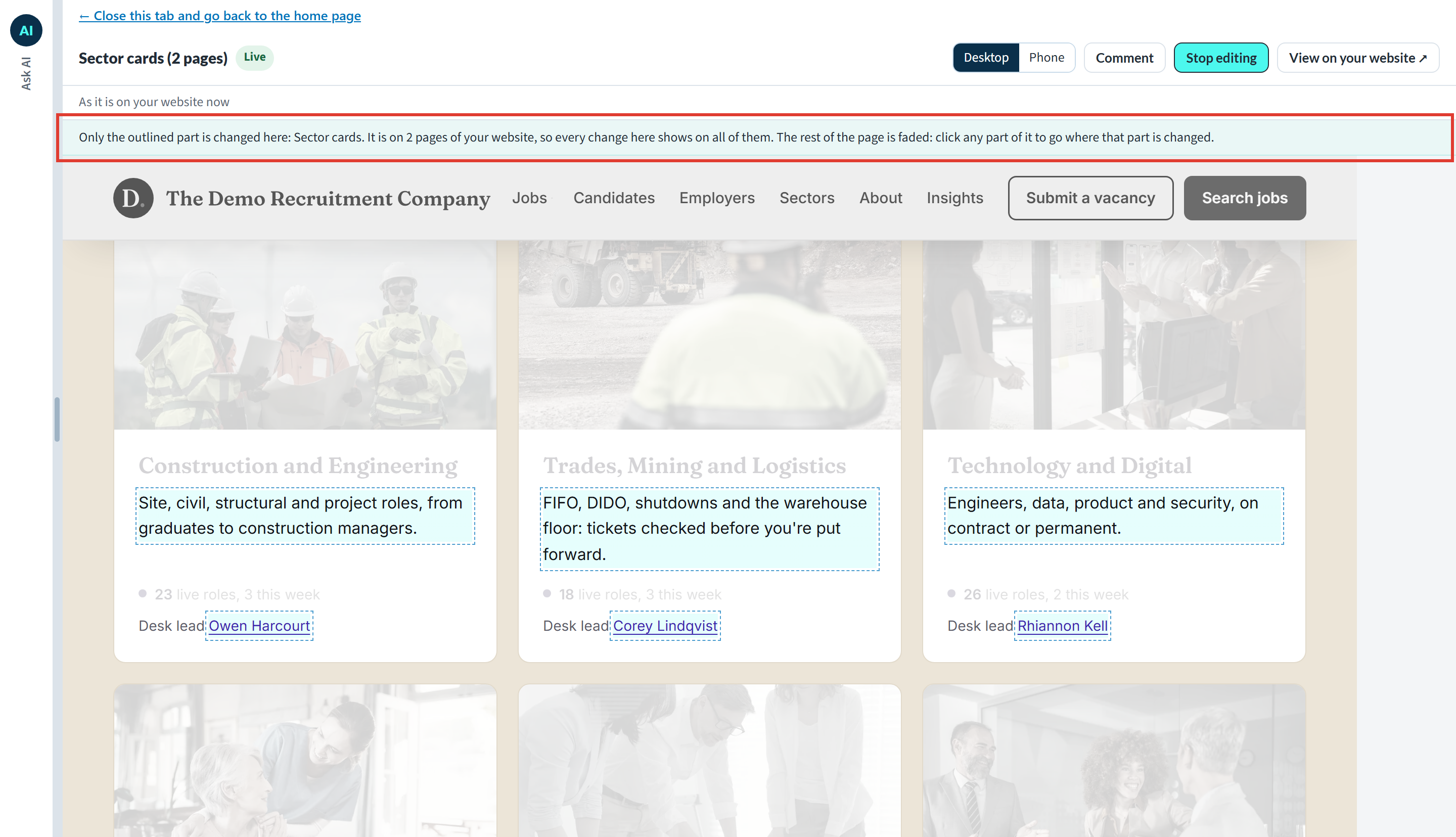
Change the words and photos in the part exactly as you would on any page. In the list of changes, every change that reaches other pages is marked with the number of pages, such as ON 2 PAGES, and a line underneath names them, for example “Also changes: on the “Sectors” page”.
Some parts only appear in some cases, for example a list that shows only when there is something in it. If there is nothing of a part to change by hand on its own page, a line at the top says so and suggests Ask AI instead. A header that is all menus and buttons says so on its own page too, and points you to Ask AI.
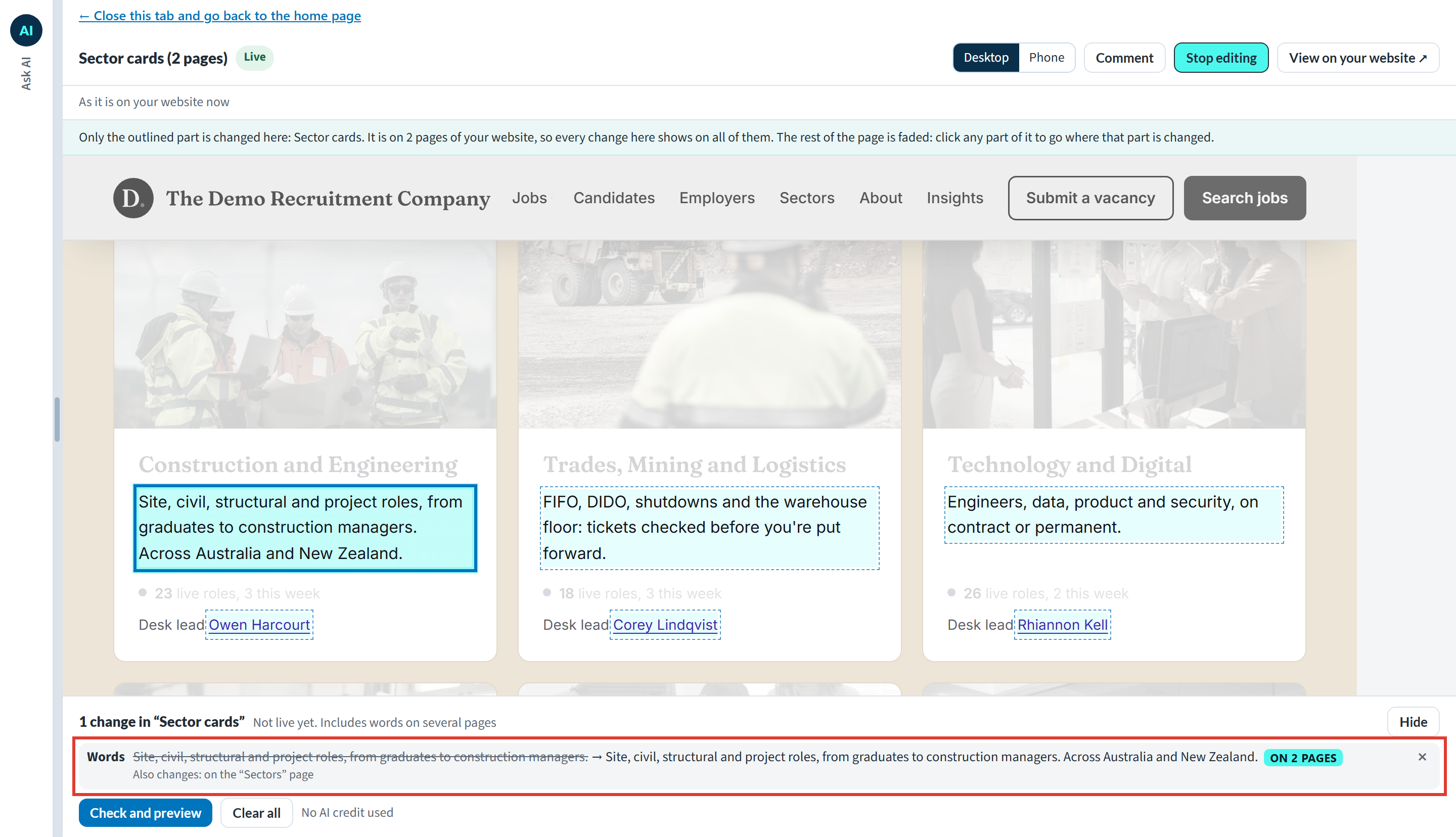
Note: Before you publish, read the “Also changes” line. The words you type will read well on this page, but check that they also make sense on the other pages listed.When you are ready, press Check and preview, then Publish, as on any page. How to edit your website by hand ↗ covers both steps.
Moving to another part
The faded rest of the page isn't dead space: it leads to wherever each area is changed. Point at a faded area and it is outlined with a label of what it is and where it lives, for example “Header, every page”, “Footer, every page”, or a section on one page only, such as “… section, home page only”.
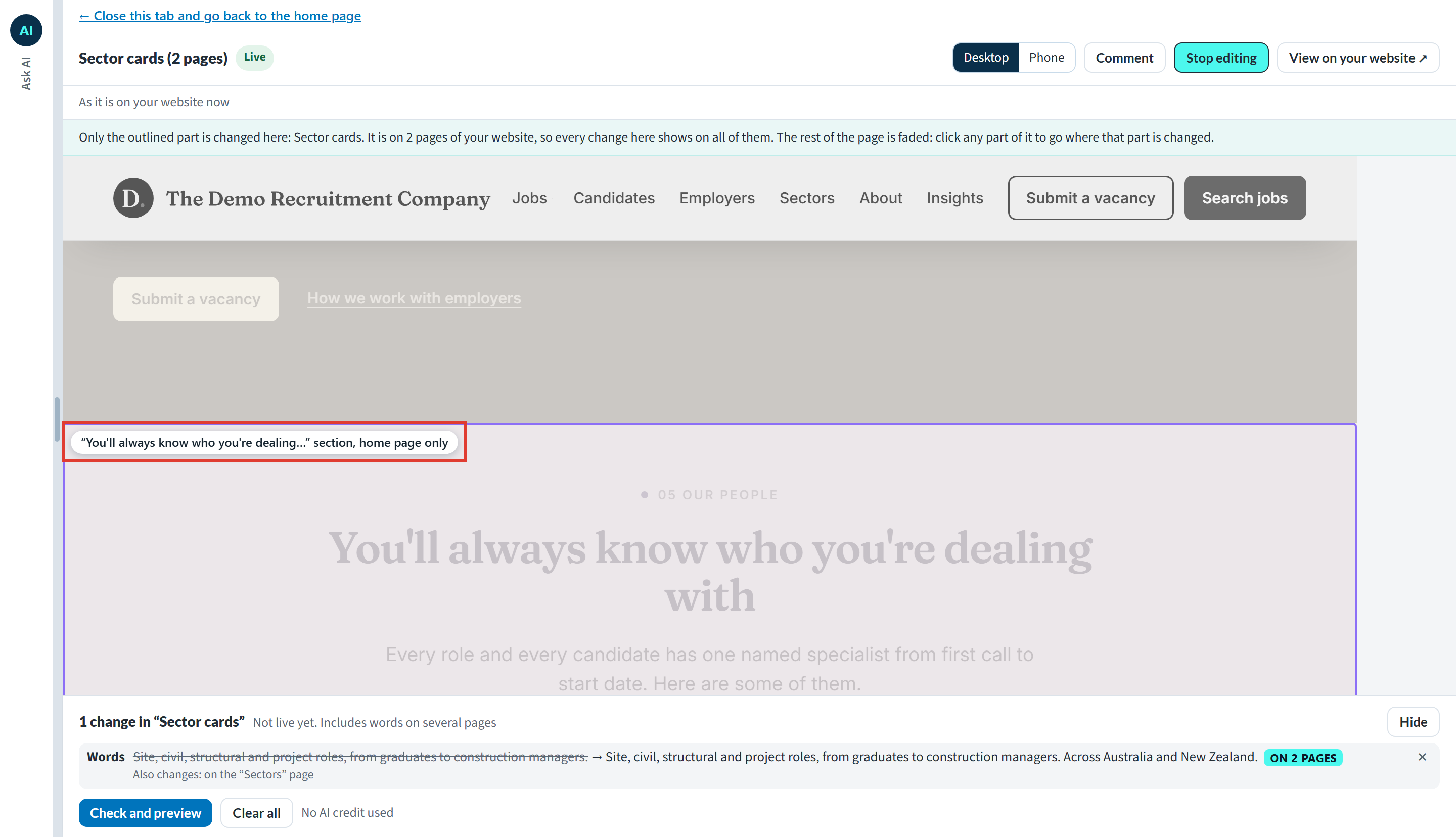
Click it, and a message asks whether you want to edit that area, with three choices:
- Edit the … goes there in this tab: to the page itself, with Edit on, for a section on one page, or to the own page of your header, footer or another shared part.
- Open in a new tab opens it beside this one.
- Stay here closes the message and leaves you where you are.
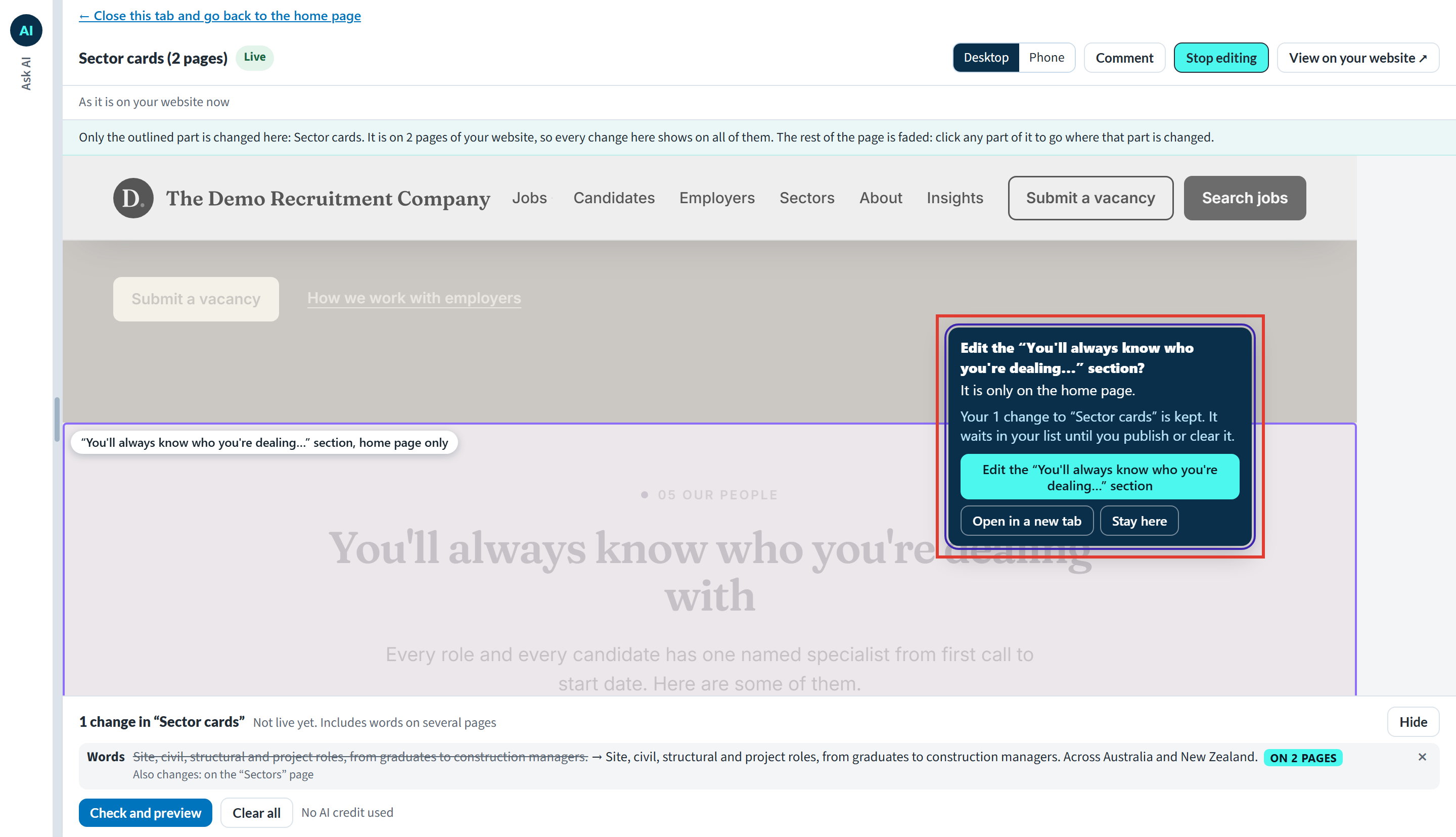
You never lose work by moving on. If you have changes waiting in the part you are leaving, the message says so: they stay in your list until you publish or clear them.
Getting back
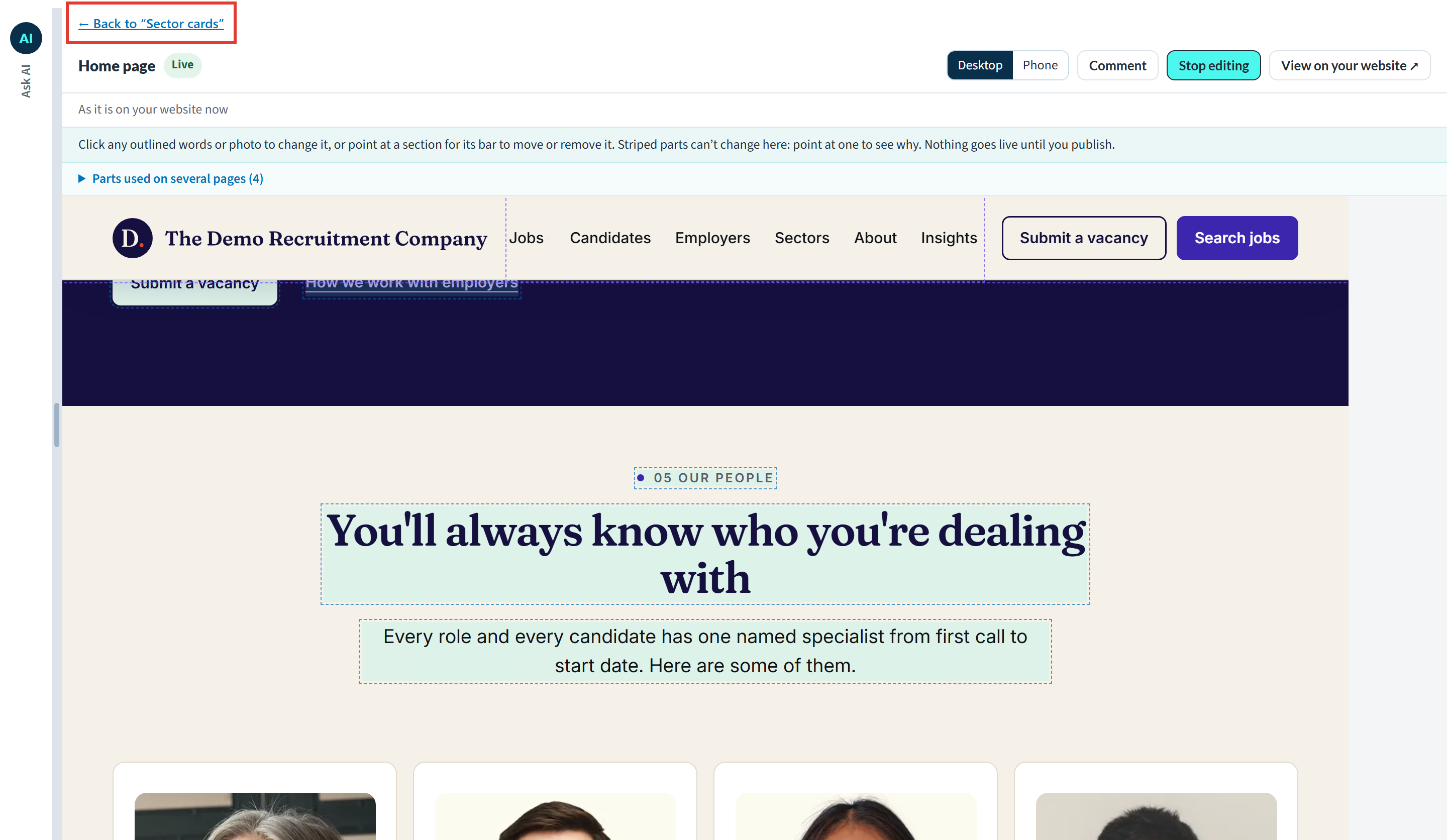
Wherever you land, a link at the top takes you back. It reads ← Back to … when you moved in the same tab, or ← Close this tab and go back to … when the part opened in a new tab.
Changes waiting in a shared part are shown on every page that uses it, for example “1 change not live yet in …”. Press that to go straight to the part's own page.
When the menu keeps its own copy of the same words
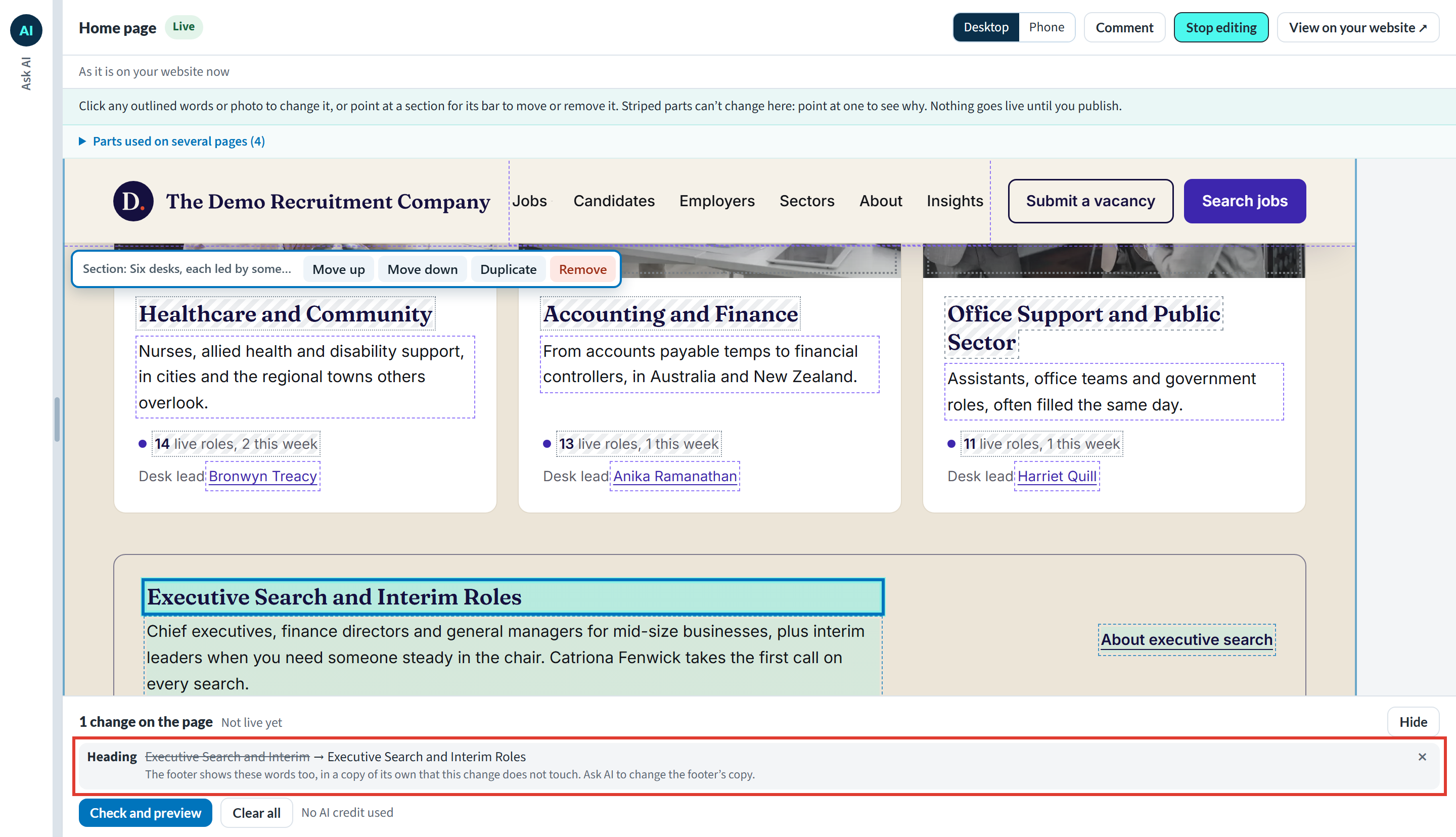
Some websites repeat a heading's words in the menu at the top, or in the footer, as a separate copy. Changing the heading by hand doesn't change that copy, so Edit tells you, under the change in your list: “The menu at the top of your website shows these words too, in a copy of its own that this change does not touch. Ask AI to change the menu's copy.” (or the footer's).
Idea: Menus are lists of links to your pages, and they are changed with Ask AI rather than by hand. Ask in your own words, for example “Rename Insights to News in the menu” or “Add our Brisbane office page to the footer”.Final Notes
Treat a shared part like a notice on every wall: change it once, on its own page, and check the list of pages before you publish. If a part is striped rather than outlined, it can't be changed by hand at all, and Why can't I change this part of my page by hand? ↗ explains what to do instead.
Other articles you might be interested in: How to edit your website by hand | Why can't I change this part of my page by hand?
Was this article helpful?
That’s Great!
Thank you for your feedback
Sorry! We couldn't be helpful
Thank you for your feedback
Feedback sent
We appreciate your effort and will try to fix the article