This article explains the recommended resolution and file specifications for job media images and GIFs you upload to Refari as JobTags. Following these guidelines keeps your images sharp on the job board and avoids visible compression when the page loads.
Note: The figures in this article reflect the current product. The previous guidance of 90x60 pixels referred to the legacy job board cards and is now out of date. Refari today renders job media at 16:9 in modern Svelte widgets and resizes large uploads to a 326x218 thumbnail before serving them, so larger source files are both supported and recommended.Recommended resolution and file specs
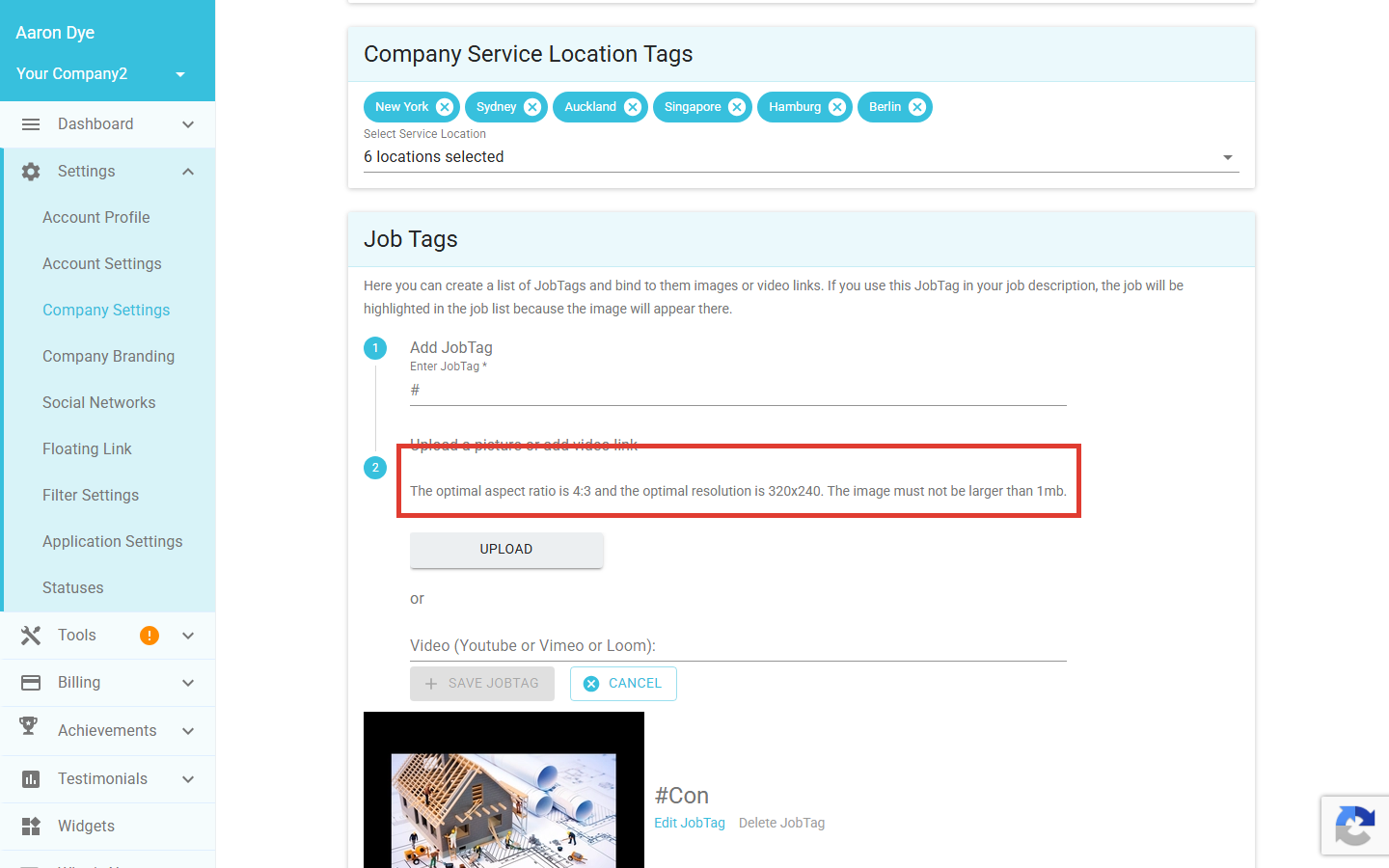
Upload your image at the spec the dashboard itself prompts for. These are the values the Refari uploader is built around:
- Resolution: 320 x 240 pixels (the uploader's optimal target).
- Aspect ratio: 4:3 (the cropper enforces this when you upload a still image).
- Maximum file size: 1 MB.
- Accepted formats: PNG, JPG, and GIF. JPGs are auto-converted to PNG on upload; animated GIFs are preserved as animations.
Idea: If you can, export at a slightly larger size (for example 640 x 480 at 4:3) so the image stays crisp on high-DPI and retina screens. Refari will resize it down to fit a 326 x 218 thumbnail at high quality (WEBP, quality 99), so providing a sharper source gives you the best result on the job board.Why the resolution matters
Refari does two things to images before showing them on your job board:
- Crops to 4:3. The uploader opens a cropping tool the moment you pick a file, locked to a 4:3 aspect ratio so every image fits the job board card consistently.
- Resizes to a 326 x 218 thumbnail. The image is resized to fit inside 326 x 218 pixels and re-encoded as WEBP. If you upload at a wildly different size, you may see soft edges or visible compression artefacts on the card.
Uploading at the recommended spec (or a clean 4:3 multiple of it) keeps the image sharp and avoids any surprises when it appears on the job board.
Where to upload your job media
Job media images live under JobTags. Each JobTag is a hashtag (for example, #warehouse or #sales) bound to an image or video. When you include that hashtag in a job description, Refari shows the matching image on the job board card.
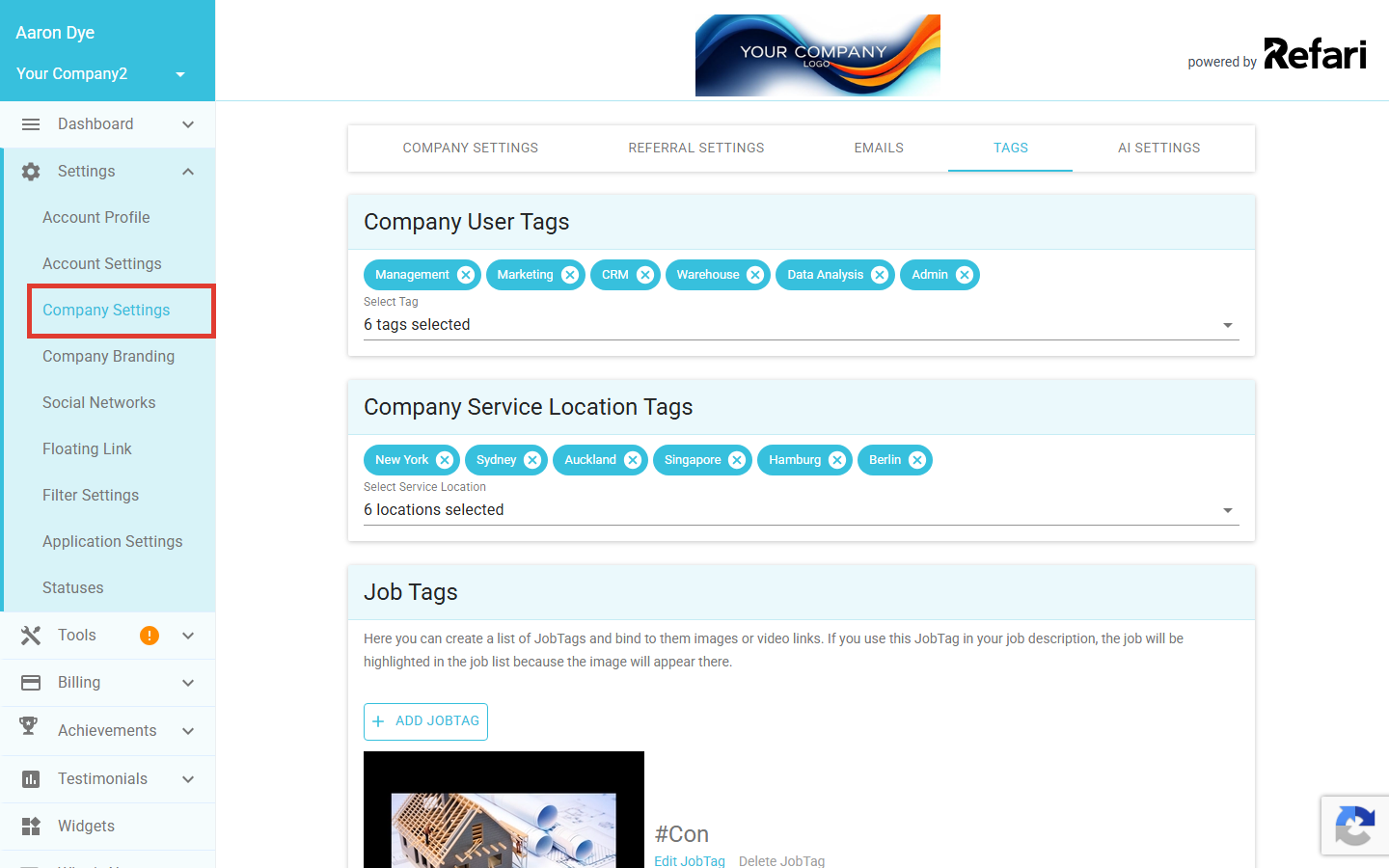
Step 1: Open Company Settings
In your Refari dashboard, expand Settings in the left-hand menu and click Company Settings.
Step 2: Switch to the Tags tab
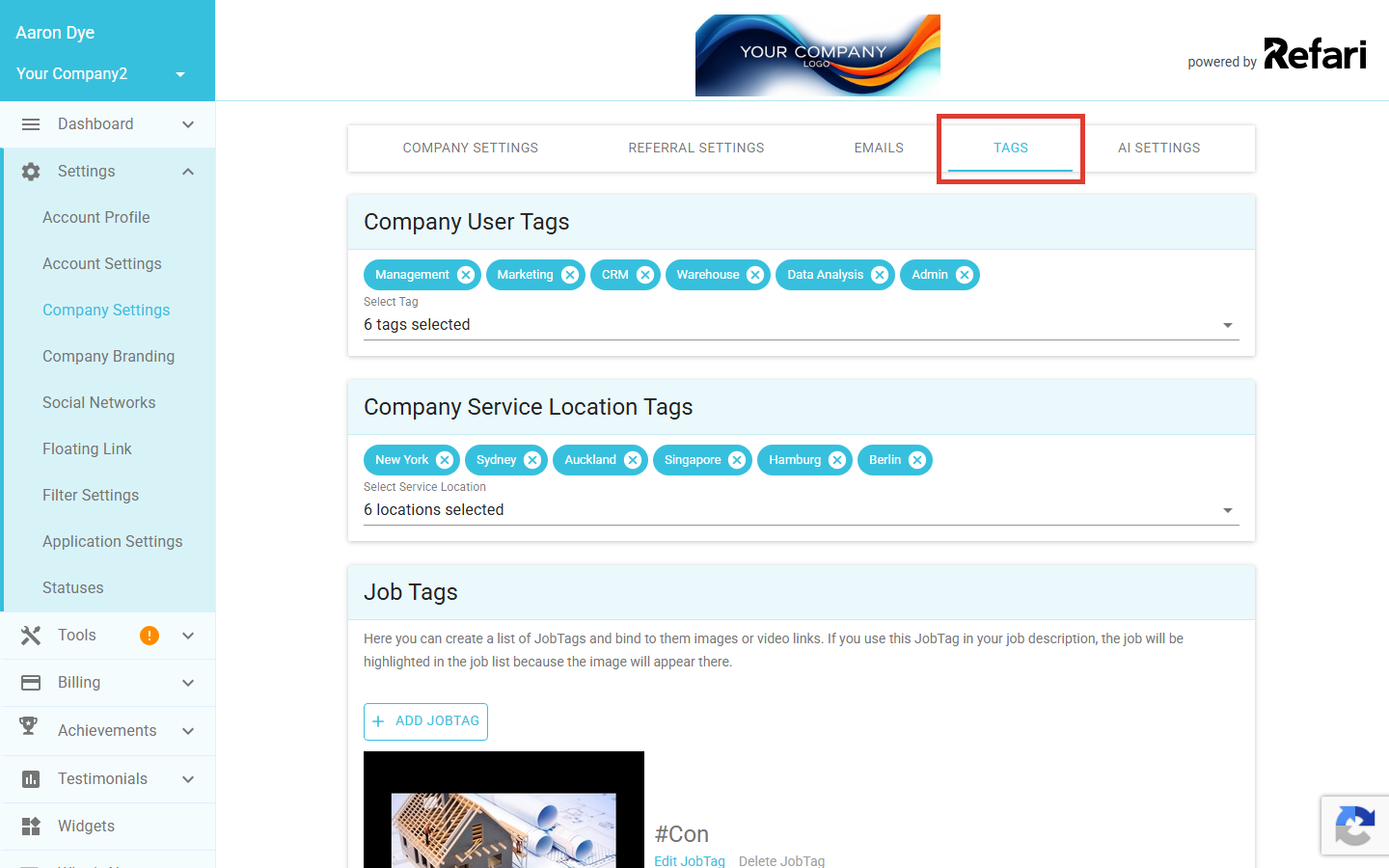
At the top of the Company Settings page, click the Tags tab. Scroll down to the Job Tags panel.
Step 3: Add or edit a JobTag
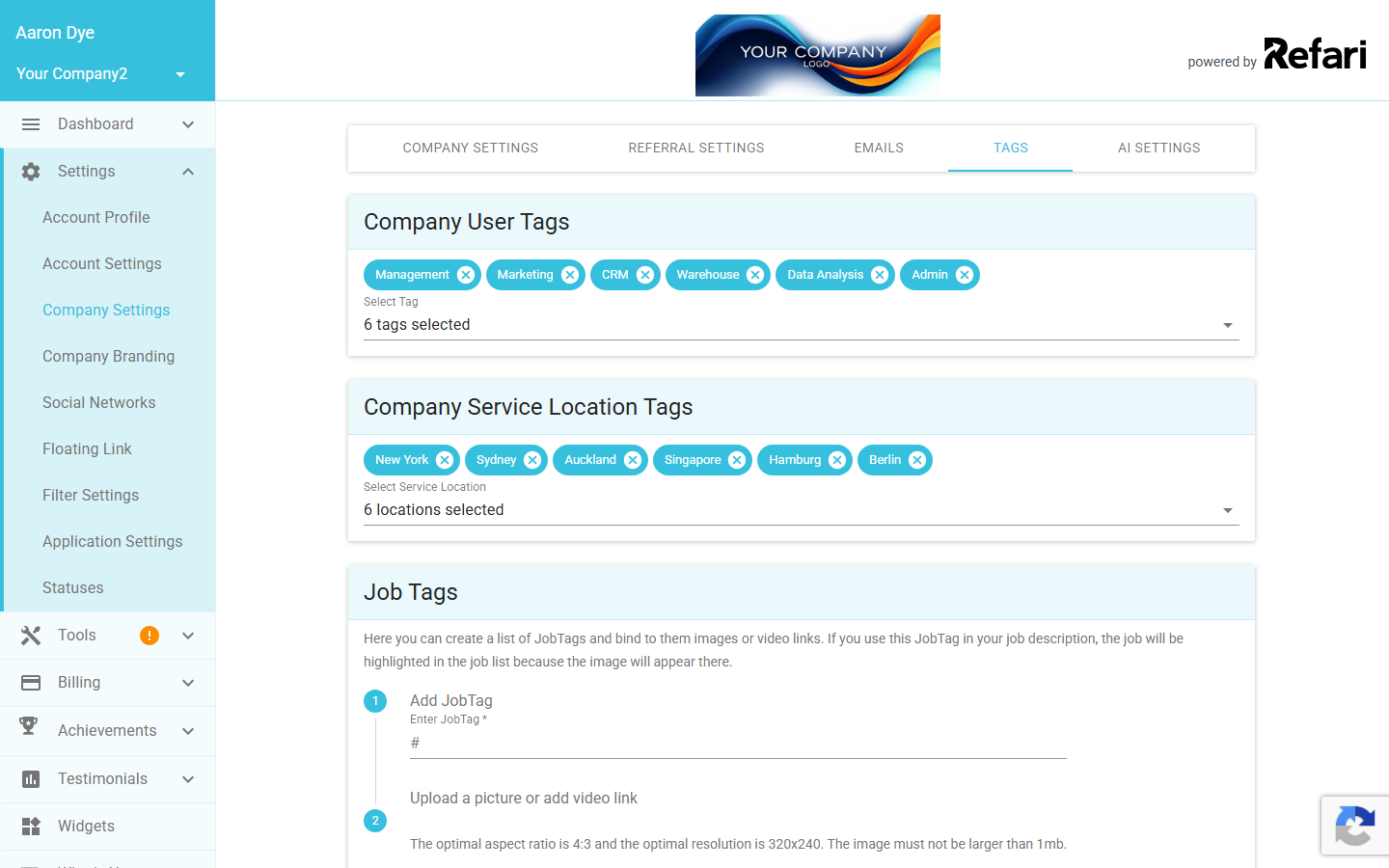
Click Add JobTag to create a new one, or use the edit icon on an existing JobTag. Enter your hashtag, then upload your image. The uploader will show the recommended specs above the picker and open a cropping tool when you select a file.
Step 4: Crop and save
Adjust the crop window to frame the part of the image you want shown on the job board card, then save. The image is resized and stored automatically, and any job containing the matching hashtag will pick it up.
Success! Once saved, your image is live for any job whose description contains the matching hashtag. Refresh your job board and the new media will appear on those cards.What happens if you upload a different size
- Larger than 320 x 240: Refari resizes the cropped image to fit 326 x 218 pixels (WEBP, quality 99). This is the intended path, so larger high-quality sources work well.
- Smaller than 320 x 240: The image is not upscaled. It will display at its native size and may look soft on retina or high-DPI screens.
- Not 4:3: The cropper forces a 4:3 selection, so any extra image area outside that ratio is trimmed at upload time. Compose your image with the key subject near the centre to avoid losing important detail.
- Larger than 1 MB: The uploader refuses the file. Compress or export at a lower quality before trying again.
A note on animated GIFs
GIFs are handled a little differently from still images:
- Animation is preserved. The uploader re-encodes the GIF frame by frame so it continues to animate on your job board.
- 4:3 cropping still applies. Pick a GIF that already sits comfortably in a 4:3 frame so you do not lose key content during cropping.
- Watch the file size. The 1 MB limit applies, and GIFs are usually the largest format. Trim length, reduce frame rate, or limit the colour palette in your GIF tool if you bump the limit.
Idea: For free, easy editing try the built-in image tools on your operating system, or web tools such as Canva, Photopea, or Squoosh. Crop to 4:3 and export at 320 x 240 (or larger) before uploading and you will get a predictable result every time.Final Notes
If a job is not picking up the image you expect, double-check that the hashtag in the job description exactly matches the JobTag you have configured (the match is case-insensitive). If the image still does not appear after a refresh, get in touch with the Refari team and we will help you trace it.
Other articles you might be interested in: How to Set Job List Media and Candidate List Media in Refari | Adding images to your Job and Candidate Adverts
Was this article helpful?
That’s Great!
Thank you for your feedback
Sorry! We couldn't be helpful
Thank you for your feedback
Feedback sent
We appreciate your effort and will try to fix the article