This guide walks you through where to find your Refari invoices, what each one shows on screen, where to get the full line-item breakdown, and how to keep your payment details up to date. It is a companion to the explainer on how Refari billing works and why it is automated.
Note: The Billing area is available to Company Admin users only. If you cannot see Billing in your left-hand menu, ask one of your Company Admins to give you access or to share invoice details with you.Step 1: Open the Billing area
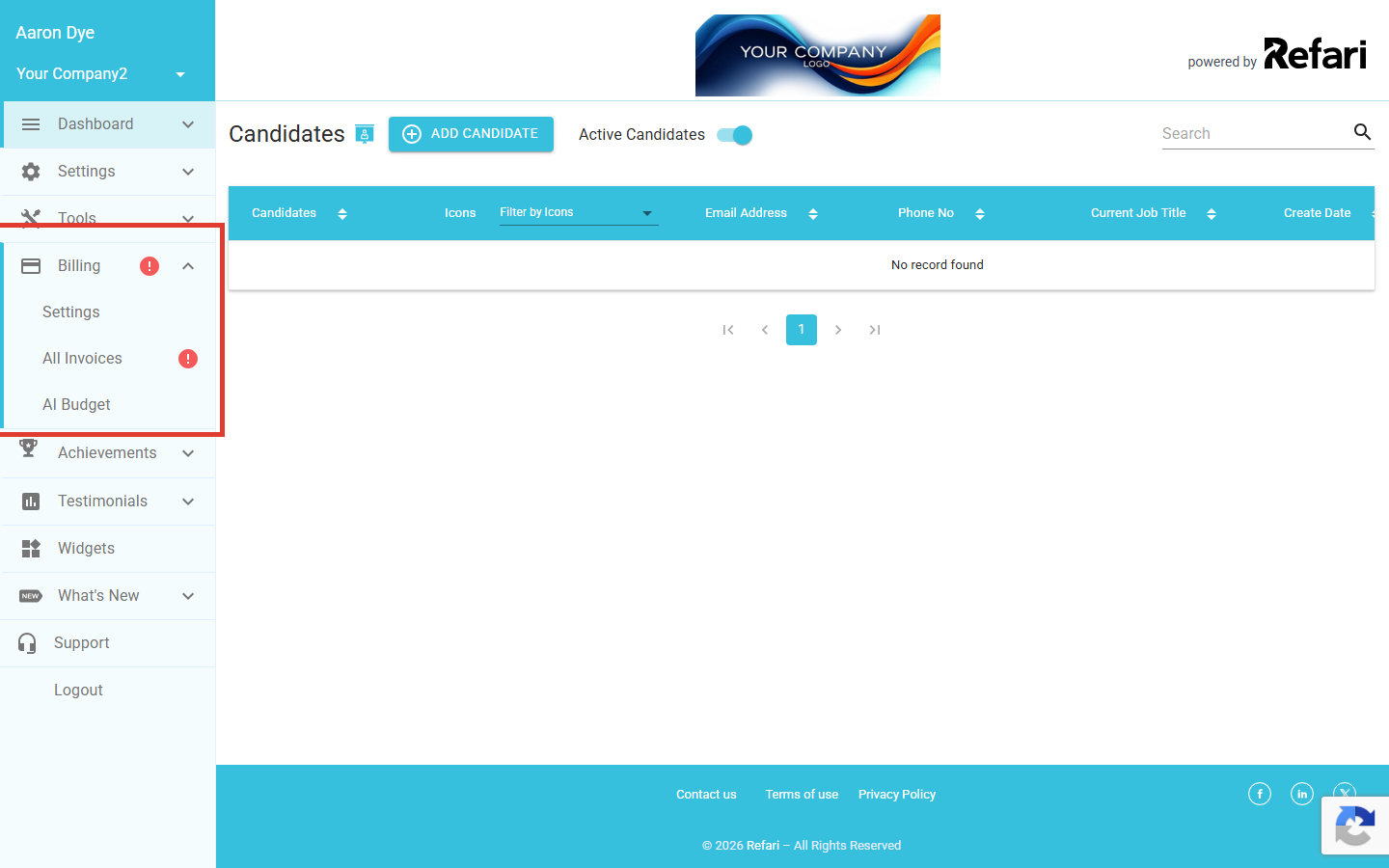
In your Refari dashboard, click Billing in the left-hand menu (the credit-card icon). The submenu expands to show Settings, All Invoices, and AI Budget.
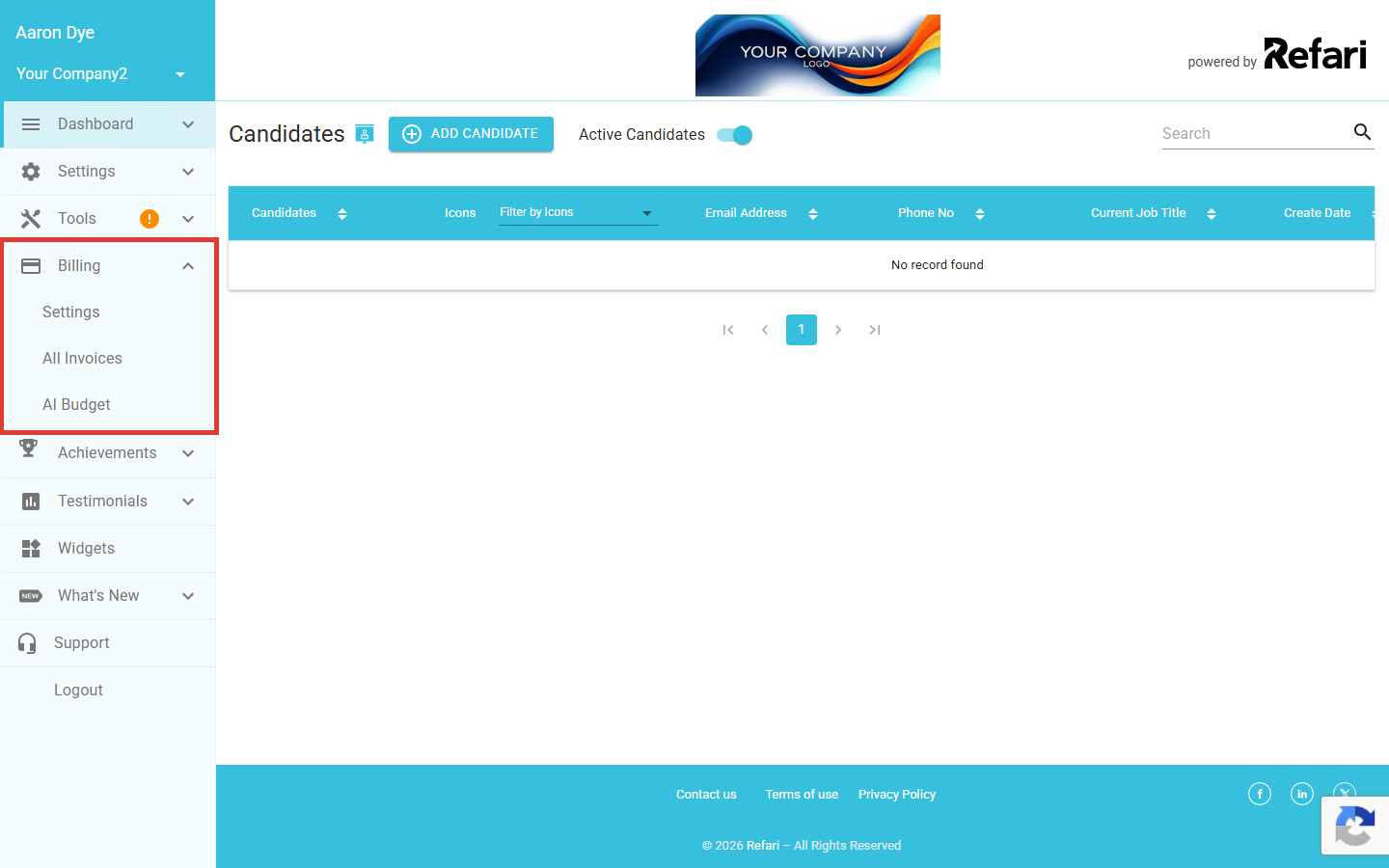
Step 2: Open the All Invoices page
Your monthly Refari subscription invoices live under Billing > All Invoices. Refari issues one invoice per company per month, generated on the 1st of the month, covering the previous month.
Each row shows the invoice sent date, the payment type, the payment status, the transaction status, the due date, the number of transaction attempts on the invoice, and the total.
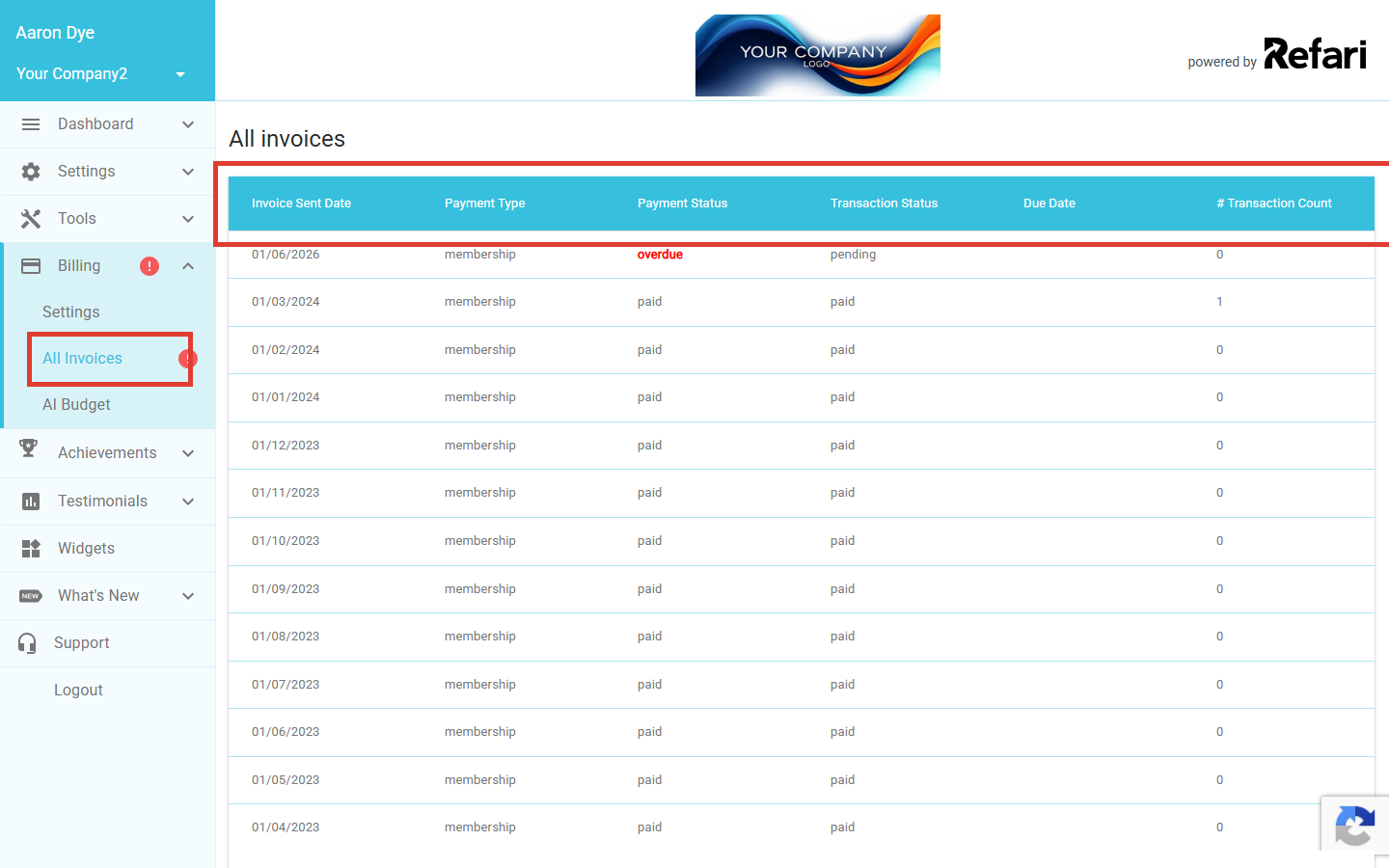
Step 3: Open an invoice for the summary view
Click an invoice in the list to open its detail page. You will see the invoice id, the billable period, the payment status, the due date, and the number of company users covered. Underneath, a table lists the transactions Refari has run against the invoice (id, created, payment method, status, total). The full line-item breakdown lives in the PDF, which you can open with the Review PDF button on the lower right.
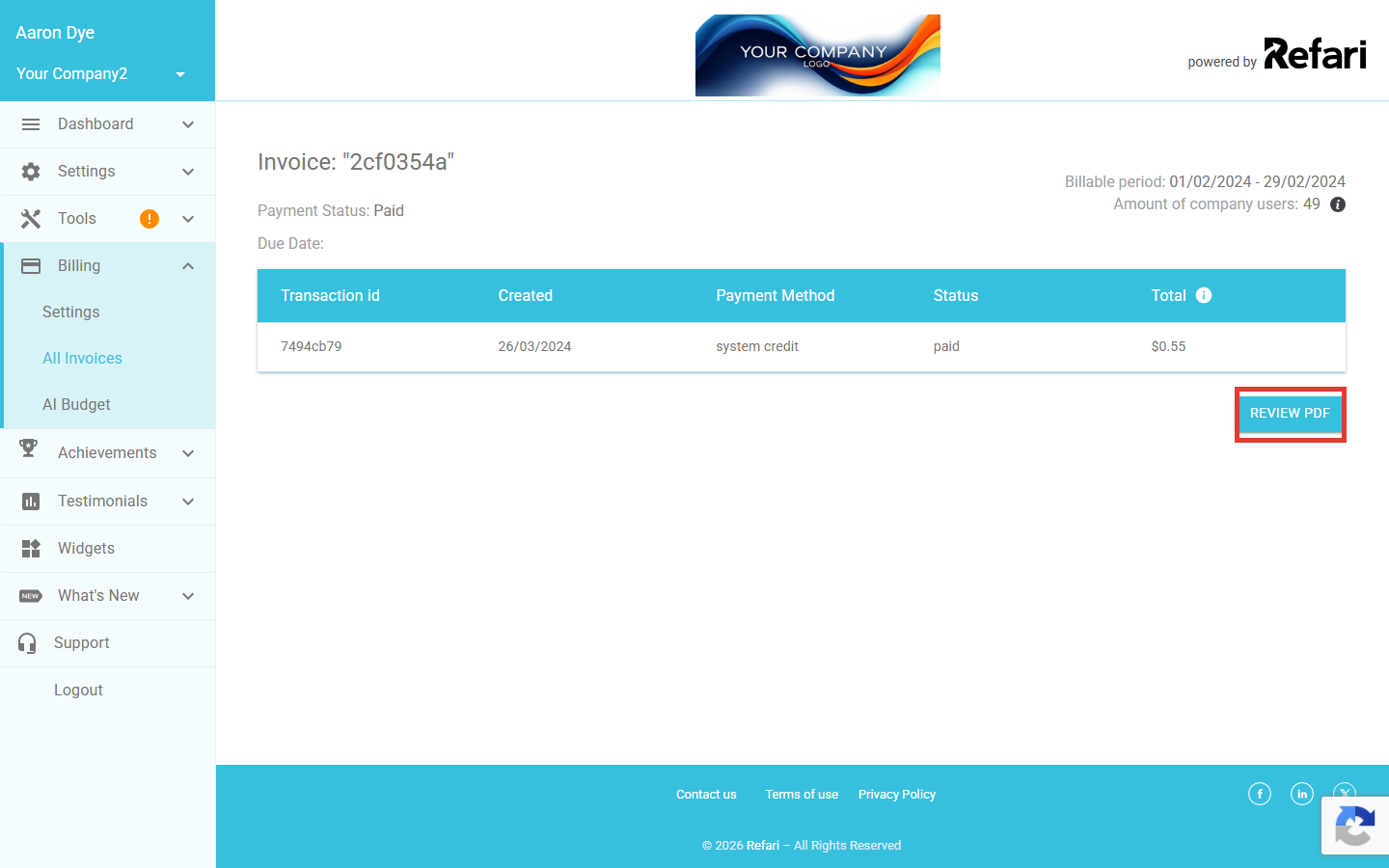
What you are being billed for
A Refari invoice is a monthly subscription. The PDF lists each line item in full. Depending on which parts of Refari your company uses, you will see some or all of the following:
- Refari subscription: the core Refari product, charged at an agreed rate per Company User for the month, pro-rated by the days each person was active.
- Talent Board: an optional add-on charged at an agreed rate per Company User, where your company uses the Talent Board feature.
- TopRec: an optional add-on for the testimonial-collection product, charged at an agreed rate per Company User.
- Website build and management: a fixed supplement where Refari builds or manages your recruitment website.
- Web hosting: a fixed supplement covering hosting, SSL, and CDN for any websites Refari runs for you.
- IT services: a fixed supplement covering any ongoing IT work Refari does for your company.
- Google Reviews: a fixed supplement for the Google Reviews integration where enabled.
- AI spending: variable usage, based on what your team actually consumed in AI features that month. The AI Budget page shows this in detail and lets you set limits.
- GST or tax: applied where required by your country.
Anything fixed (websites, hosting, IT services, Google Reviews) is shown with a short description so it is clear what each charge covers. Anything calculated per Company User is based on who's set up on Refari that month, so if someone joined or left part way through, you will see them charged for only the days they were active. The candidates who apply, the people who refer them, and the hiring managers you share with are never charged, however many of them there are.
Idea: If you would like to keep an eye on AI usage between invoices, head to Billing > AI Budget. You can see live spend by Company User and set monthly limits so AI costs never surprise you.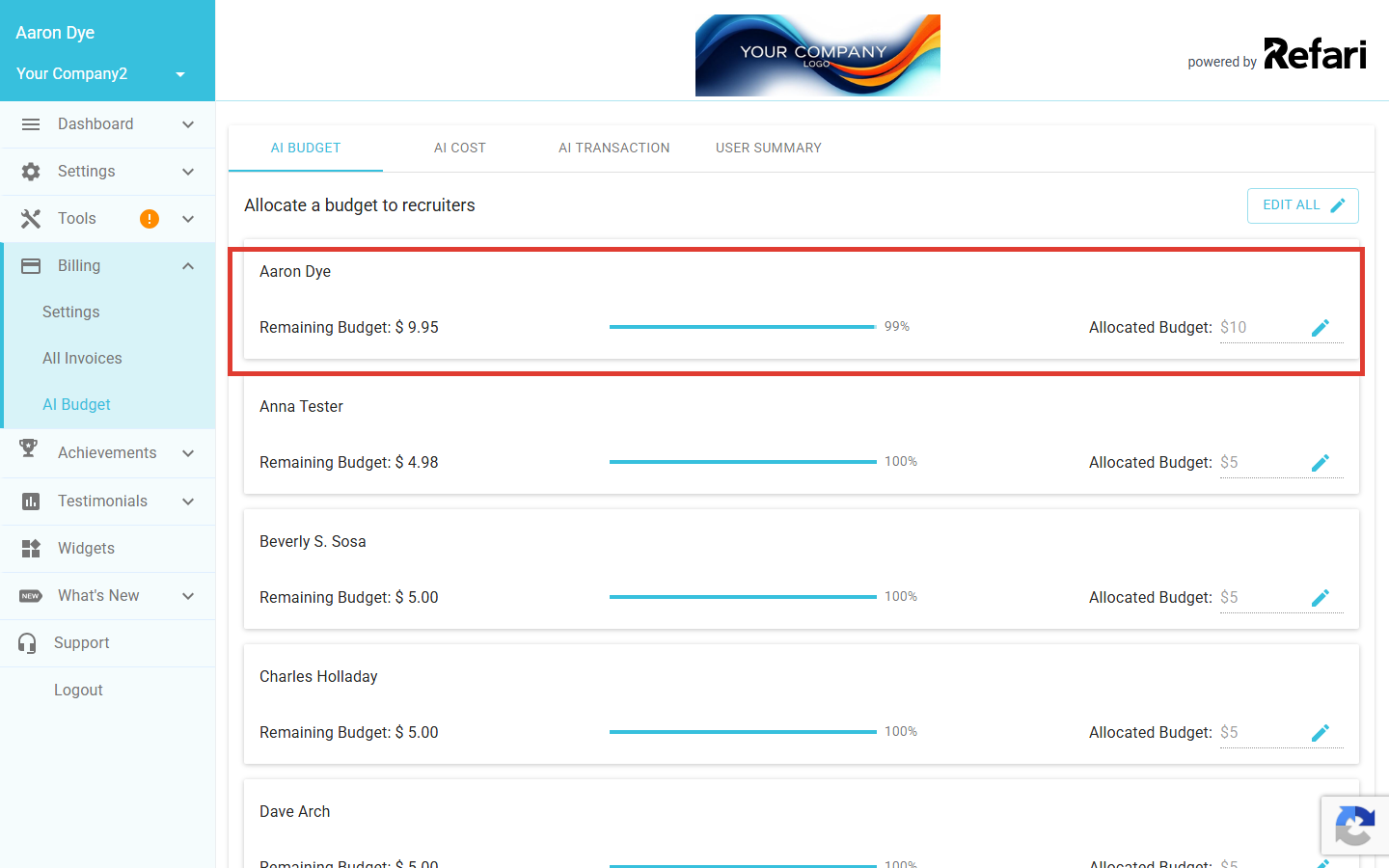
Spotting overdue invoices
If any invoice goes overdue, Refari surfaces it for you. A red overdue badge appears on the Billing menu in the left-hand navigation and next to the All Invoices link, so you do not have to go looking to know there is something to action. Open the invoice in question and use the Pay action to settle it, or contact the Refari team if something does not look right.
Keeping your payment details up to date
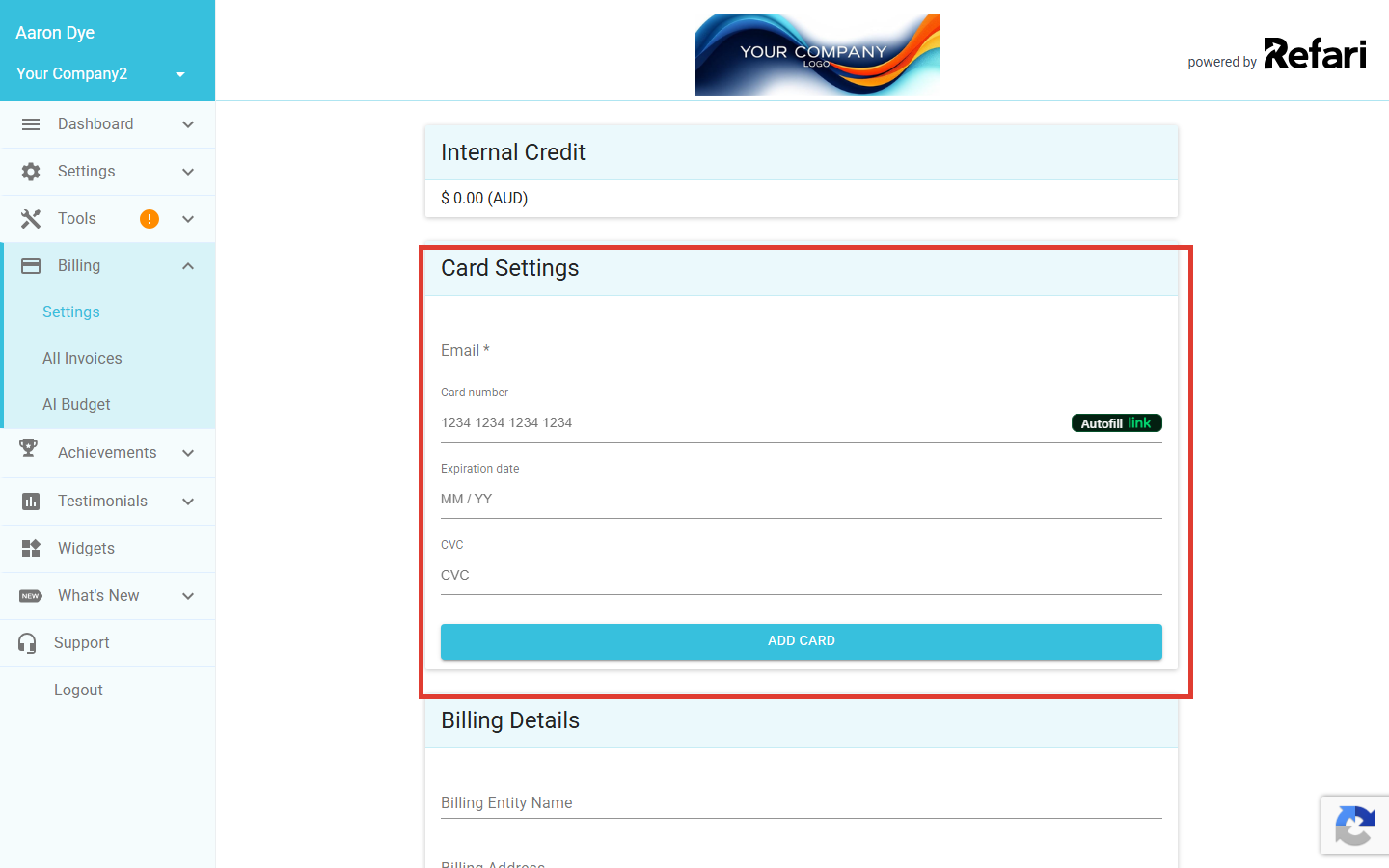
Your card and billing details live at Billing > Settings. The page has two sections: Card Settings at the top (your payment method) and Billing Details below it (what appears on the invoices Refari sends you). Refari uses Stripe to process payments, so anything you add to Card Settings is handled securely by Stripe rather than stored by us.
Why your Billing Details matter
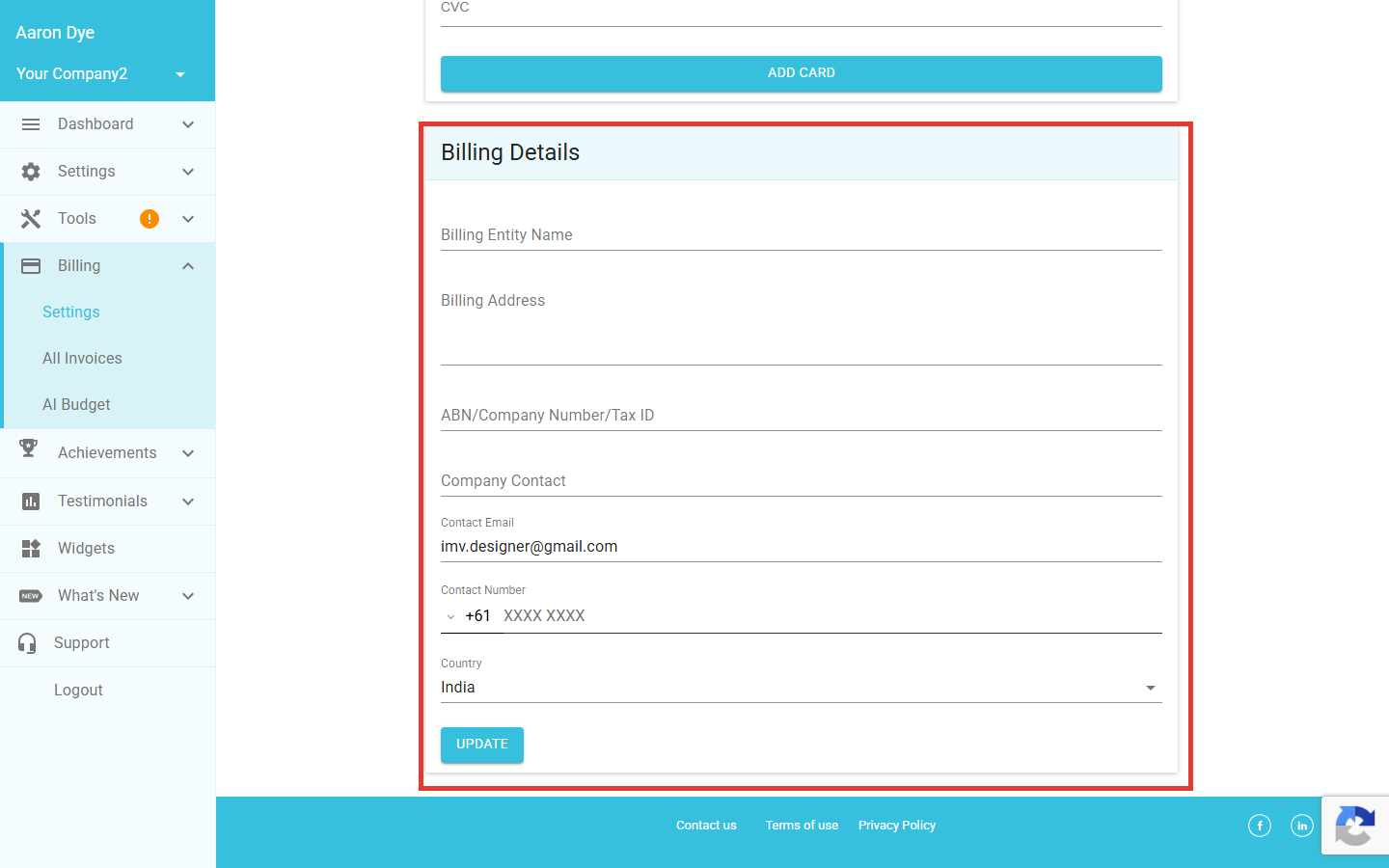
The Billing Details section is the information that appears on the invoices Refari issues to your company, so it is worth keeping accurate. Your finance or accounts payable team will reference these details when they process payment, claim GST, or file the invoice in their AP system. Each field has a specific job:
- Billing Entity Name: the legal entity name shown as the bill-to party on every invoice. This is often different from your trading name (for example "Sense Recruitment Pty Ltd" rather than just "Sense Recruitment"), and your finance team will want the exact legal name here.
- Billing Address: the postal address printed on invoices, used for tax purposes and AP records.
- ABN / Company Number / Tax ID: your business tax identifier. Required for GST or local tax compliance on the invoices Refari sends.
- Company Contact, Contact Email and Contact Number: where Refari should reach the right person if there is a billing question to sort out.
- Country: drives which tax rules apply, including whether GST is added to your invoice.
After updating any of these, click UPDATE at the bottom of the section to save. The next invoice Refari issues will pick up the new details.
Automatic email receipts
Every time a payment succeeds, Refari emails a receipt to your Company Admins with the invoice PDF attached, so there is always a copy in your inbox without anyone having to chase it. If your company has a dedicated finance email set up on the account, that address receives the receipt too.
Final Notes
Refari is designed so you can see exactly what you are paying for, line by line, and pull a clean PDF whenever your finance team asks for one. If anything on an invoice does not look right, get in touch with the Refari team at support@refari.co or your account manager and we will sort it out.
Other articles you might be interested in: How Refari Billing Works (and Why It's Automated) | Allocating AI Budget
Was this article helpful?
That’s Great!
Thank you for your feedback
Sorry! We couldn't be helpful
Thank you for your feedback
Feedback sent
We appreciate your effort and will try to fix the article