This article explains AI-powered LinkedIn job wrapping tagging in Refari: what it adds to your jobs, why it depends on skill tagging, and how to turn it on. LinkedIn job wrapping is the process of feeding your jobs into LinkedIn so they appear as LinkedIn job posts; "wrapping tagging" adds the extra, LinkedIn-specific fields that this feed expects, and Refari works them out for you automatically using AI, with nothing to tag by hand.
You will find the switch under Settings > Company Settings > AI Settings, where it is called Enable LinkedIn Job Wrapping Tagging.
Note: Only a Company Admin can change this setting. A Company Manager can see the toggle but it is read-only, and other team members do not see the AI Settings tab at all. Your change is not saved until you click Apply Changes.What it adds to your jobs
When the setting is on, Refari's AI adds the structured fields LinkedIn job wrapping expects, on top of the general skill tags. Its tooltip reads: "Adds LinkedIn-specific tags, including Workplace Type (e.g. remote, on-site) and Experience Level." So each wrapped job carries a Workplace Type (such as remote, hybrid or on-site) and an Experience Level (the seniority of the role), worked out automatically from the advert.
These are exactly the fields that matter when LinkedIn ingests your roles: getting work type and seniority right helps your jobs appear correctly on LinkedIn. This setting enriches the data sent to LinkedIn rather than changing anything on your own job board. For how those fields are used in the wider LinkedIn integration, see LinkedIn integration: define work type and seniority ↗.
Why this is AI-enabled, and why that helps
The reason this takes no effort is that it is fully AI-enabled. Workplace Type and Experience Level are exactly the kind of fields people normally have to set by hand on every role, and forget on half of them. Instead, Refari's AI reads each advert and works them out for you, the same AI that powers automatic job advert skill tagging ↗, extended to produce the structured data LinkedIn expects.
Using AI for LinkedIn job wrapping has two practical benefits. First, it is consistent: every job you post is tagged the same way, so your roles are categorised correctly on LinkedIn without anyone remembering to do it. Second, it scales: whether you post five jobs a month or five hundred, the AI tags them all automatically as they go live, so your LinkedIn feed always carries the workplace type and seniority that help the right candidates find your roles.
It depends on Job Ad Skill Tagging
LinkedIn job wrapping tagging is a sub-option of skill tagging, so it only becomes available once Enable Job Ad Skill Tagging is switched on. Until then, the LinkedIn toggle is hidden entirely. As soon as skill tagging is on, the LinkedIn option appears beneath it, ready to enable.
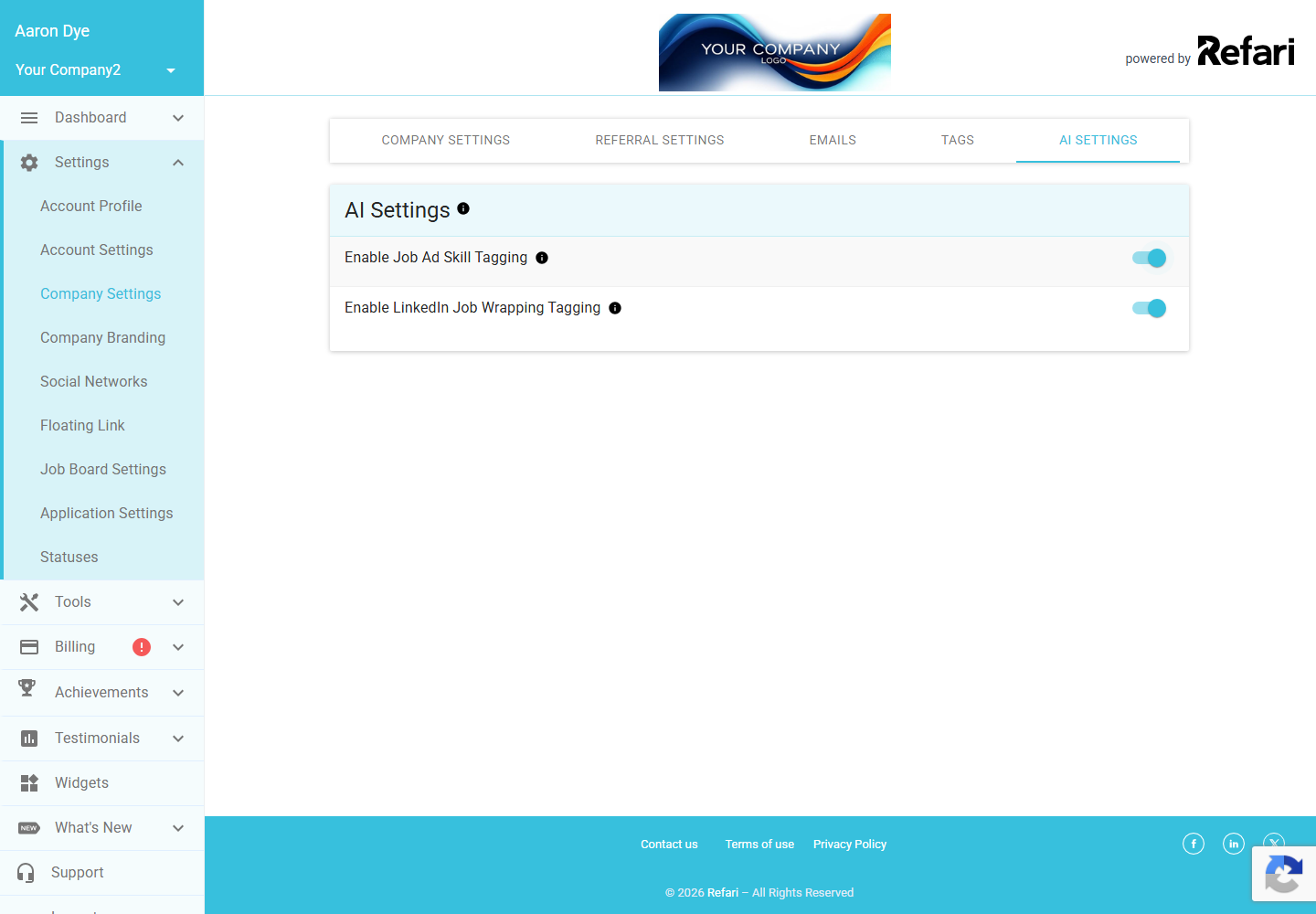
Note: Because of this dependency, you cannot run LinkedIn job wrapping tagging on its own. If you later switch Job Ad Skill Tagging off, the LinkedIn option is switched off and hidden along with it. See Automatic job advert skill tagging with AI for the parent setting.Turning it on, and the cost
Go to Settings > Company Settings > AI Settings, switch on Enable Job Ad Skill Tagging first, then switch on Enable LinkedIn Job Wrapping Tagging, and click Apply Changes. As with skill tagging, a small fee applies each time the tagging runs: "A small fee applies per use, but this cost is minimal." Your Refari contact can let you know what that works out to for your volume of adverts.
Final Notes
LinkedIn job wrapping tagging is worth enabling if you push your jobs to LinkedIn, because it supplies the workplace type and experience level LinkedIn relies on. Remember it sits on top of skill tagging, so both need to be on, and neither takes effect until you click Apply Changes.
Other articles you might be interested in: Automatic job advert skill tagging with AI | LinkedIn integration: define work type and seniority
Was this article helpful?
That’s Great!
Thank you for your feedback
Sorry! We couldn't be helpful
Thank you for your feedback
Feedback sent
We appreciate your effort and will try to fix the article