An Atlas job usually isn't showing on your job board because the Atlas project is missing one thing Refari needs to advertise it. By far the most common gap is the Job Board Category. The next most common is that the Public Job Advert switch is off. This article lists every reason a project can be held back, explains how to check each one in Atlas, and shows you how to fix it.
In Atlas, a vacancy is recorded as a project (you may also call it a job or a role). Your job board is the careers page on your website, open to anyone, where candidates browse and apply for your advertised roles. Refari reads your Atlas projects and turns the eligible ones into job adverts on that board.
The main reasons an Atlas project is not advertised
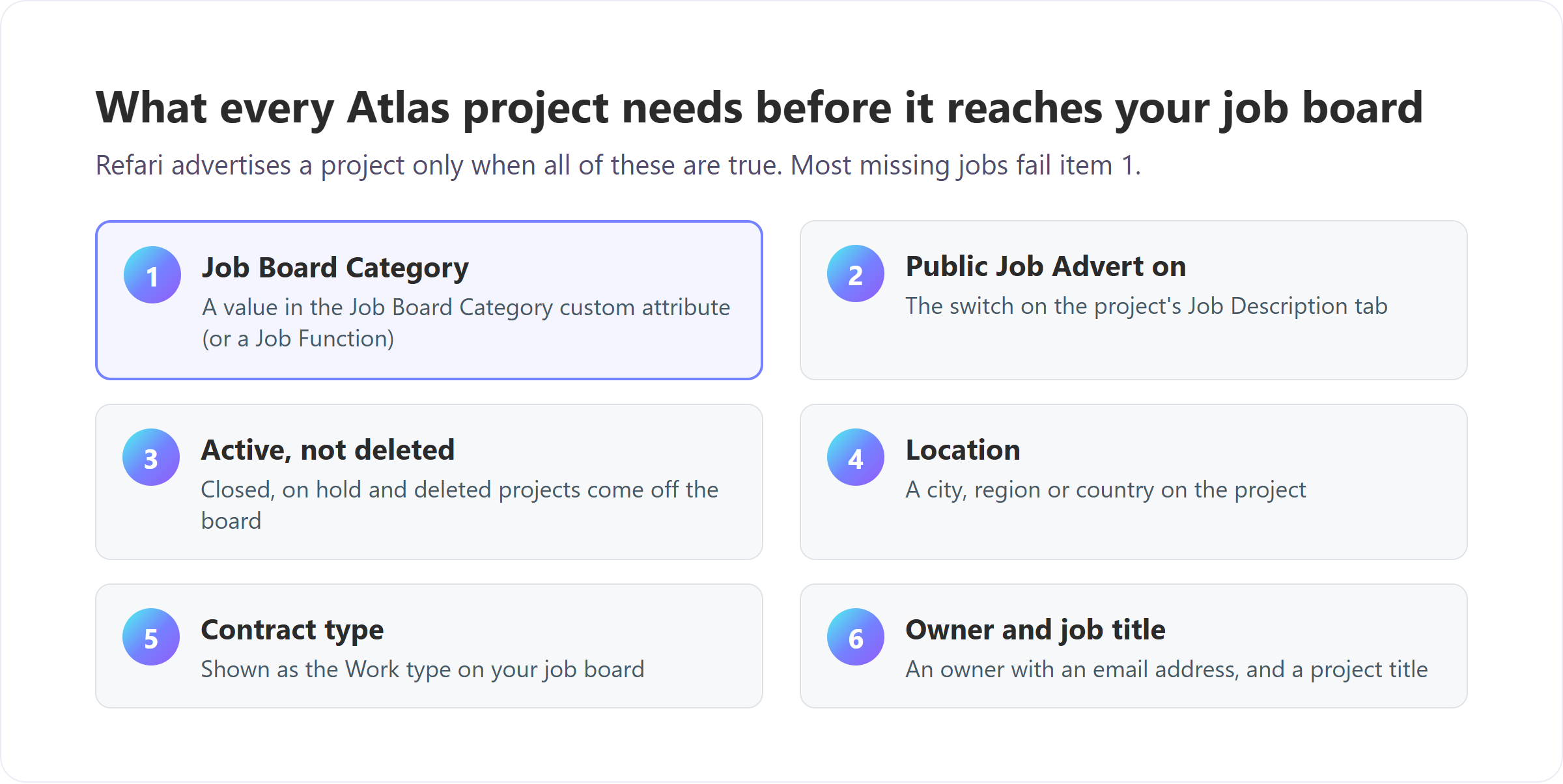
- The project has no Job Board Category.
- The Public Job Advert switch on the project is off.
- The project is not active, or it has been deleted.
- The project has no location.
- The project has no contract type (Refari shows this as the work type).
- The project has no owner, the owner has no email address, or the project has no job title.
- The job is on Refari, but the job board on that page is set to hide its category, location or work type.
Each of these is explained below. Refari checks every project against all of them, so a project needs to pass every check, not just most of them.
1. No Job Board Category
This is the most common cause by a long way. In one account we reviewed, 142 of 146 active projects had no category set, so almost none of them could be advertised until the team filled it in.
Your job board lets candidates filter roles by category (for example Engineering, or Accounting and Finance). Atlas has no built-in field for this, so during setup you create a Project custom attribute called Job Board Category: a single select list of the categories you want on your board. Refari reads that attribute on every project. If it is empty, Refari falls back to the project's Job Function. If both are empty, the project cannot be categorised and is not advertised.
To check and fix it:
- Open the project in Atlas and find the Job Board Category custom attribute.
- Choose one option from the list, then save the project.
- If the attribute does not exist at all, create it once under Company Settings > Custom Attributes > Project. Name it exactly Job Board Category and make it single select.
The full setup for the custom attribute, including how to choose good category names, is in Connecting and using the Atlas integration ↗.
Note: Refari also accepts the older attribute name Job Category, and capital letters do not matter. Whichever name you use, choose one value per project. Free-typed categories drift into duplicates such as "IT" and "Information Technology", and each spelling becomes its own filter on your board.2. The Public Job Advert switch is off
Being active in Atlas does not make a project public. Many teams run confidential searches that are worked every day but must never appear on a website, so Refari only advertises a project when someone has deliberately switched Public Job Advert on. The switch is on the project's Job Description tab, and it is off by default.
- Open the project and go to the Job Description tab.
- Switch Public Job Advert on, but only if the role is safe to show publicly.
- Save the project.
Check before you switch it on. Once Public Job Advert is on, the role appears on your public website, and from there in job search engines. Leave it off for confidential searches, such as a replacement for someone who does not yet know they are leaving.3. The project is not active, or it has been deleted
Refari advertises only projects whose state is active. A project that is closed, on hold or in any other state is taken off your board, and so is a project that has been deleted. If a job was on your board and has now gone, check whether someone has closed it or changed its state.
To bring it back, set the project to active again (with Public Job Advert still on) and save it. It returns to your board as a fresh posting on the next check.
4. No location
Every advert on your board needs a location, so candidates can filter by it and job search engines can show it in the right place. Refari reads the city, region and country on the Atlas project. If none of them is filled in, the project is not advertised. Add at least a city, and ideally the region and country as well, then save the project.
5. No contract type
Refari shows the Atlas contract type as the work type on your job board (Full Time, Part Time, Contract or Non-Executive). A project with no contract type cannot be given a work type, so it is not advertised. Set the contract type on the project and save it.
6. No owner, no owner email, or no job title
Every advert on your board is shown against a recruiter, so candidates know who is handling the role. Refari uses the project's owner in Atlas as that recruiter. Atlas lets you save a project without an owner, but Refari cannot advertise one. The owner also needs an email address on their Atlas user record, because Refari uses it to match them to the right recruiter profile.
- Assign an owner to the project, then save it.
- If it already has an owner, check that the owner's Atlas user record has a current email address.
- Check that the project has a job title. A project with no title has nothing to show as the advert heading.
7. The job board on that page hides it
Sometimes the project has reached Refari perfectly well, and the job is simply filtered out of the board on one particular page. A Company Admin can run several job boards, each set to include or exclude certain categories, locations or work types: for example, a board that shows only engineering roles on an engineering landing page.
If the job appears on your main careers page but not on a specialist page, that page's board filters are the likely cause. They are explained in Job Board Settings: choosing which jobs appear on each job board ↗.
How to fix a project that has not appeared
- Open the project in Atlas and work down the list above, starting with the Job Board Category.
- Fill in whatever is missing, then save the project. Saving is what tells Refari the project has changed.
- Allow about 10 to 12 minutes, then refresh your job board page.
You do not need to do anything in Refari. Once the project passes every check, it is picked up automatically.
| What happens | How long it takes |
|---|---|
| Refari checks Atlas for new and changed projects | About every 10 minutes (allow 10 to 12 minutes in practice) |
| A full check of every project, as a safety net | Every 6 hours |
| A project switched off, closed or set to another state leaves the board | On the next check, about 10 to 12 minutes |
| A deleted project leaves the board | Up to 6 hours |
Idea: To take a job down quickly, switch Public Job Advert off or close the project rather than deleting it. Both are picked up within minutes, while a deletion can take up to six hours to clear.If the job still does not appear
If you have worked through every item, saved the project and waited 15 minutes, check whether other projects are updating. If nothing on your board has changed since a certain day, the likely cause is the Atlas API key, the secure key that lets Refari read your Atlas account. A key that has been deleted, regenerated or had its permissions reduced stops every project syncing at once. Create a replacement key with the permissions listed in the connection article, then ask Refari Support for a new connection link to reconnect.
If other projects are updating and only one is missing, raise a ticket through support.refari.co. Include the Atlas project title and roughly when you last saved it, so we can look up exactly what Refari saw.
Good practice that keeps your board accurate
- Write salaries as numbers. Atlas stores salary as free text. A clear figure or range such as "$120,000 to $140,000 per annum" or "90k to 110k" shows as a salary on your board, while words such as "Competitive" do not. This never stops a job appearing, but it does affect the salary shown and the salary filter.
- Keep your category list short and tidy. Every option becomes a filter that candidates see.
- Edit jobs in Atlas, not Refari. Job details always come from Atlas, and the next check replaces anything edited elsewhere.
Frequently asked questions
How long does it take for an Atlas job to show on my website?
Refari checks Atlas about every 10 minutes, so allow 10 to 12 minutes after you save the project. It is quick, but it is not instant. If it has been longer than that, work through the list above.
Does every active Atlas project go on my job board?
No. A project must be active and have Public Job Advert switched on, and it must have a category, location, contract type, owner and title. This keeps confidential and half-finished projects off your website.
Why did an Atlas job disappear from my website?
Usually because someone closed the project, changed its state, switched Public Job Advert off or deleted it. It can also happen if a required field, such as the category, was cleared. Fix the project in Atlas and save it, and the job comes back on the next check.
Do I need to set up webhooks or anything else in Atlas?
No. The only setup in Atlas is the Job Board Category custom attribute and the API key. Refari does all of the checking itself.
Final Notes
Almost every missing Atlas job comes down to a field left blank on the project, and the Job Board Category is the one to check first. If you would like the same roles to reach Google for Jobs, Indeed and Jora as well, How to put Atlas jobs on your careers page and into Google for Jobs, Indeed and Jora ↗ walks you through it.
New to Refari? Refari gives recruitment teams a job board on their own website, job alerts, candidate referrals and job feeds for the major job search engines, all connected to Atlas. You can see it working at refari.co.
Other articles you might be interested in: Connecting and using the Atlas integration | How Refari applications, registrations and referrals appear in Atlas | How Atlas project fields appear on your Refari job board
Was this article helpful?
That’s Great!
Thank you for your feedback
Sorry! We couldn't be helpful
Thank you for your feedback
Feedback sent
We appreciate your effort and will try to fix the article