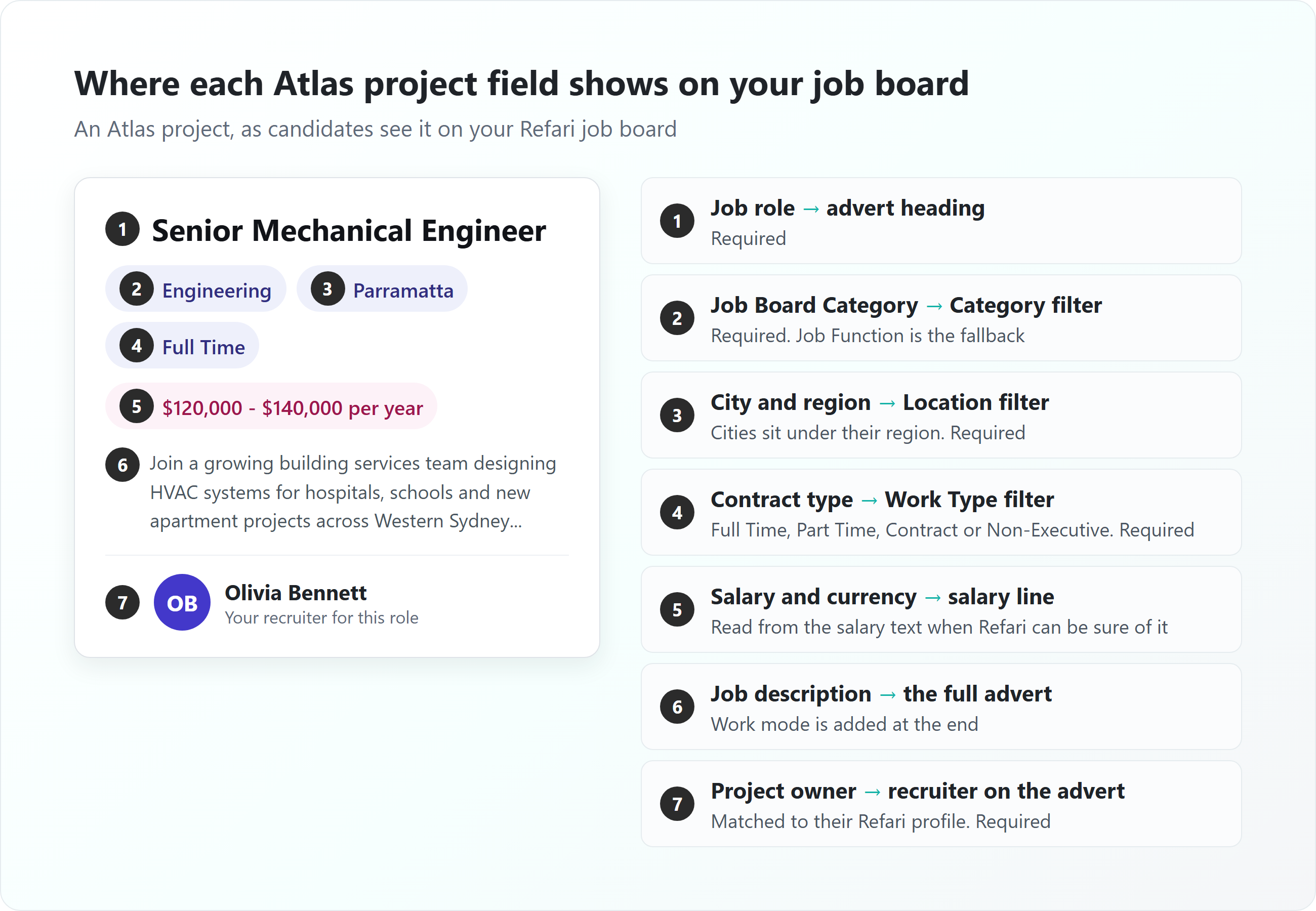
This article explains how the fields on an Atlas project appear on your Refari job board. The project's job role becomes the advert heading, the Job Board Category custom attribute becomes the category candidates filter by, the project's city and region become the location, its contract type becomes the work type, and the project owner becomes the recruiter shown on the advert. Only projects with Public Job Advert switched on are advertised. You manage all of this in Atlas, and Refari keeps your job board in step.
In Atlas, each vacancy is a project. Your job board is the careers board on your own website, powered by Refari, where candidates browse and apply for your roles. Its filters are the lists down the side of the board (Category, Location and Work Type) that let a candidate show only the jobs that suit them.
How an Atlas project reaches your job board
Refari advertises an Atlas project only when all of these are true:
- Public Job Advert is switched on for the project (on its Job Description tab). It is off by default, so confidential searches never reach your website.
- The project's state is active, and it has not been deleted.
- It has a job role, an owner, a category, a contract type and a location.
Refari checks Atlas for new and changed projects about every 10 minutes, so allow 10 to 12 minutes after you save a project. Every 6 hours it also runs a full check of every project as a safety net.
If a project is not appearing at all, Why an Atlas job is not showing on your job board ↗ works through every cause, starting with the most common one.
Atlas project fields and where they appear on your job board
This is the heart of it: each Atlas project field on the left, and what it becomes on your Refari job board.
| Atlas project field | On your Refari job board | Good to know |
|---|---|---|
| Job role | The advert heading | Required. |
| Job description | The full advert on the job's own page | The formatted version is used when there is one. Stray markdown heading marks (such as ## at the start of a line) are tidied into proper headings. |
| Work mode | A Work mode line at the end of the advert | Office based, Hybrid or Remote. |
| Job Board Category (custom attribute) | The Category filter, and the category on the advert | Required. If it is empty, Refari uses the Job Function instead. |
| Contract type | The Work Type filter, and the work type on the advert | Required. Shown as Full Time, Part Time, Contract or Non-Executive. |
| City, region and country | The Location filter, and the location on the advert | Required. See the location section below. |
| Owner | The recruiter shown on the advert | Required. The owner needs an email address on their Atlas user record. |
| Salary and salary currency | The salary line on the advert, and the Salary filter | Read from the salary text. See the salary section below. |
| Public Job Advert | Whether the project is advertised at all | Switch it off and the advert leaves your board on the next check. |
| Company and job number | Not shown on your job board | The company is kept with the job in Refari. |
Atlas job board category: the Job Board Category custom attribute
Atlas has no built-in field for a job board category, so as part of connecting Atlas you create one: a Project custom attribute named Job Board Category, set up as a single select list of the categories you want on your board (for example Engineering, or Accounting and Finance). Refari reads it on every project.
- The older name Job Category also works. Refari accepts either name, and capital letters do not matter.
- One value per project. If more than one is chosen, Refari uses the first.
- Job Function is the fallback. If the Job Board Category is empty, Refari uses the project's Job Function as the category. If both are empty, the project is not advertised.
- A single select list is best. Refari tolerates a free-text attribute with the same name, but every different spelling then becomes its own category, so "IT" and "Information Technology" show as two filters.
The step-by-step setup for the attribute is in Connecting and using the Atlas integration ↗.
Categories, locations and work types as job board filters
Refari does not copy your whole list of options across from Atlas. It learns them from your live projects. A value appears as a filter on your job board once at least one advertised project is using it, with a count of matching jobs beside it. When no advertised project uses it any more, it drops off the filters on its own, so your filters never offer an option that returns no jobs.
Adding a category
- In Atlas, add the new option to your Job Board Category attribute.
- Choose it on a project that is active and has Public Job Advert switched on.
- Save the project. The category appears as a filter on your job board within about 10 to 12 minutes.
Removing a category
Move the projects that use it to another option, or close them. Once no advertised project uses the category, it disappears from your job board filters. You do not need to change anything in Refari.
Renaming a category
Refari recognises each Job Board Category option by Atlas's own reference for it, not by its name. That keeps your jobs and job alerts attached when you rename an option, but the name on your job board stays as it was when Refari first saw it. If you rename an option in Atlas, contact Refari Support and we will update the name on your board. A category that comes from the Job Function works differently: changing that text creates a new category.
Work types
Work types come from the project's contract type, so there are four possible values: Full Time, Part Time, Contract and Non-Executive. There is nothing to set up for these.
Note: Job alerts (emails candidates sign up for to hear about new jobs) are tied to your categories, locations and work types. If you are replacing or merging categories rather than just adding new ones, plan the change with us first, so candidates keep getting their alerts.Managing Changes to Categories, Locations, and Work Types on Your Job Board ↗ explains how a job alert migration keeps existing alerts working after a restructure like this.
How Atlas job locations appear
Refari reads the city, region and country on the Atlas project.
- City and region both filled in: the job is listed under the city, and the city sits under its region in the Location filter. Candidates can choose a whole region or a single city.
- Only some filled in: the job is listed under the city if there is one, otherwise the region, otherwise the country, as a single location without the region grouping.
- None filled in: the project is not advertised.
Refari also saves the city, region and country with the job, and uses them for the job's address in the job feeds Refari sends to job sites such as Indeed and LinkedIn. If the project is remote or hybrid, set its work mode as well: that adds a Work mode line to the advert.
Tip: Every different spelling of a place becomes its own value in your Location filter, so "Sydney" and "Sydney CBD" show as two locations. Pick one spelling for each city and region in Atlas and use it on every project.Which recruiter an Atlas project shows under
The recruiter on a Refari advert is the Atlas project's owner. Atlas lets you save a project without an owner, but Refari cannot advertise one. Refari matches the owner to a recruiter in your Refari account by their Atlas user, and if that is new to Refari, by their email address. If there is no match, Refari creates a recruiter for them.
That recruiter is who candidates see on the job:
- Their name and photo appear on the advert, so candidates know who is handling the role. The recruiter panel only shows when they have a photo on their Refari profile, so make sure every recruiter has one.
- The job is listed under them in the Meet the Team widget, alongside their other jobs.
- Applications and referrals for the job are credited to them in Refari.
Refari refreshes your Atlas users every 6 hours. Someone who leaves your Atlas account is made inactive in Refari after that refresh, so give their open projects a new owner in Atlas before they go.
How Atlas salary appears
Atlas stores salary as free text plus a currency, so Refari reads the figures out of the text. It is deliberately careful: it only shows a salary when it can be sure of it, rather than risk publishing a wrong number on your board.
- Write a range with a pay period. For example $90,000 to $110,000 per annum, 90-110k pa or $900 to $1,100 per day. The advert shows the range with its period, such as $90,000 - $110,000 per year.
- Include the period. Refari recognises words such as per annum, pa, per month, per week, per day, daily, per hour and hourly. Without a period, the salary is not shown.
- Give two figures. The advert shows a salary when it has a minimum and a maximum. For a fixed salary, write it as a range with the same figure twice.
- Set the salary currency on the project. If it is blank, your company's default currency is used.
- Figures under 100 are ignored. This stops percentages being read as pay, but it also means an hourly rate below 100 (such as $65 to $75 per hour) is not shown. Give a daily rate instead, or leave the salary in the advert text.
- Extras are ignored. Small numbers such as "+ 10% bonus" and years such as "starting 2027" are not mistaken for salary.
The same figures feed the Salary filter, which lets candidates choose a pay range. If you would rather not show salaries at all, How to hide Job Salary ↗ shows the setting that turns them off across your job board.
Dates: when an Atlas project appears and comes off
- Posted date: Atlas has no publish date, so the advert is dated from the moment Refari first advertises it (when the project is active with Public Job Advert switched on).
- While it is live: the advert stays on your board for as long as the project stays active and public. Atlas has no advert end date, so there is nothing to set.
- Switched off, closed or set to another state: the advert comes off on the next check, about 10 to 12 minutes later.
- Deleted: the advert comes off at the next full check, within 6 hours.
Frequently asked questions
Why is a new Atlas category not showing as a filter?
A category only appears once an advertised project is using it. Choose it on a project that is active with Public Job Advert switched on, save the project, and allow 10 to 12 minutes.
Do I need both Job Board Category and Job Function?
No. Refari uses the Job Board Category when it is set and falls back to the Job Function when it is not. Using the Job Board Category list gives you a tidy, controlled set of filters, so it is the better choice.
Why is the salary missing from an advert?
Refari could not read a range and a pay period from the salary text with confidence. Rewrite it as a range with a period, for example "$90,000 to $110,000 per annum", and save the project.
Why does a project show the wrong recruiter?
Refari uses the project's owner. Change the owner in Atlas and save the project. If the right person still does not appear, check that their Atlas user record has the same email address they use in Refari.
Does the client company show on the advert?
No. The company on the project is kept with the job in Refari but is not shown on your public job board.
Final Notes
A short, consistent Job Board Category list and one spelling per location give candidates filters they can trust, and give job alerts something reliable to match against. If you also use Loxo, How Loxo job fields appear on your Refari job board ↗ covers the same ground for Loxo jobs.
Refari is a recruitment marketing platform for recruitment agencies and in-house talent teams: job boards and widgets for your website, job alerts, candidate referrals, TopRec reviews and job distribution, all connected to your ATS. New to Refari? Book a demo at refari.co. Already a customer? Contact Refari Support with the Atlas project and what you expected to see, and we will look into it.
Other articles you might be interested in: Why an Atlas job isn't showing on your job board | Connecting and using the Atlas integration | How Loxo job fields appear on your Refari job board
Was this article helpful?
That’s Great!
Thank you for your feedback
Sorry! We couldn't be helpful
Thank you for your feedback
Feedback sent
We appreciate your effort and will try to fix the article