
To show your Loxo jobs on a WordPress, Webflow or Squarespace website without an iframe, install the Refari job board widget on your careers page. It is a short block of code that draws your live Loxo jobs into the page itself, so candidates can search, apply, set up job alerts and refer friends on your own website, and every applicant goes into Loxo.
This guide walks you through why that difference matters, what the Refari job board adds, and how to install it on each of the three platforms. A widget is a small block of code you paste into a page of your website to show live Refari content; once it is in place it updates itself, so there is nothing to maintain on the website side.
Loxo's careers page, iframes and SEO
Loxo gives you a careers page of its own, and Loxo's help article on it explains how to put that page on your website using an iframe. An iframe is a window in your page that loads a separate page from another web address. It works well for what it is designed to do: visitors to your site see your Loxo jobs and can open them.
The difference is in how search engines see it. Google treats content inside an iframe as belonging to the page it is loaded from, not to the page displaying it. So the job titles, descriptions and locations in the frame are credited to the frame's own address rather than to your domain, and your careers page itself carries little job content for Google to rank.
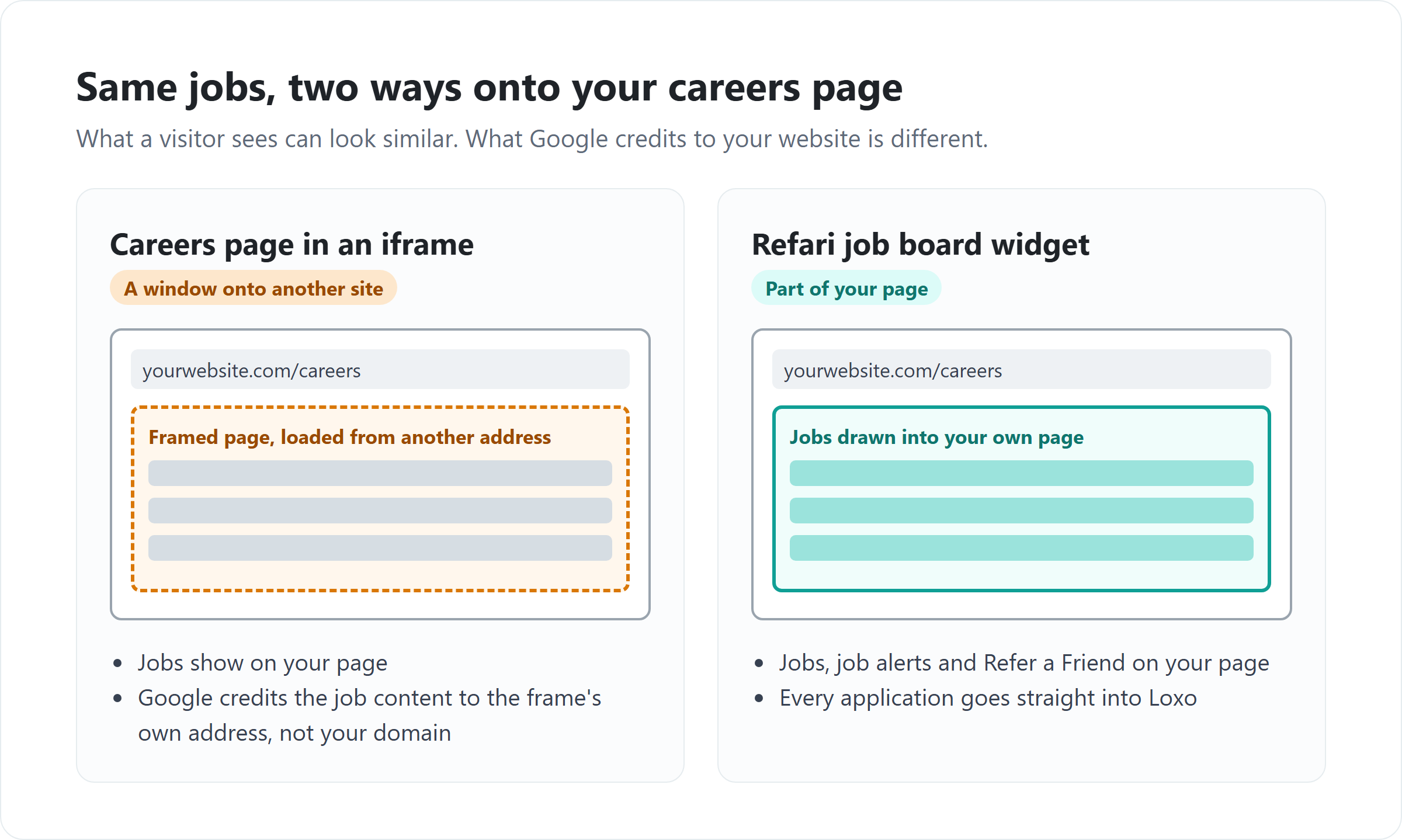
The Refari job board works the other way round. Its code runs in your page and draws the jobs into it, so the jobs are part of your website and every job carries its details in a form Google can read.
What the Refari job board adds to your website
When your Refari account is connected to Loxo, the job board fills itself from your published, Active Loxo jobs and keeps up with every change. On the page it gives candidates:
- Search and filters by keyword, category, location and job type, taken from the jobs in Loxo.
- A full job advert and an application form for each role. Applications, with the candidate's CV, are sent into Loxo against the job.
- Create Job Alert. A job alert is an email subscription: the candidate chooses the kinds of roles they want, and Refari emails them when a matching job is published.
- Refer a Friend. A referral is a recommendation, where someone tells you about a person who could suit one of your roles. Each referral is recorded in Refari and passed into Loxo.
- Register with us, so candidates can send you their details and CV without applying for a specific job.
- The recruiter who owns each job in Loxo, shown on the advert.
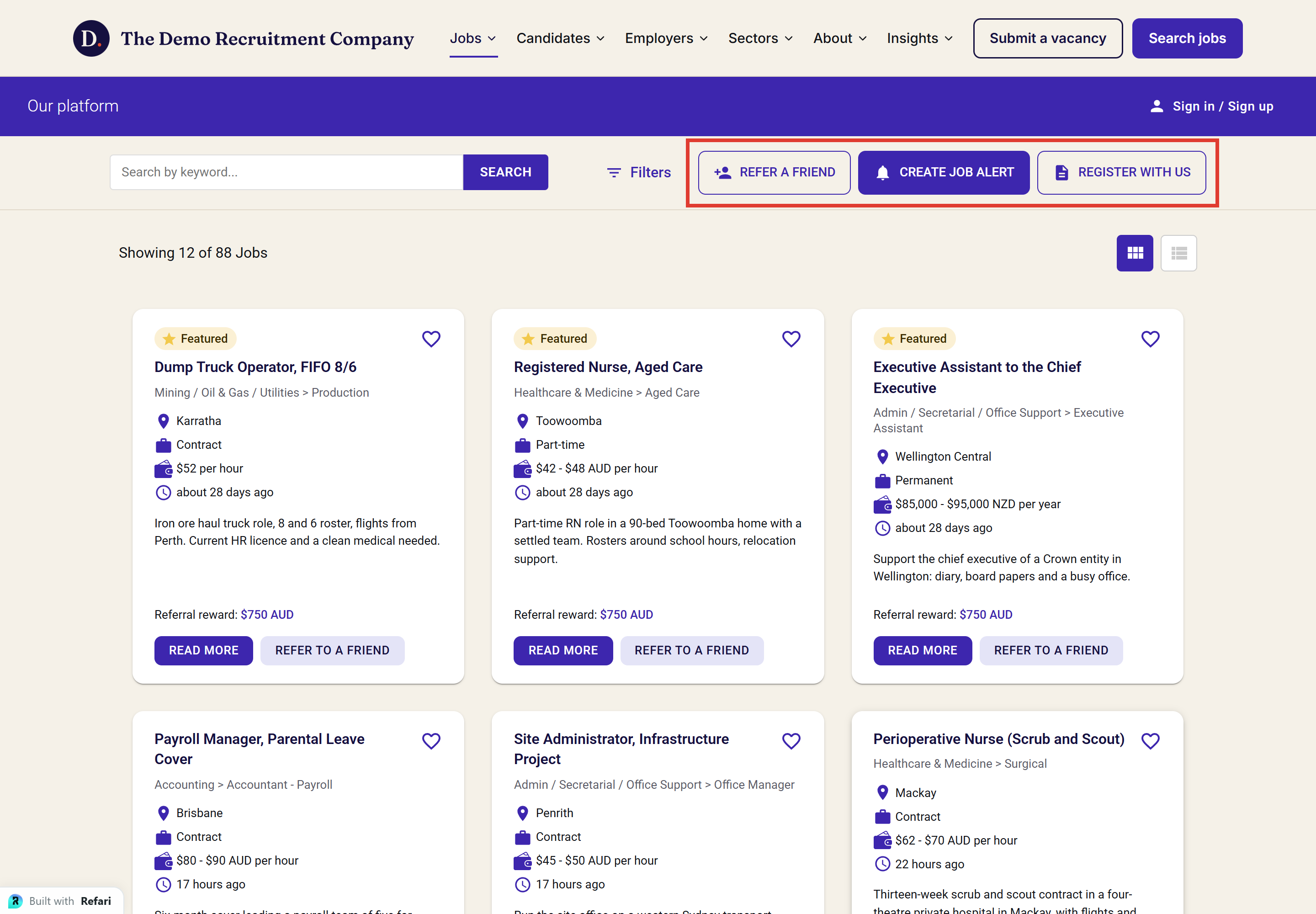
The picture above shows the Refari job board on a demonstration website, with the Refer a Friend, Create Job Alert and Register with us buttons on the same page as the jobs. The board takes your colours and font, so it matches the rest of your site.
Before you start
- Your Refari account is connected to Loxo. If it isn't yet, the steps are in How to connect Loxo to Refari: setup, what syncs and when ↗.
- Your website has a page for your jobs, for example /jobs/ or /careers/. The job board needs a page of its own, because each job opens on that page.
- You (or your web developer) can edit that page, and your website plan allows custom code.
Step 1: Copy your job board code from Refari
- Log in to your Refari dashboard. You need to be a Company Admin or Company Manager to see the Widgets section.
- Open Widgets in the navigation menu and select Job Board.
- Adjust the options on the page, such as colours and layout. The preview updates as you go.
- Click COPY ALL to copy the complete code, including your company's unique key.
Note: COPY ALL gives you everything the board needs in one block. Paste it as one piece, in the spot on the page where the board should appear. There is no separate script to add elsewhere on your site.Where the embed codes live, and what each part of a block does, is covered in more detail in Installing Refari widgets: where to find your embed codes and which platforms are supported ↗.
Step 2: Add the code to your website
WordPress
- Block editor (Gutenberg): open your jobs page, add a Custom HTML block, paste the code into it and update the page.
- Elementor: drag an HTML element onto the page and paste the code into it. There is a step-by-step walkthrough with screenshots in How to install widgets with Elementor ↗.
- Divi, WPBakery, Beaver Builder and other page builders: use the builder's code or HTML module.
Idea: If your site uses a performance plugin that delays or combines JavaScript and the board does not load, add the Refari widget script to that plugin's exclusions.Webflow
- In the Webflow Designer, open your jobs page.
- From the Add panel, drag a Code Embed element onto the page where the board should appear.
- Paste the code, then save and close the element.
- Publish the site. Webflow's Code Embed places the code straight into the page, so the board runs on your page rather than in a frame.
Squarespace
- Edit your jobs page and add a block where the board should appear.
- Choose a Code block and paste the code into it. Leave the option to display the code as text switched off.
- Save and publish the page. Squarespace does not run scripts inside the editor, so the board shows on the live page, not while you are editing.
Note: Some website builders only allow custom code on certain paid plans. If you cannot add a code block on your current plan, check your platform's plan options. Using Wix or Framer instead? They need a particular element so the code runs in the page rather than in a frame, and the widget installation article above names the right one for each.Step 3: Publish and check the board
- Open the live page in a new browser window.
- Check that your Loxo jobs are listed, that the filters change the list, and that clicking a job opens its advert.
- Open the application form on a job and confirm it loads with no error message, then try Create Job Alert and Refer a Friend.
You are done when your jobs, filters, job alerts and Refer a Friend all work on your own page. From now on, every job you publish in Loxo appears there automatically, usually within a few minutes.If the board appears but job adverts do not open, or a form shows an error mentioning an invalid domain, the code has ended up inside a frame. The fix for each platform is in the widget installation article linked in Step 1.
Getting your Loxo jobs into Google for Jobs
Google for Jobs is the jobs panel that appears at the top of Google when someone searches for a role. Google fills it from job pages that describe each job in a standard format called JobPosting structured data, which spells out the title, location, job type, salary and dates.
Google for Jobs comes with a Refari website. When Refari builds your website, every Loxo job gets its own page, and Google lists jobs page by page. The job board widget on a WordPress, Webflow or Squarespace site you manage yourself still shows your jobs, takes applications into Loxo and feeds job sites such as Indeed and Jora, but Google for Jobs is not part of it. If you want your roles in Google for Jobs, ask us about a Refari website at refari.co ↗.
On a Refari website, each job page carries structured data checked against Google's rules, and new, changed and closed jobs are reported to Google straight away. The checks Google applies, and the most common reasons jobs are left out, are covered in Why your jobs aren't showing in Google for Jobs: a checklist for recruiters ↗.
Frequently asked questions
Can I embed Loxo jobs on my website without an iframe?
Yes. Connect Loxo to Refari and install the Refari job board widget on your careers page. The widget draws your Loxo jobs into the page itself, so there is no iframe.
Do I need to stop using Loxo's careers page?
No. Refari does not change anything in Loxo, and you can keep using Loxo's careers page wherever it suits you. On your own website, show one of the two on your careers page so candidates see a single list of jobs.
Where do applications from the Refari job board go?
Into Loxo, against the job the candidate applied for, along with their CV. Registrations and referrals made on the board go into Loxo too.
Will the job board match my website's design?
Yes. You choose the board's colours and layout in the Widgets section before you copy the code, and you can change them later without touching your website.
How quickly do new Loxo jobs appear on my website?
Usually within a few minutes of the job being published in Loxo. If one does not appear, the job may be missing a detail Refari needs, which Why a Loxo job isn't showing on your Refari job board ↗ walks through.
Final Notes
Install the board once, on a page of its own, and your website keeps itself up to date from Loxo from then on. Refari is a platform that adds a job board, job alerts, candidate referrals and reviews to your own website, connected to your ATS. If you use Loxo and are not yet a Refari customer, you can book a demo at refari.co.
Other articles you might be interested in: How to connect Loxo to Refari | How to get your Loxo jobs into Google for Jobs, Indeed and Jora | Installing Refari widgets
Was this article helpful?
That’s Great!
Thank you for your feedback
Sorry! We couldn't be helpful
Thank you for your feedback
Feedback sent
We appreciate your effort and will try to fix the article
