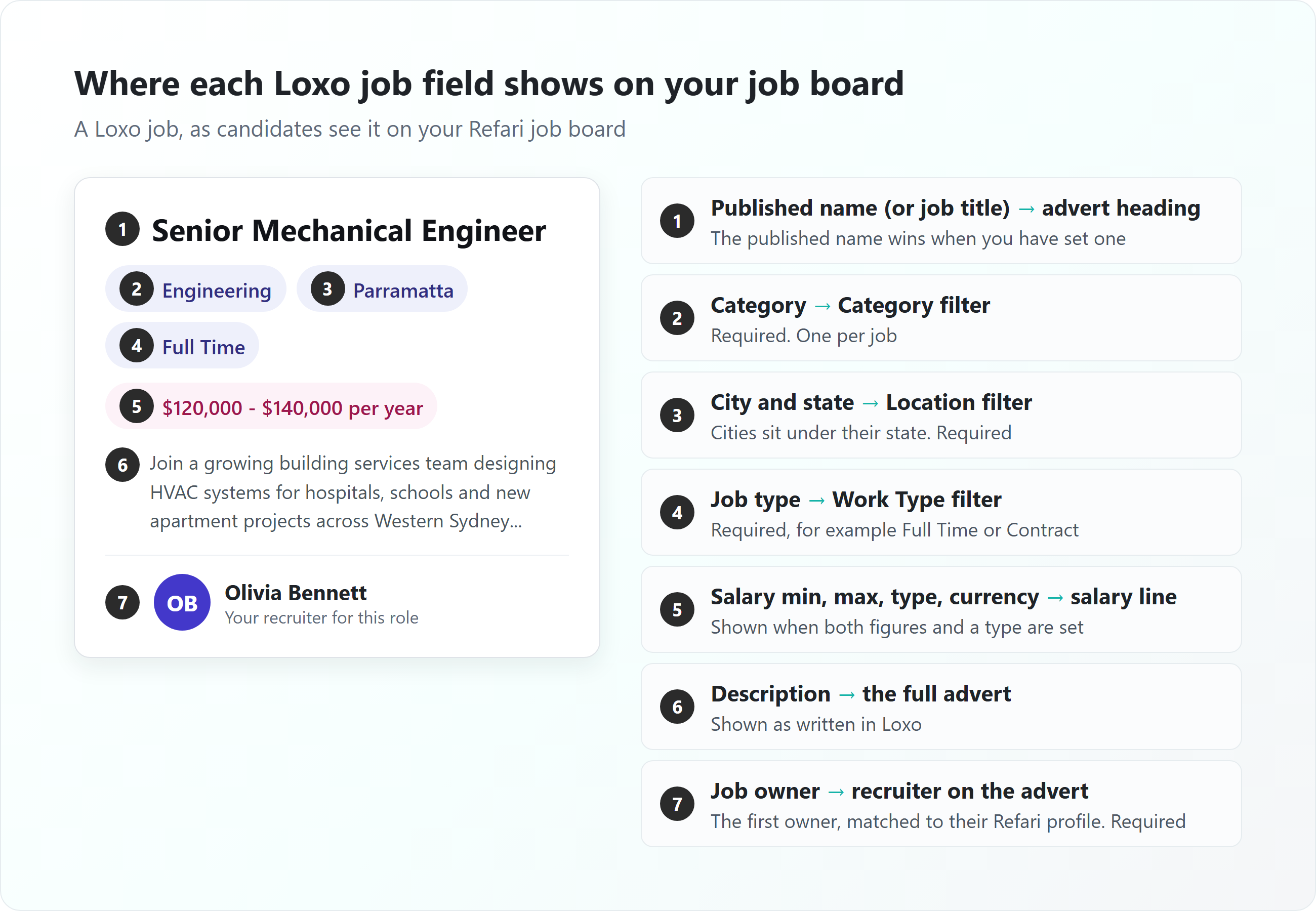
This article explains how the fields on a Loxo job appear on your Refari job board. The job's published name becomes the advert heading, the Loxo category, job type and location become the filters candidates use to narrow your jobs down, the job's owner becomes the recruiter shown on the advert, and the salary fields become the salary line. You manage all of these in Loxo, and Refari keeps your job board in step.
Your job board is the careers board on your own website, powered by Refari, where candidates browse and apply for your roles. Its filters are the lists down the side of the board (Category, Location and Work Type) that let a candidate show only the jobs that suit them.
How a Loxo job reaches your job board
Refari advertises a Loxo job when it is published and its status is Active. It also needs four fields filled in: an owner, a category, a job type and a location. A job missing any of these is held back. When you save a change to a job in Loxo, Loxo tells Refari straight away and the advert is updated within a few minutes.
If a job is not appearing at all, Why a Loxo job is not showing on your Refari job board ↗ works through every cause one at a time.
Loxo job fields and where they appear on your job board
This is the heart of it: each Loxo field on the left, and what it becomes on your Refari job board.
| Loxo field | On your Refari job board | Good to know |
|---|---|---|
| Published name, or job title | The advert heading | If the job has a published name, Refari uses it. Otherwise it uses the job title. |
| Description | The full advert on the job's own page | Shown as written in Loxo, including its formatting. |
| Category | The Category filter, and the category on the advert | Required. One category per job. |
| Job type | The Work Type filter, and the work type on the advert | Required. For example Full Time or Contract. |
| City, state, postcode and country | The Location filter, and the location on the advert | Required. See the location section below. |
| Remote work allowed | A location of Remote | Used only when the job has no other location. |
| Owner | The recruiter shown on the advert | Required. If a job has several owners, the first one is used. |
| Salary minimum and maximum | The salary line on the advert, and the Salary filter | Shown as whole numbers. |
| Salary type | The pay period, for example per year or per hour | Yearly, monthly, weekly, daily or hourly. |
| Salary currency | The currency of the salary | If it is blank, your company's default currency is used. |
| Published date | The date the job was posted | See the dates section below. |
| Publish end date | The date the advert comes off your board | See the dates section below. |
| Company and contact | Not shown on your job board | Kept with the job in Refari. The contact can be asked for TopRec feedback when you place a candidate. |
Loxo job board categories, locations and work types as filters
Refari does not copy your whole list of Loxo categories or job types across. It learns them from your live jobs. A value appears as a filter on your job board once at least one live job is using it, with a count of matching jobs beside it. When no live job uses it any more, it drops off the filters on its own. This keeps your filters free of options that would return no jobs.
Adding a category or work type
- Add the category or job type in Loxo, the same way you add any other value there (your Loxo administrator may need to do this).
- Choose it on a job, and make sure that job is published and Active.
- Save the job. The new value appears as a filter on your job board a few minutes later.
Removing a category or work type
Move the jobs that use it to a different category or job type in Loxo, or let those jobs close. Once no live job uses the value, it disappears from your job board filters. You do not need to change anything in Refari.
Renaming a category or work type
Refari recognises a Loxo category or job type by Loxo's own reference for it, not by its name. That keeps your jobs and job alerts attached to it, but it also means the name on your job board stays as it was when Refari first saw it. If you rename a category or job type in Loxo, contact Refari Support and we will update the name on your board.
Note: Job alerts (emails candidates sign up for to hear about new jobs) are tied to your categories, locations and work types. If you are replacing or merging values rather than just renaming them, plan the change with us first, so candidates keep getting their alerts.Managing Changes to Categories, Locations, and Work Types on Your Job Board ↗ explains how a job alert migration keeps existing alerts working after a restructure like this.
How Loxo job locations appear
Refari reads the structured location on the Loxo job: the city, the state, the postcode and the country.
- City and state both filled in: the job is listed under the city, and the city sits under its state in the Location filter. Candidates can choose a whole state or a single city. Where Loxo holds a short state code (such as NSW or CA), that is the name the state is shown under.
- No city or no state: the job uses Loxo's location text for the job as a single location, without the state grouping. If there is no location text, Refari uses the city, then the state, then the country.
- No location at all, but remote work allowed: the job is listed as Remote.
Refari also saves the job's full address (city, state, postcode and country) with the job, and uses it for the job's address in the job feeds Refari sends to job sites such as Indeed and LinkedIn.
Tip: Every different spelling of a place becomes its own value in your Location filter, so "Sydney" and "Sydney CBD" show as two locations. Pick one spelling for each city and state in Loxo and use it on every job.Which recruiter a Loxo job shows under
The recruiter on a Refari advert is the Loxo job's owner. If a job has more than one owner, Refari uses the first one. Refari matches the owner to a recruiter in your Refari account by their Loxo user, and if that is new to Refari, by their email address. If there is no match, Refari creates a recruiter for them.
That recruiter is who candidates see on the job:
- Their name and photo appear on the advert, so candidates know who is handling the role. The recruiter panel only shows when they have a photo on their Refari profile, so make sure every recruiter has one.
- The job is listed under them in the Meet the Team widget, alongside their other jobs.
- Applications and referrals for the job are credited to them in Refari.
Refari checks your Loxo users every three hours. Someone who leaves your Loxo account is made inactive in Refari after that check, so reassign their open jobs to a current owner in Loxo before they go.
How Loxo salary appears
Refari takes the salary minimum, salary maximum, salary type and currency from the Loxo job. The advert shows the range with its pay period, for example $120,000 - $140,000 per year. To show a salary, give the job both a minimum and a maximum, and a salary type. For a fixed salary, enter the same figure in both.
The same figures feed the Salary filter, which lets candidates choose a pay range. If you would rather not show salaries at all, How to hide Job Salary ↗ shows the setting that turns them off across your job board.
Dates: when a Loxo job appears and comes off
- Published date: the date Loxo gives for publishing the job becomes the date it was posted on your board.
- Publish end date: if you set one, the advert comes off your board on that date, even if the job is still Active in Loxo.
- No publish end date: Refari gives the advert a standard 45-day run, and moves that forward by another 45 days every time the job is updated in Loxo.
- Unpublished, closed or deleted: the advert comes off your board within a few minutes.
Note: A long-running role with no publish end date that is not touched in Loxo for 45 days will come off your board. Saving the job in Loxo brings it back, or set a publish end date that matches how long you want it advertised.Frequently asked questions
Why is a new Loxo category not showing as a filter?
A category only appears once a live job is using it. Choose it on a job that is published and Active, save the job, and it appears within a few minutes.
Can a Loxo job have more than one category?
No. Refari reads the single category on the Loxo job, and every job needs one to be advertised.
Why does a job show the wrong recruiter?
Refari uses the first owner on the Loxo job. Make sure the right recruiter is the job's first (or only) owner in Loxo, and save the job. If the right person still does not appear, check that their email address in Loxo matches the one in Refari.
Why is the salary missing from an advert?
The job needs a salary minimum, a salary maximum and a salary type in Loxo. If any of those is missing, the salary is not shown. Also check that salaries have not been hidden across your job board.
Does the client company show on the advert?
No. The company on the Loxo job is kept with the job in Refari but is not shown on your public job board.
Final Notes
A tidy, consistent set of categories, job types and locations in Loxo gives candidates filters they can trust, and gives job alerts something reliable to match against. If you also use Atlas, How Atlas project fields appear on your Refari job board ↗ covers the same ground for Atlas projects.
Refari is a recruitment marketing platform for recruitment agencies and in-house talent teams: job boards and widgets for your website, job alerts, candidate referrals, TopRec reviews and job distribution, all connected to your ATS. New to Refari? Book a demo at refari.co. Already a customer? Contact Refari Support with the Loxo job and what you expected to see, and we will look into it.
Other articles you might be interested in: Why a Loxo job isn't showing on your Refari job board | How to connect Loxo to Refari | How Atlas project fields appear on your Refari job board
Was this article helpful?
That’s Great!
Thank you for your feedback
Sorry! We couldn't be helpful
Thank you for your feedback
Feedback sent
We appreciate your effort and will try to fix the article