This guide walks you through how a Company Admin can update another team member's profile by signing in as them, saving the changes, then signing back out. A team member's profile is the information shown about them on your website, such as their photo, position, bio and specialities. Editing it for them is handy for team members who don't use the Refari dashboard themselves, and for anyone who gets stuck updating their own.
Note: Only a Company Admin can sign in as another team member. If you don't see the "Sign in as" button described below, ask a Company Admin on your account to make the change for you.
Step 1: Open your Company Users list
Sign in to your own account and go to "Dashboard > Company Users". This lists everyone set up on your company account, along with their role and status.
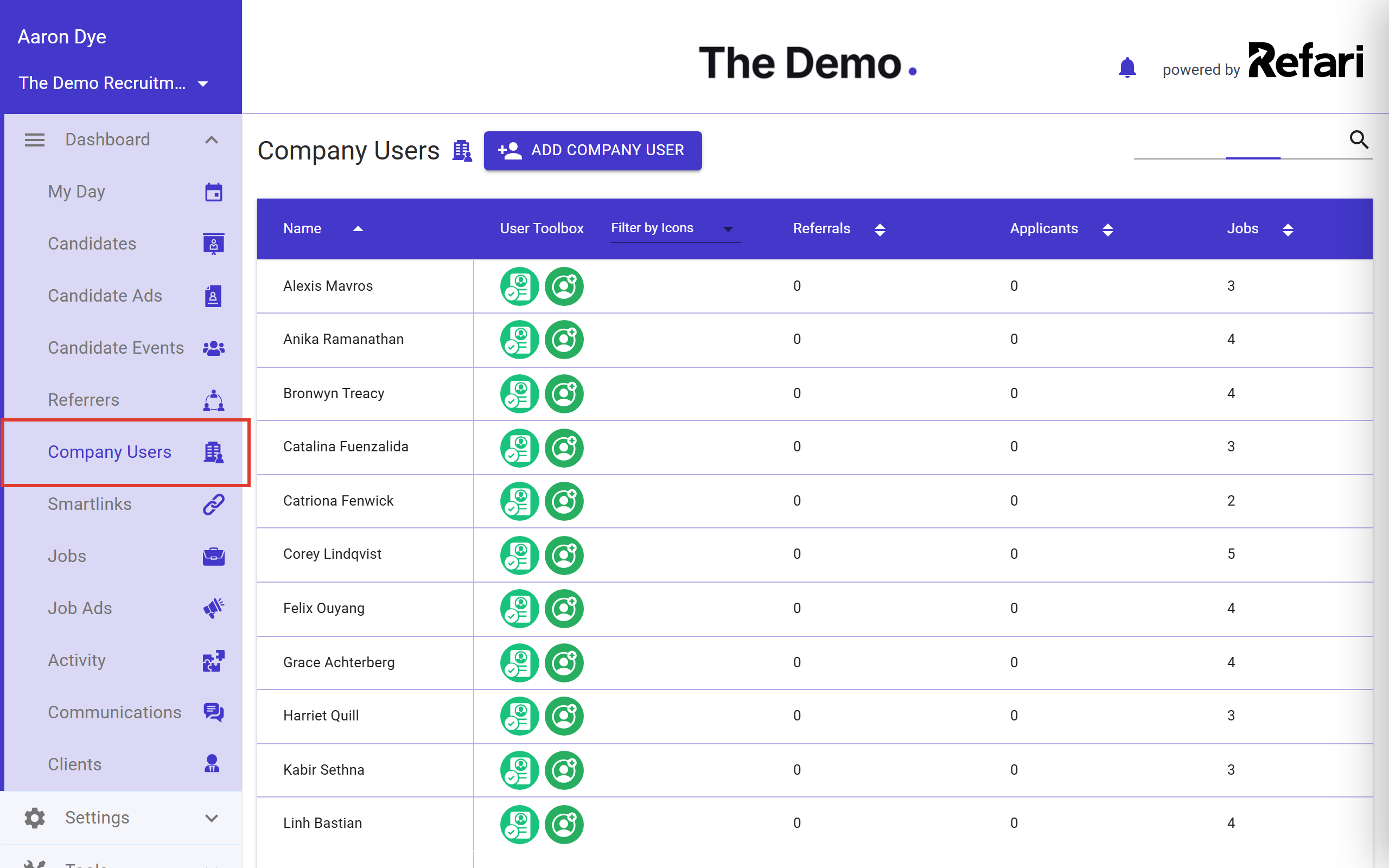
Step 2: Sign in as the team member
Click the name of the team member whose profile you want to update. A panel slides in from the right showing their details. Scroll to the bottom of the panel and click "Sign in as".
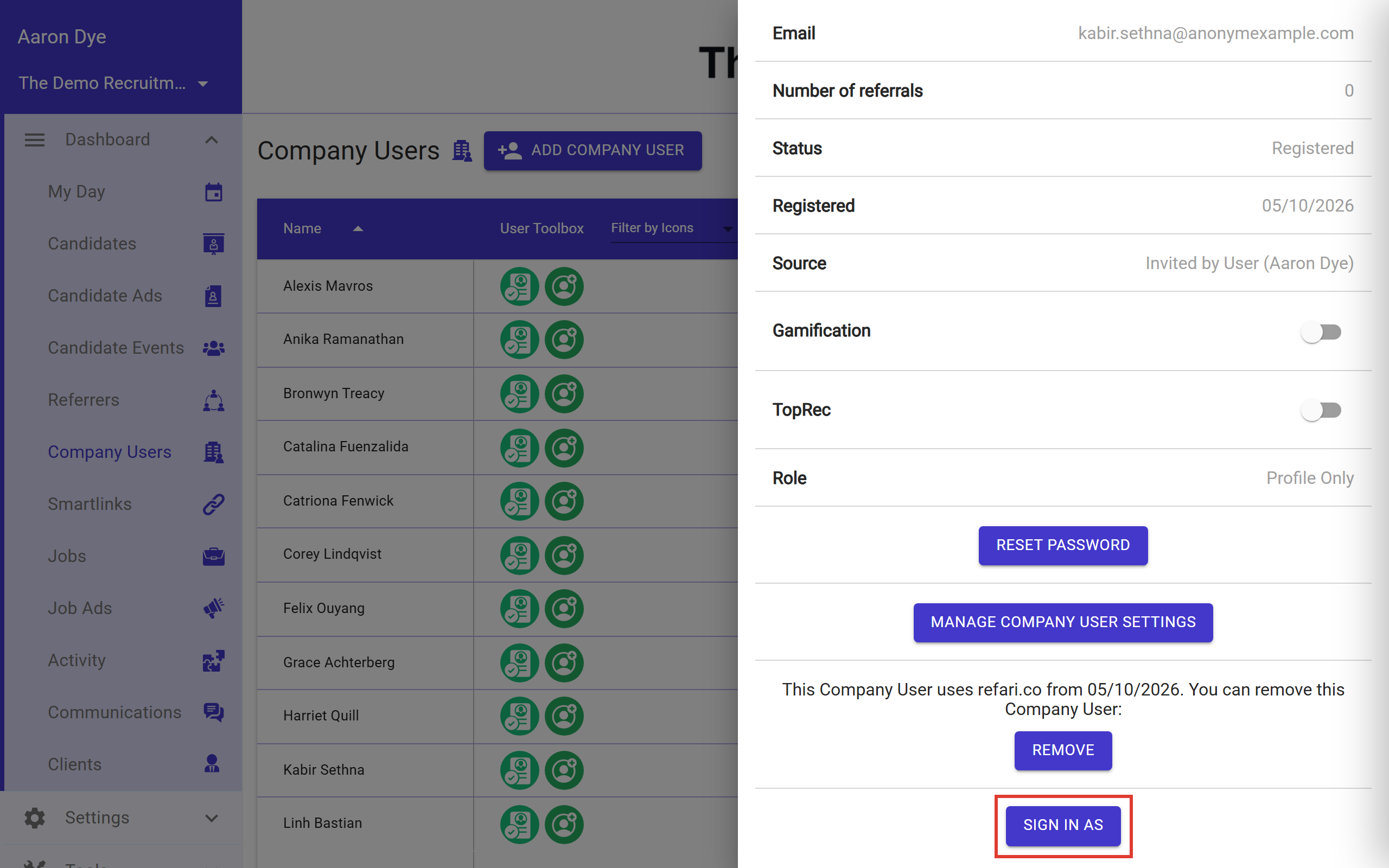
Step 3: Open their Account Profile
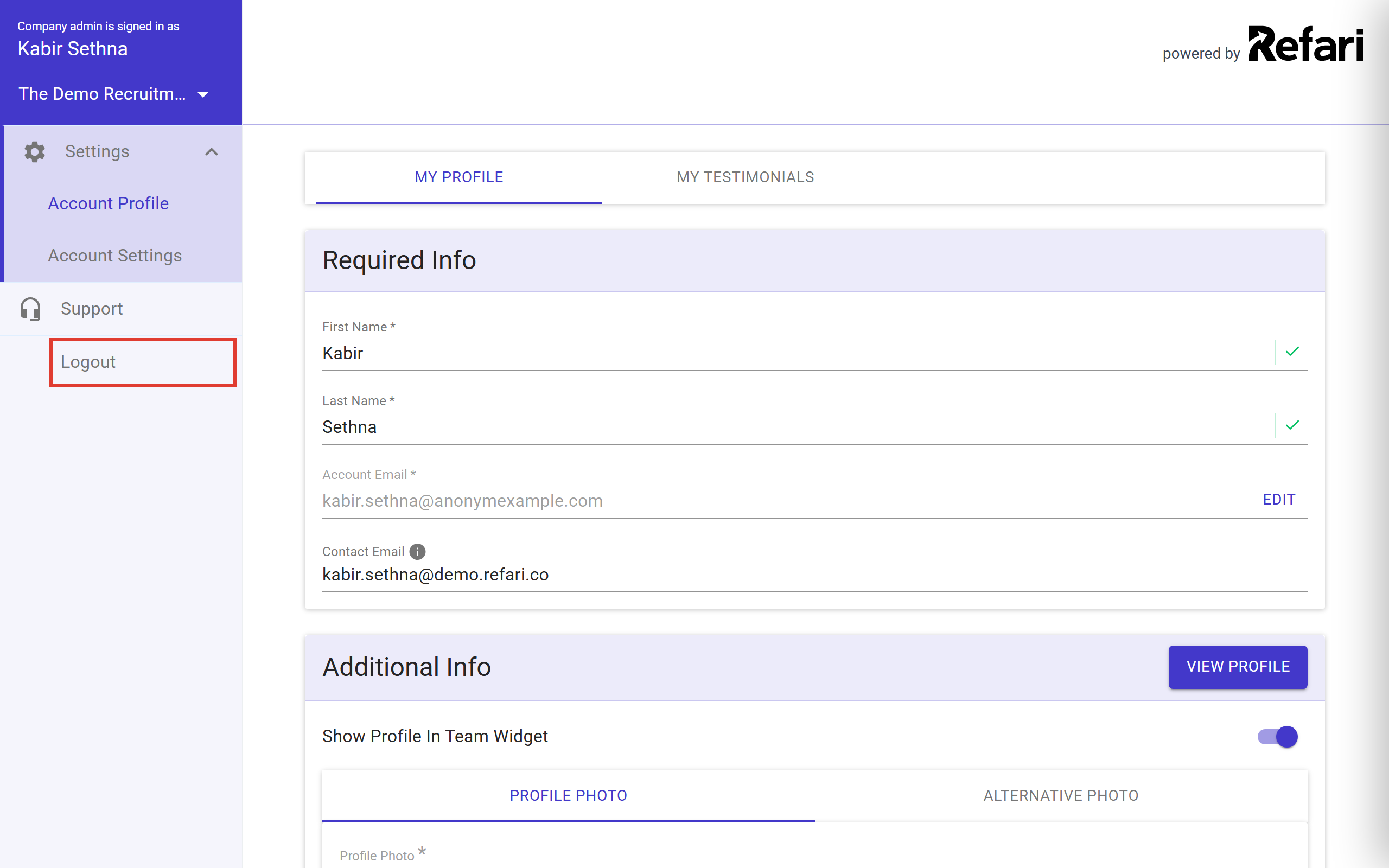
You are now acting as that team member. The top of the sidebar confirms it, reading "Company admin is signed in as" followed by their name, and anything you change from here applies to their profile rather than your own. Go to "Settings > Account Profile".
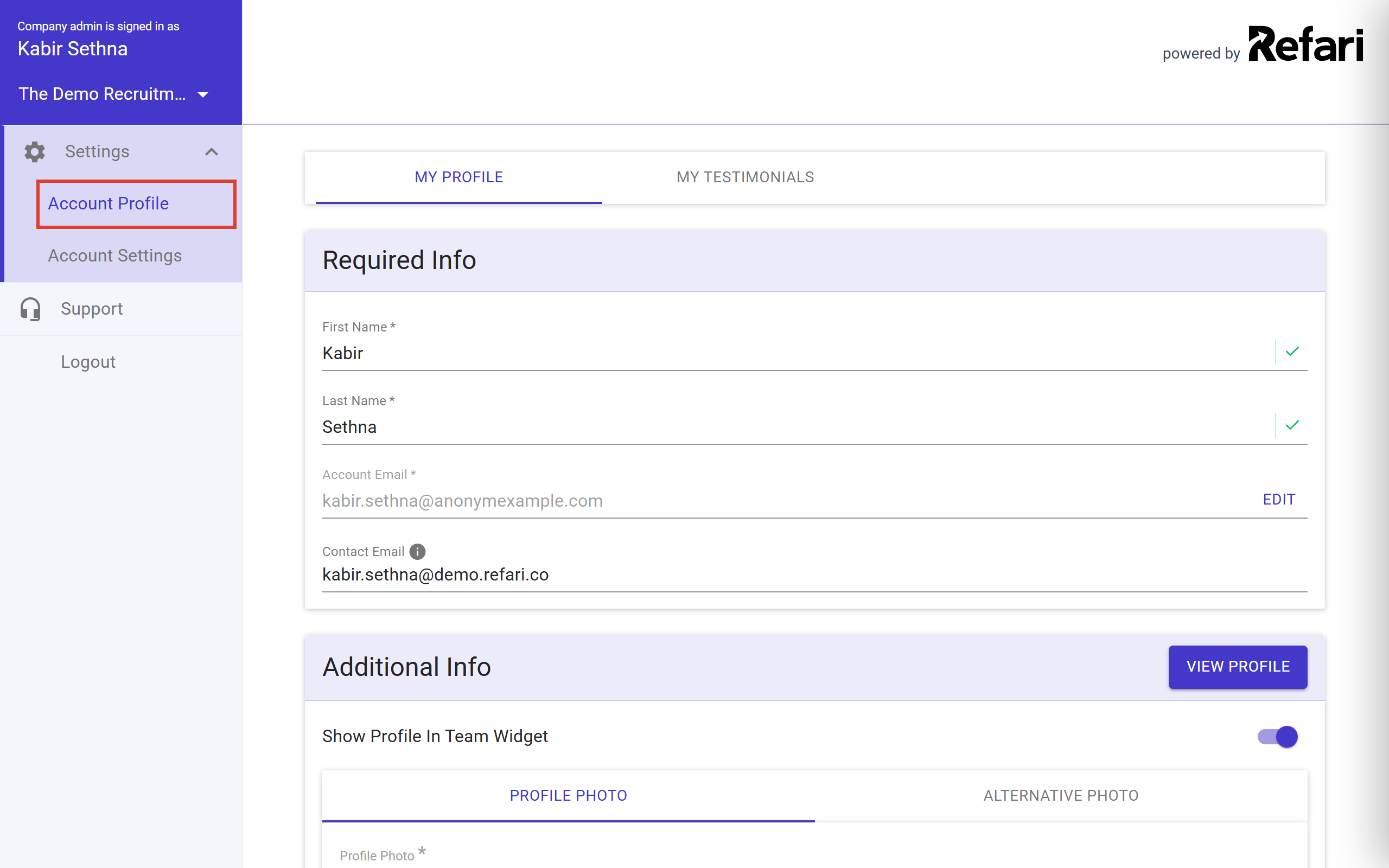
Step 4: Make your changes, then click Apply Changes
Edit their profile exactly as you would edit your own. You can update their photo, position, location, bio (the "About" field), personal interests, Specialities (the recruiter tags used to sort and filter your team on your website) and contact details.
As soon as you make a change, a bar appears at the bottom of the page with two buttons:
- Apply Changes saves everything you have changed.
- Revert discards your edits and puts the profile back to how it was last saved.
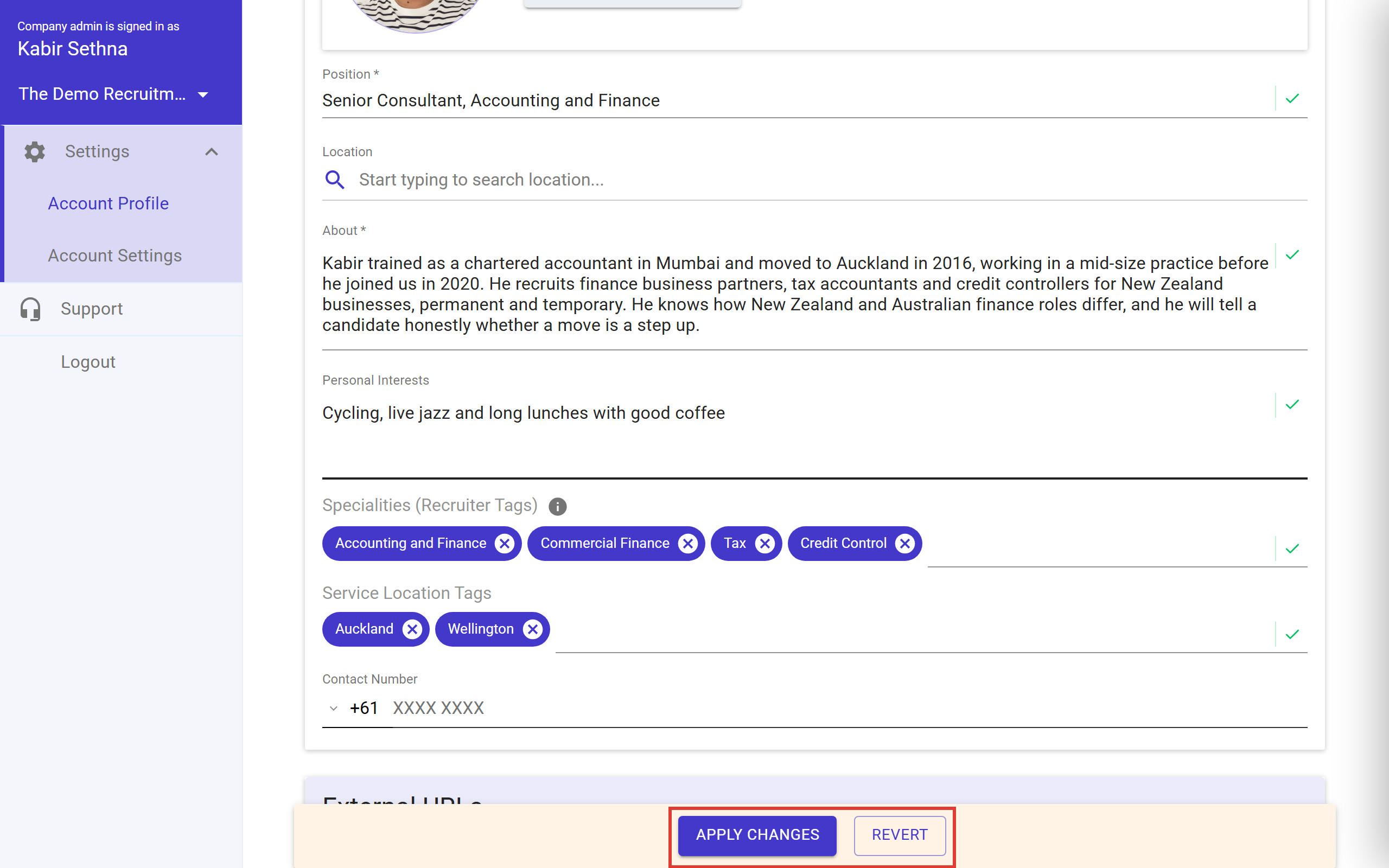
Once you have finished, click Apply Changes. A confirmation reading "Your profile was successfully updated!" appears in the bottom-right corner of the screen.
Note: Nothing is saved until you click Apply Changes. Text fields such as Position, About and Personal Interests pick up your edit when you click out of the field, so the bar appears once you move on from the field you are typing in. If you leave the page before applying, Refari asks you to confirm, and confirming discards your edits.
Idea: To check your changes have saved, refresh the page once you have clicked Apply Changes. The profile reloads from Refari, so what you see is exactly what has been stored.
Step 5: Log out of their profile
When you are done, click "Logout" in the sidebar. This signs you out of the team member's profile only and takes you straight back to your own account, ready to update the next team member if you need to.
Final Notes
Always log out once you have finished. While you are signed in as a team member, any further changes you make apply to their profile rather than your own.
Other articles you might be interested in: How to set up your profile | Adding or Removing Team Members from Widgets Without Deleting Them | The Meet The Team Widget: Recruiter Tags


Was this article helpful?
That’s Great!
Thank you for your feedback
Sorry! We couldn't be helpful
Thank you for your feedback
Feedback sent
We appreciate your effort and will try to fix the article