This article is an overview of the AI Settings tab of your Company Settings. The tab holds two AI features that use AI to enrich your job data: one tags your jobs with the skills they call for (which sharpens matching and adds skill tags to the role), and the other adds the fields LinkedIn needs. A small fee applies when they run. Each feature has its own detailed guide, linked below.
You will find the tab under Settings > Company Settings > AI Settings (the last of the five tabs along the top).
Note: Only a Company Admin can change these settings. A Company Manager can open the tab and see the toggles but they are read-only, and other team members do not see the tab at all. Nothing is saved until you click Apply Changes.A small fee applies per use
Next to the AI Settings heading is an information icon explaining the commercial side of these features: "Turning on these AI features will enable advanced tagging. A small fee applies per use, but this cost is minimal." In other words, switching them on lets Refari run AI tagging on your job adverts, with a small charge each time that tagging runs. Your Refari contact can let you know what it works out to for your usage.
The two AI features
The first, Job Ad Skill Tagging, uses AI to read each job advert and tag it with the skills the role calls for, which improves matching and search. The full guide covers how it works, why to turn it on, and the cost: Automatic job advert skill tagging with AI ↗.
The second, LinkedIn Job Wrapping Tagging, adds the LinkedIn-specific fields (Workplace Type and Experience Level) that LinkedIn expects when it ingests your jobs. It is explained in full here: LinkedIn job wrapping tagging ↗.
How the two toggles depend on each other
LinkedIn Job Wrapping Tagging is a sub-option of Job Ad Skill Tagging, so the two are linked. When Job Ad Skill Tagging is off, the tab shows only that single toggle and the LinkedIn one is hidden entirely.
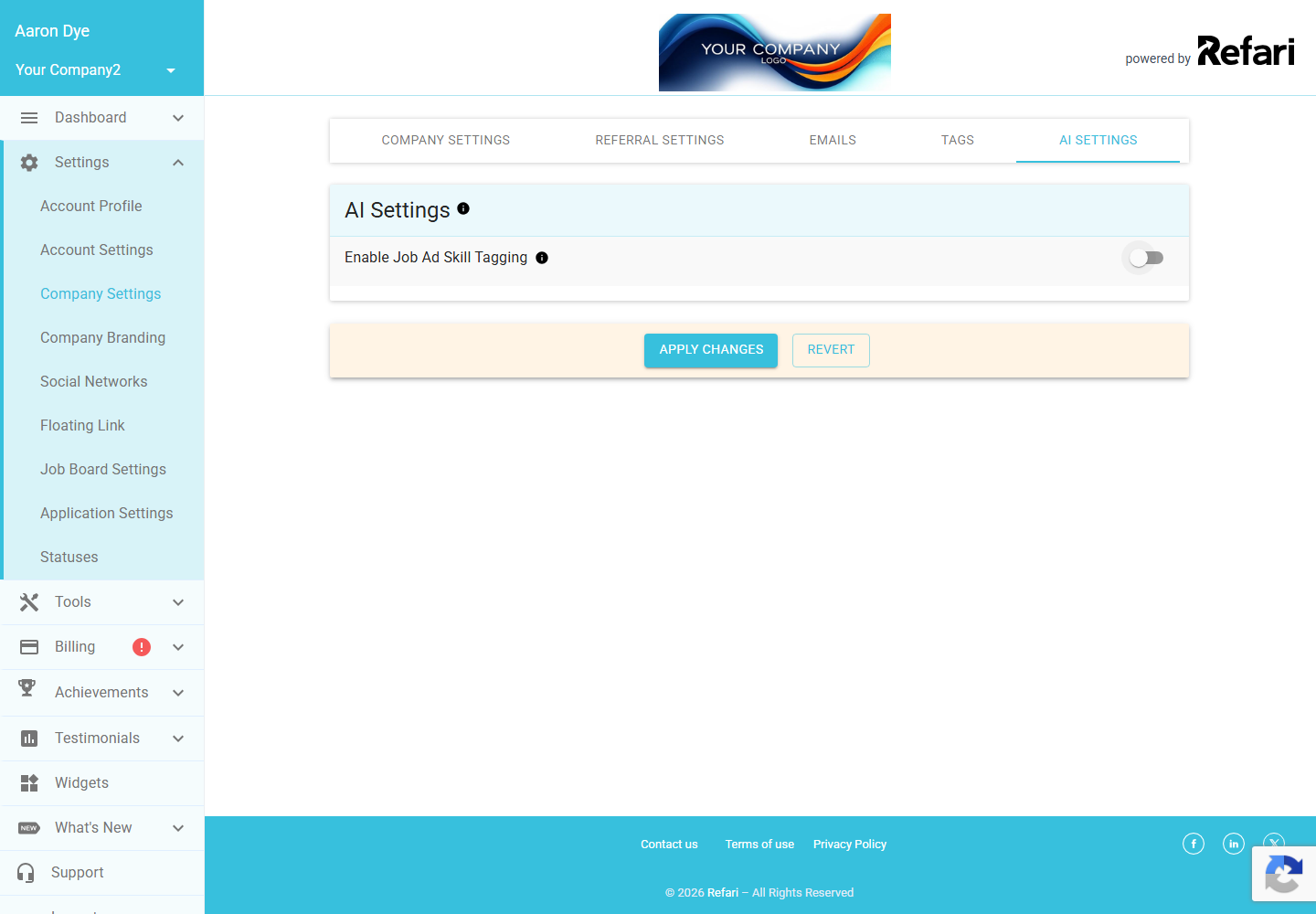
As soon as you switch Job Ad Skill Tagging on, the second toggle, Enable LinkedIn Job Wrapping Tagging, appears beneath it, ready for you to turn on as well.
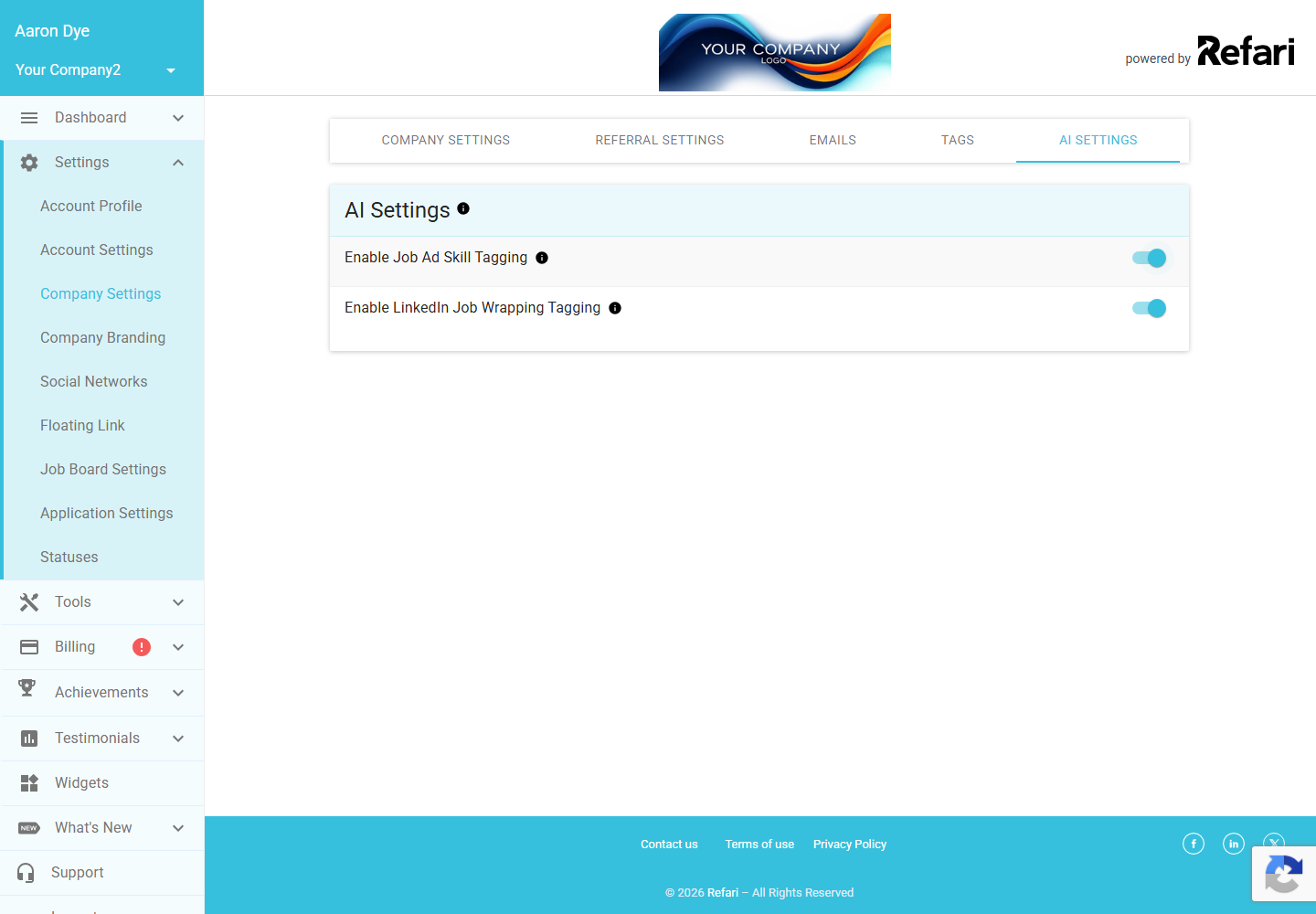
Because of this dependency, you cannot have LinkedIn Job Wrapping Tagging on without Job Ad Skill Tagging. If you later turn Job Ad Skill Tagging off, the LinkedIn toggle is switched off and hidden along with it.
Final Notes
Both features use AI to enrich your job data: skill tagging adds skills to your jobs and sharpens matching, while LinkedIn job wrapping tagging supplies the fields LinkedIn needs. A small per-use fee applies while they run, and neither takes effect until you click Apply Changes. For the detail on each, follow the two guides above.
Other articles you might be interested in: Automatic job advert skill tagging with AI | LinkedIn job wrapping tagging
Was this article helpful?
That’s Great!
Thank you for your feedback
Sorry! We couldn't be helpful
Thank you for your feedback
Feedback sent
We appreciate your effort and will try to fix the article